
User Manual
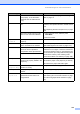
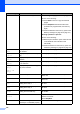
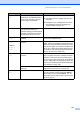
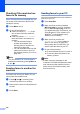
Table Of Contents
- USER’S GUIDE MFC-8460N/MFC-8860DN
- Approval Information and Compilation and Publication Notice
- Table of Contents
- Section I : General
- 1 General information
- Using the documentation
- Accessing the complete User’s Guide
- Viewing documentation
- Viewing documentation (Windows®)
- How to find Scanning instructions
- Software User's Guide:
- PaperPort® User's Guide:
- How to find Internet FAX instructions (MFC-8860DN only)
- Viewing Documentation (Macintosh®)
- How to find Scanning instructions
- Software User's Guide:
- Presto!® PageManager® User's Guide:
- How to find Internet FAX instructions (MFC-8860DN only)
- Viewing documentation
- Control panel overview
- 2 Loading documents and paper
- 3 General setup
- 4 Security features
- 1 General information
- Section II : Fax
- 5 Sending a fax
- How to fax
- Broadcasting
- Additional sending operations
- 6 Receiving a fax
- 7 Phone and external devices
- 8 Dialling and storing numbers
- 9 Remote fax options
- 10 Printing reports
- 11 Polling
- 5 Sending a fax
- Section III : Copy
- Section IV : Software
- Section V : Appendices
- A : Safety and Legal
- B : Options
- C : Troubleshooting and routine maintenance
- D : Menu and Features
- E : Specifications E
- F : Glossary
- Index
- brother IND

Troubleshooting and routine maintenance
107
Toner Life
End
The toner cartridge and drum unit
assembly is not installed properly,
or the toner cartridge is used up
and printing is not possible.
Do one of the following:
Re-install the toner cartridge and drum unit
assembly.
Replace the toner cartridge with a new one.
(See Replacing the toner cartridge (TN-
3145/TN-3185) on page 119.)
Toner Low If the LCD shows Toner Low, you
can still print; however, the
machine is telling you that the toner
cartridge is near the end of its life
and the toner will soon run out.
Order a new toner cartridge now.
Too Many
Trays
More than one optional tray is
installed.
The maximum number of optional trays is one.
Remove any additional trays.
Unable to
Init.
(Initialize)
Unable to
Print
The machine has a mechanical
problem.
Turn off the machine
’s power switch and then on
again. If the error message continues leave the
machine for several minutes and then try to print,
copy or scan again. (The machine can be turned
off for up to 4 days without losing faxes stored in
the memory. See Checking if the machine has
faxes in its memory on page 108.)
Unable to
Scan
The machine has a mechanical
problem.
Turn off the machine's power switch and then
turn it on again. If the error message continues
leave the machine for several minutes before
you try it again. (The machine can be turned off
for up to 4 days without losing faxes stored in the
memory. See Checking if the machine has faxes
in its memory on page 108.)
Document is too long for duplex
scanning.
Press Stop/Exit. Use a suitable size of paper for
duplex scanning. See Scan on page 146.
Wrong Paper
Size
Paper is not the correct size. Load the correct size of paper (A4, Letter, Legal
or Folio) and then set the Paper Size (Menu, 1,
3) and Tray Use in Fax Mode (Menu, 1, 7, 2).
See Paper Size on page 18 and Tray use in Fax
mode on page 19.
Error Message Cause Action