
User Manual
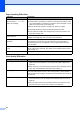
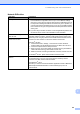
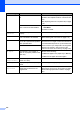
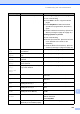
Table Of Contents
- USER'S GUIDE MFC-8460N/MFC-8860DN
- Approval Information and Compilation and Publication Notice
- Table of Contents
- General
- Fax
- Copy
- Software
- Appendices
- lndex

Troubleshooting and routine maintenance
94
C
Network Difficulties
Difficulties Suggestions
Cannot print over a wired Network. Make sure your machine is powered on and is on-line and in Ready mode.
Print the Network Configuration list to see your current Network settings.
(See How to print a report on page 63.) Reconnect the LAN cable to the hub
to verify that the cabling and network connections are good. If possible, try
connecting the machine to a different port on your hub using a different cable.
If the connections are good, the upper LED of the back panel of the machine
will be green.
If you are using a wireless connection or are having Network problems see
the Network User's Guide on the CD-ROM for more information.
The network scanning feature
does not work.
(For Windows
®
only) The firewall setting on your PC may be rejecting the
necessary network connection. Follow the instructions below to configure the
firewall. If you are using any other than the firewalls mentioned below, see the
instructions for that software or contact the software manufacturer.
<Windows
®
XP SP2>
1. Click the Start button, ‘Settings’, ‘Control Panel’ and then ‘Windows
Firewall’. Make sure that Windows Firewall on the ‘Basic’ tab is set to on.
2. Click the ‘Exceptions’ tab and ‘Add port’ button.
3. Enter any name, port number (54295 for network scanning and 54926 for
network PC-Fax receiving), select ‘UPD’ and click ‘OK’.
4. Make sure that the new setting is added and is checked, and then click ‘OK’.
For Windows
®
XP SP1, please visit the Brother Solutions Center.
The network PC-Fax Receive
feature does not work.
Your computer cannot find your
machine.
<For Windows
®
users>
The firewall setting on your PC may be rejecting the necessary network
connection. For detail, see the instruction above.
<For Macintosh
®
users>
Re-select your machine in the DeviceSelector application located in Macintosh
HD/Library/Printers/Brother/Utilities or from the Model pop-up menu of
ControlCenter2.