
User Manual
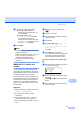

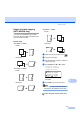
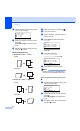
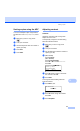

Table Of Contents
- USER’S GUIDE MFC-8460N/MFC-8860DN
- Approval Information and Compilation and Publication Notice
- Table of Contents
- Section I: General
- General information
- Using the documentation
- Accessing the complete User’s Guide
- Viewing documentation
- Viewing documentation (Windows®)
- How to find Scanning instructions
- Software User's Guide:
- PaperPort® User's Guide:
- How to find Internet FAX instructions (MFC-8860DN only)
- Viewing Documentation (Macintosh®)
- How to find Scanning instructions
- Software User's Guide:
- Presto!® PageManager® User's Guide:
- How to find Internet FAX instructions (MFC-8860DN only)
- Viewing documentation
- Control panel overview
- Loading documents and paper
- General setup
- Security features
- General information
- Section II: Fax
- Sending a fax
- How to fax
- Broadcasting
- Additional sending operations
- Receiving a fax
- Phone and external devices
- Phone line services
- Telephone Service for Australia
- Telephone Service for New Zealand
- Telephone Service for Some Countries
- Connecting an external TAD
- External and extension phones
- Dialling and storing numbers
- Remote fax options
- Printing reports
- Polling
- Sending a fax
- Section III: Copy
- Section IV: Software
- Section V: Appendices
- A Safety and Legal
- B Options
- C Troubleshooting and routine maintenance
- D Menu and Features
- E Specifications E
- F Glossary
- Index
- brother ARL/ASA/NZ

Making copies
85
12
Sorting copies using the ADF12
You can sort multiple copies. Pages will be
stacked in the order 1 2 3, 1 2 3, 1 2 3, and so
on.
a Make sure you are in Copy mode
.
b Load your document.
c Use the dial pad to enter the number of
copies (up to 99).
d Press Sort.
e Press Start.
Adjusting contrast 12
Contrast 12
Adjust the contrast to help an image look
sharper and more vivid.
To temporarily change the contrast setting,
follow the instruction below:
a Make sure you are in Copy mode
.
b Load your document.
c Use the dial pad to enter the number of
copies (up to 99).
d (MFC-8460N)
Press Contrast.
(MFC-8860DN)
Press Contrast/Quality.
Press a or b to choose Contrast.
Press OK.
Contrast:-nnonn+c
Quality :Auto
Enlg/Red:100%
Tray :MP>T1
Select d c & OK
e Press d or c to increase or decrease
the contrast. Press OK.
f Press Start.
To change the default setting follow the
instructions below:
a Press Menu, 3, 3.
33.Contrast
-nnonn
+
Select d c & OK
b Press d or c to change the contrast.
Press OK.
c Press Stop/Exit.