
User Manual
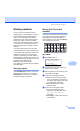
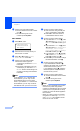


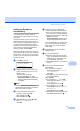
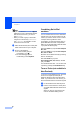
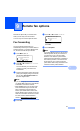
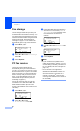
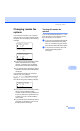
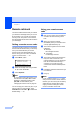
Table Of Contents
- USER’S GUIDE MFC-8460N/MFC-8860DN
- Approval Information and Compilation and Publication Notice
- Table of Contents
- Section I: General
- General information
- Using the documentation
- Accessing the complete User’s Guide
- Viewing documentation
- Viewing documentation (Windows®)
- How to find Scanning instructions
- Software User's Guide:
- PaperPort® User's Guide:
- How to find Internet FAX instructions (MFC-8860DN only)
- Viewing Documentation (Macintosh®)
- How to find Scanning instructions
- Software User's Guide:
- Presto!® PageManager® User's Guide:
- How to find Internet FAX instructions (MFC-8860DN only)
- Viewing documentation
- Control panel overview
- Loading documents and paper
- General setup
- Security features
- General information
- Section II: Fax
- Sending a fax
- How to fax
- Broadcasting
- Additional sending operations
- Receiving a fax
- Phone and external devices
- Phone line services
- Telephone Service for Australia
- Telephone Service for New Zealand
- Telephone Service for Some Countries
- Connecting an external TAD
- External and extension phones
- Dialling and storing numbers
- Remote fax options
- Printing reports
- Polling
- Sending a fax
- Section III: Copy
- Section IV: Software
- Section V: Appendices
- A Safety and Legal
- B Options
- C Troubleshooting and routine maintenance
- D Menu and Features
- E Specifications E
- F Glossary
- Index
- brother ARL/ASA/NZ

Chapter 9
68
Fax storage 9
The fax storage feature lets you store your
received faxes in the machine’s memory. You
can retrieve stored fax messages from a fax
machine at another location using the remote
retrieval commands, see Retrieving fax
messages on page 71. Your machine will
automatically print a copy of the stored fax.
a Press Menu, 2, 5, 1.
25.Remote Fax Opt
1.Forward/Store
a Off
b Fax Forward
Select ab & OK
b Press a or b to select Fax Storage.
Press OK.
c Press Stop/Exit.
PC fax receive 9
The PC fax receive feature lets you
automatically send your received faxes to
your PC. You can then use your PC to view
and store these faxes. If your PC is off when
faxes are received, your machine will store
them in memory until your PC is turned on
again. If you select Backup Print On, the
machine will also print the fax. (See Fax
forwarding on page 67.)
For PC fax receive to work you must be
connected to a PC that has the MFL-Pro
Suite software installed. (See PC-FAX
receive in the Software User’s Guide on the
CD-ROM.)
a Press Menu, 2, 5, 1.
25.Remote Fax Opt
1.Forward/Store
a Off
b Fax Forward
Select ab & OK
b Press a or b to select
PC Fax Receive. Press OK.
c Press a or b to select the interface to
which the PC is connected (<USB> or
<Parallel>), or your computer name
if the machine is connected to a
network.
25.Remote Fax Opt
1.Forward/Store
a
<USB>
b
<Parallel>
Select ab & OK
d Press a or b to select On or Off. Press
OK.
25.Remote Fax Opt
Backup Print
a
Off
b
On
Select ab & OK
e Press Stop/Exit.
Note
• If your machine has a problem and is
unable to print faxes in memory, you can
use this setting to transfer your faxes to a
PC. (For details, see Error messages on
page 117.)
• PC fax receive is not supported in
Windows NT
®
Workstation Version 4.0
when the machine is connected on a
network or in Mac OS
®
. (See PC FAX
receiving in the Software User’s Guide on
the CD-ROM.)