
User Manual
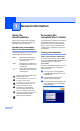
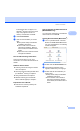

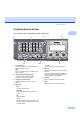
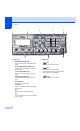


Table Of Contents
- USER’S GUIDE MFC-8460N/MFC-8860DN
- Approval Information and Compilation and Publication Notice
- Table of Contents
- Section I: General
- General information
- Using the documentation
- Accessing the complete User’s Guide
- Viewing documentation
- Viewing documentation (Windows®)
- How to find Scanning instructions
- Software User's Guide:
- PaperPort® User's Guide:
- How to find Internet FAX instructions (MFC-8860DN only)
- Viewing Documentation (Macintosh®)
- How to find Scanning instructions
- Software User's Guide:
- Presto!® PageManager® User's Guide:
- How to find Internet FAX instructions (MFC-8860DN only)
- Viewing documentation
- Control panel overview
- Loading documents and paper
- General setup
- Security features
- General information
- Section II: Fax
- Sending a fax
- How to fax
- Broadcasting
- Additional sending operations
- Receiving a fax
- Phone and external devices
- Phone line services
- Telephone Service for Australia
- Telephone Service for New Zealand
- Telephone Service for Some Countries
- Connecting an external TAD
- External and extension phones
- Dialling and storing numbers
- Remote fax options
- Printing reports
- Polling
- Sending a fax
- Section III: Copy
- Section IV: Software
- Section V: Appendices
- A Safety and Legal
- B Options
- C Troubleshooting and routine maintenance
- D Menu and Features
- E Specifications E
- F Glossary
- Index
- brother ARL/ASA/NZ

General information
5
1
Control panel overview 1
MFC-8460N and MFC-8860DN have similar control keys.
1 One-Touch keys
These 20 keys give you instant access to 40
previously stored numbers.
Shift
Lets you access One-Touch numbers 21 to 40
when held down.
2 Status LED (light emitting diode)
The LED will flash and change colour
depending on the machine’s status.
3 LCD (liquid crystal display)
Displays messages to help you use your
machine.
4 Menu keys:
Menu
Accesses the main menu.
Clear/Back
Deletes entered data or lets you exit the
menu.
OK
Selects a setting.
d or c
Scrolls backwards or forwards through menu
selections. Changes the volume when in fax
or standby mode.
a or b
Scrolls through the menus and options.
5Dialpad
Used to enter telephone and fax numbers or to
enter text.
The # key temporarily switches the dialling
mode from Pulse to Tone during a telephone
call (not available in New Zealand).
6Stop/Exit
Stops an operation or exits from a menu.
7Start
Starts sending a fax, coping or scanning.
12 3
91011