
User Manual
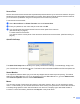
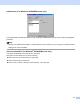
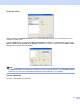
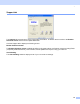
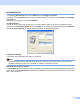
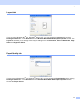
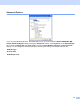
Table Of Contents
- SOFTWARE USER’S GUIDE MFC-8460N MFC-8860DN DCP-8060
- Table of Contents
- Section I Windows®
- 1 Printing
- Using the Brother printer driver
- Printing a document
- Duplex (two-sided) printing
- Simultaneous scanning, printing and faxing
- Printer operation key
- Status Monitor
- Printer driver settings (For Windows®)
- How to access the printer driver settings (For Windows®)
- Features in the Windows® printer driver
- Features in BR-Script3 (Post Script® 3™ language emulation) Printer compatible driver
- 2 Scanning
- 3 ControlCenter2
- 4 Network Scanning (For models with built-in network support)
- 5 Remote Setup (Not available for DCP model)
- 6 Brother PC-FAX Software (Not available for DCP model)
- PC-FAX sending
- Speed Dial setup
- Registering an address in a Speed Dial button
- Clearing a Speed Dial button
- Brother Address Book
- Setting up a member in the Address Book
- Setting up a group for broadcasting
- Editing member information
- Deleting a member or group
- Exporting the Address Book
- Importing to the Address Book
- Sending a file as a PC-FAX using the Facsimile style user interface
- Sending a file as a PC-FAX using the Simple style user interface
- PC-FAX receiving
- 1 Printing
- Section II Apple® Macintosh®
- 7 Printing and Faxing
- 8 Scanning
- 9 ControlCenter2
- 10 Network Scanning (Not available for DCP- 8060)
- 11 Remote Setup (Not available for DCP model)
- Index
- Brother ENG

1.
25
Secure Print 1
Secure documents are documents that are password protected when they are sent to the machine. Only the
people who know the password will be able to print them. Since the documents are secured at the machine,
you must enter the password using the control panel of the machine to print them.
To send a secured document:
a Select Secure Print from Printer Function and check Secure Print.
b Enter your password, user name and job name and click OK.
c You must print the secured documents from the control panel of the machine.
(See Secure Key on page 6.)
To delete a secured document:
You need to use the control panel of the machine to delete a secured document. (See Secure Key on
page 6.)
Quick Print Setup 1
The Quick Print Setup feature allows you to quickly choose driver settings. To view settings, simply click
your mouse button on the task tray icon. This feature can be set to On or Off from the Device Options list.
Status Monitor 1
This reports the machine status (any error that may happen with the machine) when printing. The default
setting for the Status Monitor is off. If you would like to turn the Status Monitor on, go to the Advanced tab,
choose Device Options and then choose Status Monitor.
Macro 1
You can save a page of a document as a macro to the printer memory. Also, you can execute the saved
macro - in other words, you can use the saved macro as an overlay on any document. This will save time and
increase printing speed for often used information such as forms, company logos, letterhead formats or
invoices. For more information, please see the Help text in the printer driver.