
User Manual
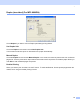
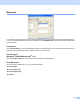
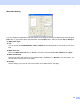
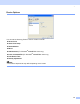
Table Of Contents
- SOFTWARE USER’S GUIDE MFC-8460N MFC-8860DN DCP-8060
- Table of Contents
- Section I Windows®
- 1 Printing
- Using the Brother printer driver
- Printing a document
- Duplex (two-sided) printing
- Simultaneous scanning, printing and faxing
- Printer operation key
- Status Monitor
- Printer driver settings (For Windows®)
- How to access the printer driver settings (For Windows®)
- Features in the Windows® printer driver
- Features in BR-Script3 (Post Script® 3™ language emulation) Printer compatible driver
- 2 Scanning
- 3 ControlCenter2
- 4 Network Scanning (For models with built-in network support)
- 5 Remote Setup (Not available for DCP model)
- 6 Brother PC-FAX Software (Not available for DCP model)
- PC-FAX sending
- Speed Dial setup
- Registering an address in a Speed Dial button
- Clearing a Speed Dial button
- Brother Address Book
- Setting up a member in the Address Book
- Setting up a group for broadcasting
- Editing member information
- Deleting a member or group
- Exporting the Address Book
- Importing to the Address Book
- Sending a file as a PC-FAX using the Facsimile style user interface
- Sending a file as a PC-FAX using the Simple style user interface
- PC-FAX receiving
- 1 Printing
- Section II Apple® Macintosh®
- 7 Printing and Faxing
- 8 Scanning
- 9 ControlCenter2
- 10 Network Scanning (Not available for DCP- 8060)
- 11 Remote Setup (Not available for DCP model)
- Index
- Brother ENG

1.
17
Print Quality 1
Resolution 1
You can change the resolution as follows:
1200 dpi
HQ1200
600 dpi
300 dpi
Note
If you use the high quality 1200 dpi setting, the print speed will be slower.
Toner Save Mode 1
You can conserve toner using this feature. When you set Toner Save Mode to On, print appears lighter. The
default setting is Off.
Note
We do not recommend Toner Save Mode for printing Photo or Greyscale images.
Print Setting 1
You can manually change the Print settings.
Auto
Selecting the Auto (Recommended) button will allow automatic printing with the most suitable print
settings for your print job.
Manual
You can change the settings manually by choosing Manual and clicking the Setting... button. You can set
brightness, contrast and other settings.