
User Manual
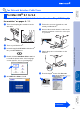
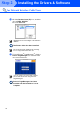
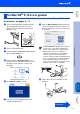
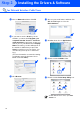
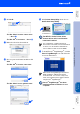
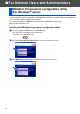
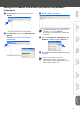

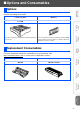
Table Of Contents
- Quick Setup Guide MFC-8460N/MFC-8860DN
- Getting Started
- Table of Contents
- Step1 Setting Up the machine
- 1 Install the Drum Unit Assembly
- 2 Load Paper in the Paper Tray
- 3 Release the Scanner Lock
- 4 Install the Power Cord and Phone Line
- 5 Setting the Date and Time
- 6 Setting your Station ID
- 7 Selecting a Receive Mode
- 8 Tone and Pulse dialing mode (Canada only)
- 9 Selecting Your Language (Canada only)
- 10 Setting the LCD Contrast
- 11 Sending in the Product Registration and Test Sheet (USA Only)
- Step2 Installing the Drivers & Software
- Supplied CD-ROM “MFL-Pro Suite”
- For USB Interface Cable Users (For Windows® 98/98SE/Me/2000 Professional/XP/XP Professional x64 Edition)
- For Parallel Interface Cable Users (For Windows® 98/98SE/Me/2000 Professional/XP/XP Professional x64 Edition)
- For Windows NT® Workstation Version 4.0 Users
- For Network Interface Cable Users (For Windows® 98/98SE/Me/NT/2000 Professional/XP/XP Professional x64 Edition)
- For USB Interface Cable Users
- For Network Interface Cable Users
- For Network Users and Administrators
- Options and Consumables
- brother USA/CAN

31
Make sure that you have finished the instructions from Step 1 “Setting Up
the machine” on pages 4 - 11.
1
Turn off and unplug the machine from the
AC outlet and disconnect it from your
Macintosh
®
if you already connected an
interface cable.
2
Turn on your Macintosh
®
.
3
Insert the supplied CD-ROM for Macintosh
®
into your CD-ROM drive.
4
Double-click the Start Here OSX icon to
install the drivers and MFL-Pro Suite. If the
language screen appears, choose your
language.
5
Click MFL-Pro Suite to install.
6
Follow the on-screen instructions, and
restart your Macintosh
®
.
7
After the DeviceSelector window appears,
connect the network interface cable to the
machine, and then connect it to a free port
on your hub.
8
Plug in the power cord and turn on the
machine.
For Mac OS
®
X 10.2.4 or greater
The DeviceSelector window will not appear if
you have also connected a USB interface
cable to the machine
before restarting your
Macintosh
®
or if you are overwriting a
previously installed version of the Brother
software. If you encounter this problem
continue with the installation skipping Steps 9
to 12. You should select your Brother machine
from the Model pull-down list in the main
screen of ControlCenter2. (For details, see the
Software Use’s Guide on CD-ROM.)
Continued ...
Installing the Drivers & Software
Setting Up
the machine
Macintosh
®
Network
Network
Administrators