
User Manual
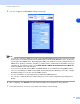
Table Of Contents
- Network USER’S GUIDE
- Table of contents
- 1 Introduction
- 2 Configuring your network printer
- Overview
- IP addresses, subnet masks and gateways
- Setting the IP address and subnet mask
- Changing the print server settings
- 3 Control Panel Setup
- LAN Main Setup Menu
- TCP/IP
- Ethernet
- Setup Internet (MFC-8860DN only)
- Setup Mail RX (MFC-8860DN only)
- Setup Mail TX (MFC-8860DN only)
- Setup Relay (MFC-8860DN only)
- Scan to E-mail (E-mail server) (MFC-8860DN only)
- Scan to FTP
- Fax to Server (MFC-8860DN only)
- Time Zone (MFC-8860DN only)
- Restoring the network settings to factory default
- Printing the Network Configuration List
- LAN Main Setup Menu
- 4 Network printing from Windows® basic TCP/IP Peer-to-Peer printing
- 5 Internet printing for Windows®
- Overview
- Quick Tips
- Brother Internet Print General Information
- Brother Internet Print: Configuring the Brother Print Server
- Brother Internet Print: Using the BRAdmin Professional utility to Configure the Print Server
- Brother Internet Print: Using a Web Browser to Configure the Print Server
- Brother Internet Print: Installing the BIP software on Windows® 98/Me/2000/XP and Windows NT® 4.0
- Adding a Second Brother Internet Port
- Windows® 2000/XP and Windows Vista® IPP printing
- Specifying a different URL
- Other sources of information
- Overview
- 6 Network printing from a Macintosh®
- 7 Web Based Management
- 8 LDAP Operation (MFC-8860DN only)
- 9 Internet Fax (MFC-8860DN only)
- Overview
- Getting Connected
- Control Panel Key Functions
- Sending an Internet Fax
- Manually Entering Text
- Receiving E-mail or Internet Fax
- Receiving an Internet Fax to your computer
- Forwarding Received E-mail and Fax Messages
- Using E-mail notification with user authentication
- Relay Broadcasting
- TX Verification Mail
- Setup Mail (TX)
- Setup Mail (RX)
- Error mail
- Important information on Internet Fax
- Overview
- 10 Brother Internet Fax Printing Software (MFC-8860DN only)
- 11 Troubleshooting
- Appendix A
- Using services
- Other ways to set the IP address (for advanced users and Administrators)
- Using DHCP to configure the IP address
- Using BOOTP to configure the IP address
- Using RARP to configure the IP address
- Using APIPA to configure the IP address
- Using ARP to configure the IP address
- Using the TELNET console to configure the IP address
- Using the Brother Web BRAdmin server software for IIS* to configure the IP address
- Installation when using a Network Print Queue or Share (printer driver only)
- Multi-function Print Server specifications
- Function Table and Default Factory Settings
- Entering Text
- Index

Web Based Management
55
7
Using E-mail notification with user authentication
To use the E-mail notification function via a secure SMTP server that requires user authentication, you need
to use POP before SMTP or SMTP-AUTH method. These methods prevent an unauthorized user from
accessing the mail server. You can use Web Based Management (web browser), BRAdmin Professional or
Web BRAdmin to configure these settings.
Note
• If the SMTP Server Authentication Method selection menu does not appear on your Web Based
Management web page, you need to download the latest firmware from http://solutions.brother.com/
.
• To use the E-mail notification function with BRAdmin Professional or Web BRAdmin, please download
the latest version of firmware from http://solutions.brother.com/
.
• You need to match the settings of POP3/SMTP authentication with one of the E-mail servers. Contact
your network administrator or your internet service provider about the configuration before using.
How to configure the POP3/SMTP settings using Web Based Management (web browser).
1
Start your web browser.
2
Type “http://printer’s IP address/” into your browser (where “printer’s IP address” is the printer’s IP
address or the node name.).
■ For example:
http://192.168.1.2/ (if the printer’s IP address is 192.168.1.2.)
http://BRN123456/ (if the printer’s node name is BRN123456.)
Note
If you have edited the hosts file on your computer or are using Domain Name System, you can also enter the
DNS name of the print server. As the print server supports TCP/IP and NetBIOS names, you can also enter
the NetBIOS name of the print server. The NetBIOS name can be seen in the Network Configuration List. To
learn how to print the Network Configuration List, see Printing the Network Configuration List on page 31. The
NetBIOS name assigned is the first 15 characters of the node name and by default it will appear as
“BRN_xxxxxx” where “xxxxxx” is the last six digits of the Ethernet address.
3
Click Network Configuration.
4
Click Configure POP3/SMTP.