
User Manual
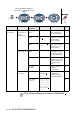
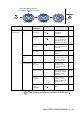
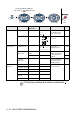

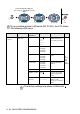
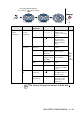

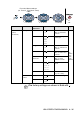

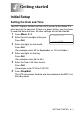
Table Of Contents
- USER'S GUIDE MFC-8440 MFC-8840D
- APPROVAL INFORMATION
- Compilation and Publication Notice
- "EC"Declararion of Conformity
- Safety precautions
- Choosing a location
- Quick Reference Guide
- Table of Contents
- 1 Introduction
- 2 Paper
- 3 On-screen programming
- 4 Getting started
- Initial Setup
- General Setup
- Setting the Mode Timer
- Setting the Paper Type
- Setting the Paper Size
- Setting the Ring Volume
- Setting the Beeper Volume
- Setting the Speaker Volume
- Turning on Automatic Daylight Savings Time
- Toner Save
- Sleep Time
- Turning off the Scanner Lamp
- Power Save
- Setting the Tray Use for Copy mode
- Setting the Tray Use for Fax mode
- Setting the LCD Contrast
- Initial Setup depending on Your Country
- 5 Setup Receive
- 6 Setup Send
- How to Fax
- Basic sending operations
- Advanced sending operations
- 7 Auto Dial numbers and dialling options
- 8 Remote Fax Options
- 9 Printing reports
- 10 Making copies
- 11 Using the MFC as a printer
- 12 Printer driver settings
- 13 How to scan using Windows®
- Scanning a document
- Scanning a document (For Windows® XP only)
- Using the scan key (For USB or Parallel interface cable users)
- Using ScanSoft® PaperPort® and OmniPage® OCR
- 14 Using the Brother Control Center
- 15 Using the Windows®-Based Brother SmartUI Control Center
- Brother SmartUI Control Center
- Brother Control Center features
- Hardware Section: Changing the Scan to button configuration
- Software Section
- Scan to File
- Scan to E-mail
- Scan to OCR (Word Processing program)
- Scan to Graphics application (example: Microsoft Paint)
- Fax setting (PC-Fax using the Brother Fax Driver)
- Custom: User-defined buttons
- 16 Using MFC Remote Setup
- 17 Using Brother PC-FAX software
- PC-FAX sending
- Speed-Dial setup
- The Address Book
- Setting up a Member in the Address Book
- Setting up a Group for Broadcasting
- Editing Member information
- Deleting a Member or Group
- Exporting the Address Book
- Importing to the Address Book
- Setting up a Cover Page
- You can enter information in each field
- Sending a file as a PC-FAX using the Facsimile style
- Sending a file as a PC-FAX using the Simple style
- Setting up PC-FAX receiving (Windows® 98/98SE/Me/2000 Professional and Windows NT® WS 4.0 only)
- Receiving a fax into the PC (Windows® XP only)
- 18 Using your MFC with a Macintosh®
- Setting up your USB-equipped Apple® Macintosh®
- Using the Brother printer driver with your Apple® Macintosh® (Mac OS® 8.6 - 9.2)
- Using the Brother Printer Driver with Your Apple® Macintosh® (Mac OS® X)
- Using the PS driver with your Apple® Macintosh®
- Sending a fax from your Macintosh® application
- Using the Brother TWAIN scanner driver with your Macintosh®
- Using Presto!® PageManager®
- MFC Remote Setup (Mac OS® X)
- 19 Network Scanning
- 20 Brother Network PC-FAX software
- 21 Important information
- 22 Troubleshooting and routine maintenance
- 23 Optional accessories
- Glossary
- Specifications
- Index
- Remote Retrieval Access card
- brother UK/IRE/SAF/PAN NORDIC

3 - 11 ON-SCREEN PROGRAMMING
Main Menu Submenu Menu
Selections
Options Descriptions Page
3.Copy 1.Quality Text
Photo
Auto
Selects the Copy
resolution for your
type of document.
10-20
2.Contrast —- +
- +
- +
- +
- +
Adjusts the contrast
for copies.
10-20
4.Printer 1.Emulation — Auto
HP LaserJet
BR-Script 3
Selects the
Emulation mode.
11-18
2.Print
Options
1.Internal
Font
— Prints a list of the
MFC’s internal fonts
or current printer
settings.
11-19
2.
Configuration
—11-19
3.Reset
Printer
— — Returns the MFC to
the original factory
default settings.
11-19
5.Print
Reports
1.Help List — — You can print these
lists and reports.
9-3
2.Quick-Dial ——
3.Journal ——
4
.
XMIT Verify
——
5.System
Setup
——
6.
Order Form
——
The factory settings are shown in Bold with .
to accept
to
exit
Press the Menu numbers.
(ex. Press 1, 1 for Mode Timer)
—
OR
—
to select to select