
User Manual
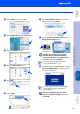
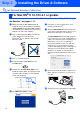
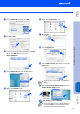
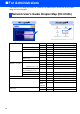
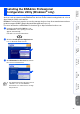
Table Of Contents
- Quick Setup Guide MFC-8440/MFC-8840D/MFC-8840DN
- Getting Started
- Table of Contents
- Step1 Setting Up the Machine
- 1 Install the Automatic Document Feed (ADF) Support
- 2 Install the Drum Unit Assembly
- 3 Load Paper in the Paper Tray
- 4 Release the Scanner Lock
- 5 Install the Power Cord and Phone Line
- 6 Selecting a Receive Mode
- 7 Setting the Date and Time
- 8 Setting Your Station ID
- 9 Selecting Your Language (Canada Only)
- 10 Sending in the Product Registration and Test Sheet (USA Only)
- Step2 Installing the Driver & Software
- Supplied CD-ROM “MFL-Pro Suite”
- For USB Interface Cable Users (For Windows® 98/98SE/Me/2000 Professional/XP)
- For Parallel Interface Cable Users (For Windows® 98/98SE/Me/2000 Professional/XP)
- For Windows NT® Workstation Version 4.0 Users
- For Network Interface Cable Users (For Windows® 98/98SE/Me/NT/2000 Professional/XP)
- For USB Interface Cable Users
- For Network Interface Cable Users
- For Administrators
- brother USA

41
0
Select USB and then click OK.
A
Select Applications from the Go menu.
B
Open the Utilities folder.
C
Open the Print Center icon.
D
Click Add.
E
Select USB.
F
Select MFC-XXXX (XXXX is your model
name), and then click Add.
G
Select Quit Printer Setup Utility from the
Printer Setup Utility menu.
The MFL-Pro Suite, Printer driver,
Scanner driver and Remote Setup
Program have been installed and the
installation is now complete.
H
To install Presto!
®
PageManager
®
, click the
Presto! PageManager icon and follow the
on-screen instructions.
Presto!
®
PageManager
®
has been
installed and the installation is now
complete.
Scanning and ControlCenter2.0 is not
supported in Mac OS
®
X 10.1.
You can easily scan, share and organize
photos and documents using Presto!
®
PageManager
®
.
Installing the Driver & Software
Setting Up
the Machine
For
Administrators
Macintosh
®
USB