
User Manual
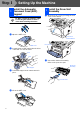
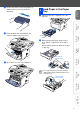
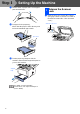
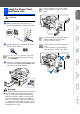
Table Of Contents
- Quick Setup Guide MFC-8440/MFC-8840D/MFC-8840DN
- Getting Started
- Table of Contents
- Step1 Setting Up the Machine
- 1 Install the Automatic Document Feed (ADF) Support
- 2 Install the Drum Unit Assembly
- 3 Load Paper in the Paper Tray
- 4 Release the Scanner Lock
- 5 Install the Power Cord and Phone Line
- 6 Selecting a Receive Mode
- 7 Setting the Date and Time
- 8 Setting Your Station ID
- 9 Selecting Your Language (Canada Only)
- 10 Sending in the Product Registration and Test Sheet (USA Only)
- Step2 Installing the Driver & Software
- Supplied CD-ROM “MFL-Pro Suite”
- For USB Interface Cable Users (For Windows® 98/98SE/Me/2000 Professional/XP)
- For Parallel Interface Cable Users (For Windows® 98/98SE/Me/2000 Professional/XP)
- For Windows NT® Workstation Version 4.0 Users
- For Network Interface Cable Users (For Windows® 98/98SE/Me/NT/2000 Professional/XP)
- For USB Interface Cable Users
- For Network Interface Cable Users
- For Administrators
- brother USA

3
Table of Contents
Setting Up the Machine
1. Install the Automatic Document Feed (ADF) Support .................................... 4
2. Install the Drum Unit Assembly........................................................................4
3. Load Paper in the Paper Tray ...........................................................................5
4. Release the Scanner Lock.................................................................................6
5. Install the Power Cord and Phone Line ...........................................................7
6. Selecting a Receive Mode .................................................................................8
7. Setting the Date and Time .................................................................................9
8. Setting Your Station ID ....................................................................................10
9. Selecting Your Language (Canada Only).......................................................11
10. Sending in the Product Registration and Test Sheet (USA Only) ...............11
Installing the Driver & Software
Supplied CD-ROM “MFL-Pro Suite”................................................................... 12
For USB Interface Cable Users
(For Windows
®
98/98SE/Me/2000 Professional/XP)................................ 14
■
For Windows
®
98/98SE/Me Users Only ............................................................ 16
■
For Windows
®
2000 Professional Users Only..................................................17
■
For Windows
®
XP Users Only ...........................................................................20
For Parallel Interface Cable Users
(For Windows
®
98/98SE/Me/2000 Professional/XP)................................ 23
■
For Windows
®
98/98SE/Me Users Only ............................................................ 25
■
For Windows
®
2000 Professional Users Only..................................................26
■
For Windows
®
XP Users Only ...........................................................................30
For Windows NT
®
Workstation Version 4.0 Users ................................. 33
For Network Interface Cable Users
(For Windows
®
98/98SE/Me/NT/2000 Professional/XP).......................... 35
For USB Interface Cable Users................................................................. 38
■
For Mac OS
®
8.6 to 9.2 .......................................................................................38
■
For Mac OS
®
X 10.1/10.2.1 or greater................................................................40
For Network Interface Cable Users .......................................................... 42
■
For Mac OS
®
8.6 to 9.2 .......................................................................................42
■
For Mac OS
®
X 10.1/10.2.1 or greater................................................................44
■
For Administrators
Network User's Guide Chapter Map (NC-9100h) .............................................. 46
Installing the BRAdmin Professional Configuration Utility
(Windows
®
Users Only) .................................................................................... 47
Setting your IP Address, Subnet Mask and Gateway using
BRAdmin Professional (Windows
®
Users Only)............................................. 48
Options ................................................................................................................. 49
Replacement Consumables................................................................................ 49
Step 1
Step 2