
User Manual
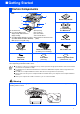
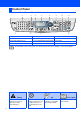
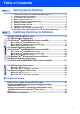
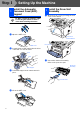
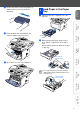
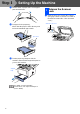
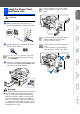
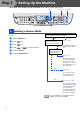
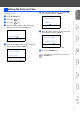
Table Of Contents
- Quick Setup Guide MFC-8440/MFC-8840D/MFC-8840DN
- Getting Started
- Table of Contents
- Step1 Setting Up the Machine
- 1 Install the Automatic Document Feed (ADF) Support
- 2 Install the Drum Unit Assembly
- 3 Load Paper in the Paper Tray
- 4 Release the Scanner Lock
- 5 Install the Power Cord and Phone Line
- 6 Selecting a Receive Mode
- 7 Setting the Date and Time
- 8 Setting Your Station ID
- 9 Selecting Your Language (Canada Only)
- 10 Sending in the Product Registration and Test Sheet (USA Only)
- Step2 Installing the Driver & Software
- Supplied CD-ROM “MFL-Pro Suite”
- For USB Interface Cable Users (For Windows® 98/98SE/Me/2000 Professional/XP)
- For Parallel Interface Cable Users (For Windows® 98/98SE/Me/2000 Professional/XP)
- For Windows NT® Workstation Version 4.0 Users
- For Network Interface Cable Users (For Windows® 98/98SE/Me/NT/2000 Professional/XP)
- For USB Interface Cable Users
- For Network Interface Cable Users
- For Administrators
- brother USA

1
Carton components may differ from one country to another.
Save all packing materials and the carton.
Warning
Carton Components
Quick Setup Guide
CD-ROMs
For Windows
®
For Macintosh
®
User’s Guide
ADF Support Drum Unit Assembly
(including Toner Cartridge)
AC Power Cord
Telephone
Line Cord
Test Sheet
(USA only)
Accessory Order Form
(USA/Canada only)
■
The interface cable is not a standard accessory. Please purchase the appropriate interface cable for the interface
you intend to use (Parallel or USB).
■
For Parallel use a bi-directional shield interface cable that is IEEE 1284-compliant, and not longer than 6 feet
(2 meters).
■
For USB: use a Hi-Speed USB 2.0 interface cable that is not longer than 6 feet (2 meters).
■
Please make sure that you use a Hi-Speed USB 2.0 certified cable if your computer uses a Hi-Speed USB 2.0
interface.
■
Even if your computer has a USB 1.1 interface, you can connect the MFC.
When you move the MFC, grasp the side handholds that are under the scanner. Do NOT carry the MFC by
holding it at the bottom.
4
3
1
1
. Control Panel
2
. Face-down Output Tray
Support Flap with Extension
(Support Flap)
3
. (For MFC-8440) Manual Feed Tray
(For MFC-8840D and MFC-8840DN)
Multi-purpose Tray (MP Tray)
2
MFC
5
6
4
. Paper Tray
5
. Front Cover
6
. Power Switch
7
. Document Cover
8
. Automatic Document Feeder
(ADF)
7
8
■ Getting Started