
User Manual
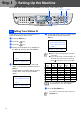
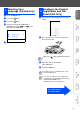
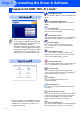
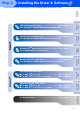
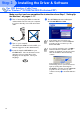
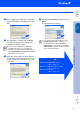
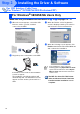
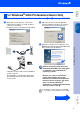
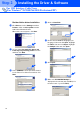
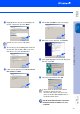
Table Of Contents
- Quick Setup Guide MFC-8440/MFC-8840D/MFC-8840DN
- Getting Started
- Table of Contents
- Step1 Setting Up the Machine
- 1 Install the Automatic Document Feed (ADF) Support
- 2 Install the Drum Unit Assembly
- 3 Load Paper in the Paper Tray
- 4 Release the Scanner Lock
- 5 Install the Power Cord and Phone Line
- 6 Selecting a Receive Mode
- 7 Setting the Date and Time
- 8 Setting Your Station ID
- 9 Selecting Your Language (Canada Only)
- 10 Sending in the Product Registration and Test Sheet (USA Only)
- Step2 Installing the Driver & Software
- Supplied CD-ROM “MFL-Pro Suite”
- For USB Interface Cable Users (For Windows® 98/98SE/Me/2000 Professional/XP)
- For Parallel Interface Cable Users (For Windows® 98/98SE/Me/2000 Professional/XP)
- For Windows NT® Workstation Version 4.0 Users
- For Network Interface Cable Users (For Windows® 98/98SE/Me/NT/2000 Professional/XP)
- For USB Interface Cable Users
- For Network Interface Cable Users
- For Administrators
- brother USA

14
Installing the Driver & Software
Make sure that you have completed the instructions from Step 1 “Setting Up
the Machine” on pages 4 - 11.
1
Turn off and unplug the MFC from the AC
outlet and disconnect it from your computer,
if you have already connected an interface
cable.
2
Turn on your computer.
(For Windows
®
2000 Professional/XP, you
must be logged on as the administrator.)
3
Insert the supplied CD-ROM into your
CD-ROM drive. If the model name screen
appears, select your machine. If the
language screen appears, select your
language.
4
The CD-ROM main menu will appear.
Click Install MFL-Pro Suite.
For USB Interface Cable Users
(For Windows
®
98/98SE/Me/2000 Professional/XP)
If this window does not appear, use
Windows
®
Explorer to run the setup.exe
program from the root directory of the
Brother CD-ROM.
If you see the following screen, click OK to
install the Windows
®
updates. After the
updates are installed, your PC may restart.
Then the installation will automatically
continue.
If the installation does not continue
automatically, please open the main menu
again by ejecting then reinserting the
CD-ROM disc or double-click the setup.exe
program from the root directory, and
continue from Step
4
to install the MFL-Pro
Suite.
Step 2