
User Manual
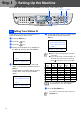
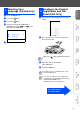
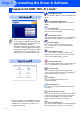
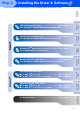
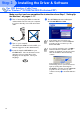
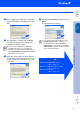
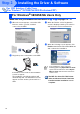
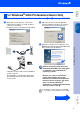
Table Of Contents
- Quick Setup Guide MFC-8440/MFC-8840D/MFC-8840DN
- Getting Started
- Table of Contents
- Step1 Setting Up the Machine
- 1 Install the Automatic Document Feed (ADF) Support
- 2 Install the Drum Unit Assembly
- 3 Load Paper in the Paper Tray
- 4 Release the Scanner Lock
- 5 Install the Power Cord and Phone Line
- 6 Selecting a Receive Mode
- 7 Setting the Date and Time
- 8 Setting Your Station ID
- 9 Selecting Your Language (Canada Only)
- 10 Sending in the Product Registration and Test Sheet (USA Only)
- Step2 Installing the Driver & Software
- Supplied CD-ROM “MFL-Pro Suite”
- For USB Interface Cable Users (For Windows® 98/98SE/Me/2000 Professional/XP)
- For Parallel Interface Cable Users (For Windows® 98/98SE/Me/2000 Professional/XP)
- For Windows NT® Workstation Version 4.0 Users
- For Network Interface Cable Users (For Windows® 98/98SE/Me/NT/2000 Professional/XP)
- For USB Interface Cable Users
- For Network Interface Cable Users
- For Administrators
- brother USA

12
Installing the Driver & Software
The CD-ROM includes the following items:
Install MFL-Pro Suite
You can install the MFL-Pro Suite and multifunction
drivers.
Install Optional Applications
You can install additional MFL-Pro Suite software
utilities.
Documentation*
1
View the User’s Guide and other documentation in
PDF format (Viewer included).
On-Line Registration
You will be pointed to the Brother Product Registration
Web page for quick registration of your machine.
Brother Support
View contact information for Brother Customer
Service and how to locate a Brother Authorized
Service Center.
Repair MFL-Pro Suite
If an error occurred during the installation of the
MFL-Pro Suite, use this selection to automatically
repair and re-install the MFL-Pro Suite.
Start Here OS 8.6-9.2
You can install the printer driver, scanner driver and
Presto!
®
PageManager
®
for Mac OS
®
8.6 - 9.2.
Start Here OSX
You can install the printer driver, scanner driver,
remote setup program and Presto!
®
PageManager
®
for Mac OS
®
10.1/10.2.1 or greater.
Readme!
You can get important information and
troubleshooting tips.
Documentation*
1
View the User’s Guide and other documentation in
PDF format.
Brother Solutions Center
You can access the Brother Solutions Center which is
a Web site offering information about your Brother
product including FAQs, User’s Guides, Driver
updates and Tips for using your machine.
On-Line Registration
You will be pointed to the Brother Product Registration
Web Page for quick registration of your machine.
Supplied CD-ROM “MFL-Pro Suite”
MFL-Pro Suite includes Printer Driver,
Scanner Driver, ScanSoft
®
PaperPort
®
9.0SE,
ScanSoft
®
OmniPage
®
and True Type
®
fonts.
PaperPort
®
9.0SE is a document
management application for viewing scanned
documents. ScanSoft
®
OmniPage
®
, which is
integrated into PaperPort
®
9.0SE, is an OCR
application that converts an image into text
and inserts it into your default word processor.
*
1
The User’s Guide on the CD-ROM includes the
Software and Network User’s Guide for features
available when connected to a computer (e.g.
Printing and scanning).
Step 2