
User Manual
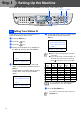
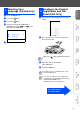
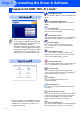
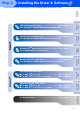
Table Of Contents
- Quick Setup Guide MFC-8440/MFC-8840D/MFC-8840DN
- Getting Started
- Table of Contents
- Step1 Setting Up the Machine
- 1 Install the Automatic Document Feed (ADF) Support
- 2 Install the Drum Unit Assembly
- 3 Load Paper in the Paper Tray
- 4 Release the Scanner Lock
- 5 Install the Power Cord and Phone Line
- 6 Selecting a Receive Mode
- 7 Setting the Date and Time
- 8 Setting Your Station ID
- 9 Selecting Your Language (Canada Only)
- 10 Sending in the Product Registration and Test Sheet (USA Only)
- Step2 Installing the Driver & Software
- Supplied CD-ROM “MFL-Pro Suite”
- For USB Interface Cable Users (For Windows® 98/98SE/Me/2000 Professional/XP)
- For Parallel Interface Cable Users (For Windows® 98/98SE/Me/2000 Professional/XP)
- For Windows NT® Workstation Version 4.0 Users
- For Network Interface Cable Users (For Windows® 98/98SE/Me/NT/2000 Professional/XP)
- For USB Interface Cable Users
- For Network Interface Cable Users
- For Administrators
- brother USA

11
Setting Up
the Machine
Windows
®
USB
Windows
®
Parallel
Windows
NT
®
4.0
Parallel
Macintosh
®
USB
Macintosh
®
Network
Windows
®
Network
For
Administrators
1
Press the Menu key.
2
Press the key.
3
Press the key.
4
Select your language (ENGLISH or
FRENCH) by using or , and
then press the Set key.
5
Press the Stop/Exit key.
1
Fill out the Product Registration and Test
Sheet.
2
Place the sheet face up in the Automatic
Document Feeder.
3
Enter the toll-free fax number:
1-877-268-9575.
4
Press the Start key.
9
Selecting Your
Language (Canada Only)
05.Local Language
▲ English *
▼ French
Select ▲▼ & Set
10
Sending in the Product
Registration and Test
Sheet (USA Only)
Make sure (Fax) is illuminated in Green.
You will receive a confirmation fax of your
Product Registration.
You can also register your product online
using the On-Line Registration link from the
installation CD-ROM or go to
http://www.brother.com/registration
Go to Next page to
install the driver