
User Manual


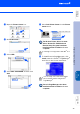
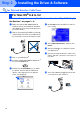


Table Of Contents
- Quick Setup Guide MFC-8440 MFC-8840D
- Getting Started
- Table of Contents
- Step1 Setting Up the Machine
- Step2 Installing the Driver & Software
- Supplied CD-ROM (MFL-Pro Suite)
- For USB Interface Cable Users (For Windows® 98/98SE/Me/2000 Professional/XP)
- For Parallel Interface Cable Users (For Windows® 98/98SE/Me/2000 Professional/XP)
- For Windows NT® Workstation Version 4.0 Users
- For Network Interface Cable Users (For Windows® 98/98SE/Me/NT/2000 Professional/XP)
- For USB Interface Cable Users
- For Network Interface Cable Users
- For Administrators
- brother UK

39
Installing the Driver & Software
F
Select Network Interface, and then click
Next.
G
Select Standard, and then click Next.
The application files will be copied to your
computer.
H
Select Search the network for devices
and choose from a list of discovered
devices, and then click Next.
I
If the MFC is un-configured for your network:
Select the un-configured device or APIPA
from the list and then click Next.
➝
Go to
J
If the MFC is configured for your network:
Select the MFC from the list and then click
Next.
➝
Go to
M
J
Click Configure IP Address.
K
Enter the proper IP Address information for
your network, and then click OK.
(e.g. Enter 192.168.0.105 for IP Address)
L
Click Next.
For Network Interface Cable Users
(For Windows
®
98/98SE/Me/NT/2000 Professional/XP)
If you want to install the PS driver, select
Custom and then follow the on-screen
instructions. When the Select Components
screen appears, check PS Printer Driver,
and then continue following the on-screen
instructions.
If you see the following screen, click OK.
See the For Administrator section of this
guide or the NC-9100h User's Guide located
on the CD-ROM for more network
configuration information.
Step 2