
Quick Setup Guide
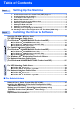
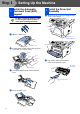
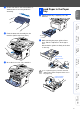
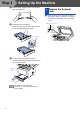
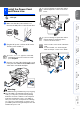
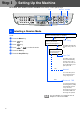
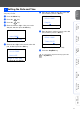
Table Of Contents
- Quick Setup Guide MFC-8440/MFC-8840D/MFC-8840DN
- Getting Started
- Table of Contents
- Step1 Setting Up the Machine
- 1 Install the Automatic Document Feed (ADF) Support
- 2 Install the Drum Unit Assembly
- 3 Load Paper in the Paper Tray
- 4 Release the Scanner Lock
- 5 Install the Power Cord and Phone Line
- 6 Selecting a Receive Mode
- 7 Setting the Date and Time
- 8 Setting Your Station ID
- 9 Selecting Your Language (Canada Only)
- 10 Sending in the Product Registration and Test Sheet (USA Only)
- Step2 Installing the Driver & Software
- Supplied CD-ROM “MFL-Pro Suite”
- For USB Interface Cable Users (For Windows® 98/98SE/Me/2000 Professional/XP)
- For Parallel Interface Cable Users (For Windows® 98/98SE/Me/2000 Professional/XP)
- For Windows NT® Workstation Version 4.0 Users
- For Network Interface Cable Users (For Windows® 98/98SE/Me/NT/2000 Professional/XP)
- For USB Interface Cable Users
- For Network Interface Cable Users
- For Administrators
- brother USA

7
Setting Up
the Machine
Windows
®
USB
Windows
®
Parallel
Windows
NT
®
4.0
Parallel
Macintosh
®
USB
Macintosh
®
Network
Windows
®
Network
For
Administrators
Do not connect the Parallel or USB
cable yet.
1
Make sure that the power switch is off.
Connect the AC power cord to the machine.
2
Plug the AC power cord into an AC outlet.
Turn the power switch on.
3
Connect one end of the telephone line cord
to the jack on the MFC marked LINE and the
other end to a modular wall jack.
Warning
■ The MFC must be grounded using a 3-prong plug.
■ Since the MFC is grounded through the power
outlet, you can protect yourself from potentially
hazardous electrical conditions on the telephone
network by keeping the power to your MFC on
when you connect it to a telephone line. Similarly,
you can protect yourself when you want to move
your MFC by disconnecting the telephone line first
and then the power cord.
5
Install the Power Cord
and Phone Line
If Check Scan Lock appears on the LCD,
immediately release the scanner lock and
press Stop/Exit.
If you are sharing one phone line with an
external telephone, connect it as shown
below.
If you are sharing one phone line with an
external telephone answering device,
connect it as shown below.
Please set the receive mode to External
TAD.
For more details, see “Connecting the
MFC” in Chapter 1 of the User’s Guide.
TAD
TAD