USER’S GUIDE MFC-8440 MFC-8840D Version B
THIS EQUIPMENT IS DESIGNED TO WORK WITH A TWO WIRE ANALOGUE PSTN LINE FITTED WITH THE APPROPRIATE CONNECTOR. APPROVAL INFORMATION Brother advises that this product may not function correctly in a country other than where it was originally purchased, and does not offer any warranty in the event that this product is used on public telecommunication lines in another country. Compilation and Publication Notice Under the supervision of Brother Industries Ltd.
ii
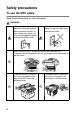
Safety precautions To use the MFC safely Save these instructions for later reference. WARNING There are high voltage electrodes inside the machine. Before you clean the MFC or clear a paper jam, make sure you have unplugged the power cord from the power outlet. Do not handle the plug with wet hands. Doing this might cause an electrical shock. After you use the MFC, some internal parts are extremely HOT! To prevent injuries, be careful not to put your fingers in the area shown in the illustration.
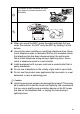
To prevent injuries, be careful not to put your fingers in the area shown in the illustration. ■ When you move the MFC, grasp the side handholds that are under the scanner. Do NOT carry the MFC by holding it at the bottom. ■ Use caution when installing or modifying telephone lines. Never touch telephone wires or terminals that are not insulated unless the telephone line has been disconnected at the wall socket. Never install telephone wiring during a lightning storm.
Choosing a location Place your MFC on a flat, stable surface that is free of vibration and shocks, such as a desk. Put the MFC near a telephone socket and a standard, grounded power outlet. Choose a location where the temperature remains between 10° and 32.5°C. Caution ■ Avoid placing your MFC in a high-traffic area. ■ Do not place near heaters, air conditioners, water, chemicals, or refrigerators. ■ Do not expose the MFC to direct sunlight, excessive heat, moisture, or dust.
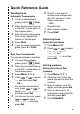
Quick Reference Guide Sending faxes 6 Automatic Transmission 1 If it is not illuminated in green, press (Fax). 2 3 4 5 Place the document face up in the ADF, or face down on the scanner glass. Enter the fax number using One-Touch, Speed-Dial, Search or the dial pad. Press Start. If you are using the scanner glass, press 2 or Start. Real Time Transmission You can send faxes in real time. 1 If it is not illuminated in green, press (Fax).
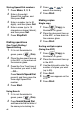
Storing Speed-Dial numbers 1 Press Menu, 2, 3, 2. 2 Enter a three-digit Speed-Dial number, and then press Set. 3 Enter a number (up to 20 digits), and then press Set. 4 Enter a name (up to 15 characters or leave it blank), and then press Set. 5 Press Stop/Exit. One-Touch Dialling / Speed-Dialling 1 If it is not illuminated in 2 3 4 (Fax). Place the document face up in the ADF, or face down on the scanner glass. Press the One-Touch key of the number you want to call.
Table of Contents 1 2 Introduction .......................................................................... 1-1 Using this Guide ............................................................... 1-1 Finding information ..................................................... 1-1 Symbols used in this Guide ........................................ 1-1 MFC part names and operations ................................ 1-2 Control panel overview .....................................................
3 4 5 ix On-screen programming ..................................................... 3-1 User-friendly programming ............................................... 3-1 Menu table .................................................................. 3-1 Memory Storage ......................................................... 3-1 Navigation keys ................................................................ 3-2 Getting started .....................................................................
Reception into memory............................................... 5-6 Printing a fax from the memory .................................. 5-7 Setting the Print Density ............................................. 5-7 Advanced receiving operations ........................................ 5-8 Operation from extension telephones......................... 5-8 For FAX/TEL mode only ............................................. 5-8 Using a cordless external handset .............................
Advanced sending operations ........................................ 6-14 Composing the electronic Cover Page ..................... 6-14 Composing your own comments .......................... 6-15 Cover page for the next fax only........................... 6-15 Send a cover page for all faxes ............................ 6-16 Using a printed cover page....................................... 6-17 Broadcasting............................................................. 6-17 Overseas Mode ....................
9 10 11 Printing reports .................................................................... 9-1 MFC settings and activity ................................................. 9-1 Customizing the Transmission Verification Report ...... 9-1 Setting the Journal Period .......................................... 9-2 Printing reports ........................................................... 9-3 To print a report ...................................................... 9-3 Making copies .........................
12 13 G xiii Troubleshooting and routine maintenance ..................... 12-1 Troubleshooting ............................................................. 12-1 Error messages ........................................................12-1 Document jams......................................................... 12-5 Document is jammed in the top of the ADF unit............................................................ 12-5 Document is jammed inside the ADF unit. ...........12-5 Paper jams................
S I R Specifications ......................................................................S-1 Product description ...........................................................S-1 General.............................................................................S-1 Print media .......................................................................S-2 Copy .................................................................................S-2 General (continued)................................................
1 Introduction Using this Guide Thank you for buying a Brother Multi-Function Center (MFC). Your MFC-8440, MFC-8840D is simple to use, with LCD screen instructions to guide you through programming it. You can make the most of your MFC by taking a few minutes to read this Guide. Finding information All the chapter headings and subheadings are listed in the Table of Contents. You will be able to find information about a specific feature or operation by checking the Index at the back of this Guide.
MFC part names and operations ■ Front view 5 Automatic Document Feeder (ADF) 6 ADF Document Support Extension 4 Control Panel 7 ADF Document Output Support Flap 3 Face-down Output Tray Support Flap with Extension 8 Document Cover 2 Front Cover Release Button 1 (MFC-8440) Manual Feed Tray (MFC-8840D) Multi-purpose Tray (MP Tray) 9 Power Switch 10 Front Cover 11 Paper Tray (Tray #1) No. Name Description 1 (MFC-8440) Manual Feed Tray (MFC-8840D) Multi-purpose Tray (MP Tray) Load paper here.
■ Back view 16 ADF Cover 15 Face-up Output Tray (Back Output Tray) 17 Telephone Line Jack/Socket 14 AC Power Connector 13 Duplex Tray (MFC-8840D) 12 Paper Adjustment Lever for Duplex Printing (MFC-8840D) 18 USB Interface Connector 19 Parallel Interface Connector 20 External Telephone Line Jack/Socket No. Name Description 12 Paper Adjustment Lever for Duplex Printing (MFC-8840D) Use to match your paper size for duplex printing.
■ Inside view (Document cover open) 24 Document Cover 25 White Film 23 Scanner Lock Lever 22 Glass Strip 21 Document Guidelines 26 Scanner Glass No. Name Description 21 Document Guidelines Use to center the document on the scanner glass. 22 Glass Strip This is used to scan documents when using the ADF. 23 Scanner Lock Lever Use to lock/unlock the scanner when relocating the MFC. 24 Document Cover Open to place the document on the scanner glass.
Control panel overview 12 6 7 1 2 3 4 5 8 9 10 11 MFC-8440 and MFC-8840D have similar control panel keys.
1 2 3 4 5 7 1 Shift To access memory locations 21 through 40 in the One-Touch keys hold down the Shift key. 2 One-Touch keys These 20 keys give you instant access to 40 previously stored dial numbers. 3 Print keys: Secure Lets you print out data saved in memory by entering your four-digit password. Job Cancel Clears data from the printer memory. 4 Status LED (Light-Emitting Diode) The LED will flash and change color depending on the MFC status.
7 Fax and telephone keys: Tel/R This key is used to have a telephone conversation having picked up the external handset in F/T pseudo-ringing etc. Also, use this key to gain access to an outside line and/or to recall the operator or transfer a call to another extension when it is connected to a PABX. Resolution Sets the resolution when you send a fax. Search/Speed Dial Lets you look up numbers that are stored in the dialling memory.
5 8 9 10 6 8 Navigation keys: Menu Lets you access the Menu to program. Set Lets you store your settings in the MFC. Clear/Back Deletes entered data or lets you exit the menu by pressing repeatedly. or Press to scroll forward or backward to a menu selection. When using the speaker or ring, you can press these keys to adjust the volume in fax mode. or Press to scroll through the menus and options. Also, you can use these keys to do a numeral search for the names of stored numbers in fax mode.
0 Dial Pad Use these keys to dial telephone and fax numbers and as a keyboard for entering information into the MFC. The # key lets you temporarily switch the dialling mode during a telephone call from Pulse to Tone. A Stop/Exit Stops a fax, copy and scan operation or exits from the menu. B Start Lets you start sending faxes, making copies or scanning.
Status LED indications The Status LED (Light Emitting Diode) will flash and change color depending on the MFC status. The LED indications shown in the table below are used in the illustrations in this chapter. LED LED status LED is off. LED is on. Green Yellow Red LED is blinking. Green LED Yellow Red MFC status Description Sleep Mode The power switch is off or the MFC is in Sleep mode or Power save mode. Warming Up The MFC is warming up for printing. Ready The MFC is ready to print.
LED MFC status Description Service error Follow the steps below. 1. Turn off the power switch. 2. Wait a few seconds, and then turn it back on and try to print again. If you cannot clear the error and see the same service call indication after turning the MFC back on, call your dealer or Brother authorized service center. Cover open The cover is open. Close the cover. (See Error messages on page 12-1.) Toner empty Replace the toner cartridge with a new one.
About fax machines Fax tones and handshake When someone is sending a fax, the MFC sends fax calling tones (CNG tones). These are quiet, intermittent beeps every 4-seconds. You’ll hear them after you dial and press Start and they will continue for about 60 seconds after dialling. During that time, the sending machine must begin the “handshake”, or connection, with the receiving machine. Each time you use automatic procedures to send a fax, you are sending CNG tones over the phone line.
ECM (Error Correction Mode) The Error Correction Mode (ECM) is a way for the MFC to check a fax transmission while it is in progress. If the MFC detects errors during fax transmission, it resends the pages of the fax that had an error. ECM transmissions are only possible between fax machines that both have this feature. If they do, you may send and receive fax messages that are continuously being checked by the MFC. Your MFC must have enough memory for this feature to work.
Connecting the MFC Connecting an external telephone Although your MFC does not have a handset, you can connect a separate telephone (or telephone answering device) directly to your MFC as shown in the diagram below. Extension Telephone External Telephone (Example for the U.K.) Whenever this phone (or TAD) is in use, the LCD shows Telephone.
Connecting an external telephone answering device (TAD) Sequence You may choose to connect an answering device. However, when you have an external TAD on the same telephone line as the MFC, the TAD answers all calls and the MFC “listens” for fax calling (CNG) tones. If it hears them, the MFC takes over the call and receives the fax. If it doesn’t hear CNG tones, the MFC lets the TAD continue playing your outgoing message so your caller can leave you a voice message.
Do not connect a TAD elsewhere on the same phone line. TAD TAD (Example for the U.K.) Connections 1 2 3 4 5 6 Plug the telephone line cord from the wall socket into the back of the MFC, in the socket labelled LINE. Plug the telephone line cord from your external TAD into the correct socket on the machine. (Make sure this cord is connected to the TAD at the TAD’s telephone line socket, and not its telephone socket.) Set your external TAD to one or two rings. (The MFC’s Ring Delay setting does not apply.
Recording outgoing message (OGM) on an external TAD Timing is important in recording this message. The message sets up the ways to handle both manual and automatic fax reception. 1 Record 5 seconds of silence at the beginning of your message. (This allows your MFC time to listen for the fax CNG tones of automatic transmissions before they stop.) 2 Limit your speaking to 20 seconds. 3 End your 20-second message by giving your Remote Activation Code for people sending manual faxes.
Using extension telephones (For U.K. only) It may be that your premises are already wired with parallel extension telephones, or you intend to add extension telephones to your line, in addition to your machine.
EXTENSION SOCKET EXTENSION SOCKET MASTER SOCKET INCOMING LINE FAX INADVISABLE CONNECTION OF EXTENSION SOCKETS Fig. 1. DISCONNECT EXTENSION SOCKET EXTENSION SOCKET MASTER SOCKET INCOMING LINE FAX FAX MACHINE MUST BE PLUGGED INTO MASTER SOCKET RECOMMENDED CONNECTION OF EXTENSION SOCKETS Fig. 2.
Multi-line connections (PBX) Most offices use a central telephone system. While it is often relatively simple to connect the MFC to a key system or a PBX (Private Branch Exchange), we suggest that you contact the company that installed your telephone system and ask them to connect the MFC for you. It is advisable to have a separate line for the MFC. You can then leave the Receive Mode set to Fax Only to receive faxes any time of the day or night.
2 Paper About paper Type and size of paper The MFC loads paper from the installed paper tray, manual feed tray, multi-purpose tray or optional lower tray.
Caution Do not use ink jet paper. It may cause a paper jam and damage your MFC. The output quality depends on the paper type and paper brand. Visit us at http://solutions.brother.com and check the latest recommendations for paper that can be used with the MFC-8440 and MFC-8840D. Choosing acceptable paper We recommend that you test paper (especially special sizes and types of paper) on the MFC before purchasing large quantities. ■ Avoid feeding label sheets that are partly used or your MFC will be damaged.
Paper capacity of the paper trays Paper size Number of sheets Multi-purpose tray (MP tray) (MFC-8840D) Width: 69.8 to 220 mm Height: 116 to 406.4 mm 50 sheets (80 g/m2) Manual feed tray (MFC-8440) Width: 69.8 to 220 mm Height: 116 to 406.
Paper specifications for each paper tray Model Paper types Paper weights Paper sizes MFC-8440 MFC-8840D Multipurpose tray N/A Plain paper, Bond paper, Recycled paper, Envelope*1, Labels*2, and Transparency*2 Manual feed tray Plain paper, Bond paper, Recycled paper, Envelope, Labels, and Transparency N/A Paper tray Plain paper, Recycled paper, and Transparency*2 Optional Lower tray Plain paper, Recycled paper, and Transparency*2 Multipurpose tray N/A 60 to 161 g/m2 Manual feed tray 60 to 1
How to load paper To load paper or other media in the paper tray 1 Pull the paper tray completely out of the MFC. 2 While pressing the paper guide release lever, slide the adjusters to fit the paper size. Check that the guides are firmly in the slots. For Legal size paper, press the universal guide release button and pull out the back of the paper tray.
3 4 Fan the stack of paper well to avoid paper jams and misfeeds. Put paper in the paper tray. Check that the paper is flat in the tray, below the maximum paper mark, and that the paper guide is flush against the paper stack. Up to here. 5 Put the paper tray firmly back in the MFC and unfold the support flap before you use the MFC. Support Flap with Extension When you put paper in the paper tray, please remember the following: ■ The side to be printed on must be face down.
To load paper or other media in the manual feed tray (For MFC-8440) When printing envelopes and labels you should only use the manual feed tray. 1 Open the manual feed tray. Slide the paper guides to fit the paper size. 2 Using both hands put paper in the manual feed tray until the front edge of the paper touches the paper feed roller. Hold the paper in this position until the MFC automatically feeds the paper in for a short distance, and then let go of the paper.
When you put paper in the manual feed, please remember the following: ■ The side to be printed on must be face up. ■ Put the leading edge (top of the paper) in first and push it gently into the tray. ■ Make sure that the paper is straight and in the proper position on the manual feed tray. If it is not, the paper may not be fed properly, resulting in a skewed printout or a paper jam. ■ Do not put more than one sheet of paper or envelope in the manual feed tray at any one time, or it may cause a jam.
To load paper or other media in the multi-purpose tray (MP tray) (For MFC-8840D) When printing envelopes and labels you should only use the multi-purpose tray. 1 Open the MP tray and lower it gently. 2 Pull out and unfold the MP tray support flap.
3 When loading paper in the MP tray, make sure it touches the back of the tray. ■ Make sure that the paper is straight and in the proper position on the MP tray. If it is not, the paper may not be fed properly, resulting in a skewed printout or a paper jam. ■ You can place up to 3 envelopes or up to 50 sheets of 80 g/m2 paper in the MP tray. 4 While pressing the paper-guide release lever, slide the paper guide to fit the paper size.
To use Automatic Duplexing for fax, copy and print operations (For MFC-8840D) If you want to print on both sides of the paper using the Duplex feature for fax, copy or print, you will need to set the Paper Adjustment Lever to the size of paper you are using. This feature is available for A4, Letter or Legal size paper. (See Setting Duplex printing for Fax mode (For MFC-8840D) on page 5-13, Duplex/N in 1 on page 10-12 and Two-sided printing (Duplex Printing) in Software User’s Guide on the CD-ROM.
3 On-screen programming User-friendly programming Your MFC is designed to be easy to use with LCD on-screen programming using the navigation keys. User-friendly programming helps you take full advantage of all the menu selections your MFC has to offer. Since your programming is done on the LCD, we have created step-by-step on-screen instructions to help you program your MFC. All you need to do is follow the instructions as they guide you through the menu selections and programming options.
Navigation keys * Access the menu * Go to the next menu level * Accept an option * Exit the menu by pressing repeatedly * Go back to the previous menu level * Scroll through the current menu level * Go back to the previous menu level * Go forward to the next menu level * Exit the menu You can access the menu mode by pressing Menu. When you enter the menu, the LCD scrolls. Press 1 for General Setup menu 1.General Setup 2.Fax —OR— 3.Copy Press 2 for Fax menu 4.
The LCD will then show the next menu level. Press or to scroll to your next menu selection. Press Set. When you finish setting an option, the LCD shows Accepted. Use to scroll backward if you passed your choices or want to save keystrokes. The current setting is always the option with “ ”.
To access the menu, press Menu. Press the Menu numbers. (ex. Press 1, 1 for Mode Timer) —OR— to select to select to accept to exit Main Menu Submenu Menu Selections Options Descriptions Page 1.General Setup 1.Mode Timer — 0 Sec 30 Sec 1 Min 2 Mins 5 Mins Off Sets how long the MFC will stay in Copy or Scan mode before returning to Fax mode. 4-6 2.Paper Type 1.MP Tray (MFC-8840D) Thin Plain Thick Thicker Transparency Sets the type of paper in the Multi-purpose tray. 4-7 2.
Press the Menu numbers. (ex. Press 1, 1 for Mode Timer) —OR— to select to select to accept to exit Main Menu Submenu Menu Selections Options Descriptions Page 1.General Setup (Continued) 3.Paper Size (Continued) 2.Tray #2 (option) A4 Letter Legal Executive A5 B5 B6 Sets the size of paper in paper tray #2. 4-8 4.Volume 1.Ring High Med Low Off Adjusts the ring volume. 4-9 2.Beeper High Med Low Off Adjusts the volume level of the beeper. 4-9 3.
Press the Menu numbers. (ex. Press 1, 1 for Mode Timer) —OR— to select to select to accept to exit Main Menu Submenu Menu Selections Options Descriptions Page 1.General Setup (Continued) 7.Tray Use: Copy (For MFC-8440, this menu doesn't appear.) (If you have optional tray #2, see page 3-17.) — Tray#1 Only MP Only Auto Selects the tray that will be used for copy. 4-13 8.Tray Use: Fax (This setting only appears if you have the optional tray #2, see page 3-17.
Press the Menu numbers. (ex. Press 1, 1 for Mode Timer) —OR— to select to select to accept to exit Main Menu Submenu Menu Selections Options Descriptions Page 2.Fax (Continued) 1.Setup Receive (In Fax mode only) (Continued) 3.Fax Detect On Off Receives fax messages without pressing the Start key. 5-4 4.Remote Code On ( 51, #51) Off You can answer all calls at an extension or external phone and use codes to turn the MFC on or off. You can personalize these codes. 5-9 5.
Press the Menu numbers. (ex. Press 1, 1 for Mode Timer) —OR— to select to select to accept to exit Main Menu Submenu Menu Selections Options Descriptions Page 2.Fax (Continued) 2.Setup Send (In Fax mode only) 1.Contrast Auto Light Dark Changes the lightness or darkness of faxes you send. 6-8 2.Fax Resolution Standard Fine S.Fine Photo Sets the default resolution for outgoing faxes. 6-9 3.Delayed Fax — Set the time of day in 24 hour format that the delayed faxes will be sent. 6-20 4.
Press the Menu numbers. (ex. Press 1, 1 for Mode Timer) —OR— to select to select to accept to exit Main Menu Submenu Menu Selections Options Descriptions Page 2.Fax (Continued) 2.Setup Send (In Fax mode only) (Continued) 8.Coverpage Note — You can set up your own comments for the fax Cover Page. 6-15 9.Overseas Mode On Off Adjusts for overseas transmissions, which can sometimes cause problems. 6-19 0.
Press the Menu numbers. (ex. Press 1, 1 for Mode Timer) —OR— to select to select to accept to exit Main Menu Submenu Menu Selections Options Descriptions Page 2.Fax (Continued) 5.Remote Fax Opt 1.Fax Forward On Off Sets the MFC to forward fax messages. 8-1 2.Fax Storage On Off Stores incoming faxes in the memory so you can retrieve them while you are away from your MFC. 8-2 3.Remote Access --- You must set your own code for Remote Retrieval. 8-3 4.
Press the Menu numbers. (ex. Press 1, 1 for Mode Timer) —OR— to select Main Menu Submenu 3.Copy 1.Quality 4.Printer 5.Print Reports to select Menu Selections to accept to exit Options Descriptions Page Text Photo Auto Selects the Copy resolution for your type of document. 10-19 Adjusts the contrast for copies. 10-19 2.Contrast — - 1.Emulation — Auto HP LaserJet BR-Script 3 Selects the Emulation mode. 2.Print Options 1.Internal Font — 2.
Press the Menu numbers. (ex. Press 1, 1 for Mode Timer) —OR— to select to select to accept to exit Main Menu Submenu Menu Selections Options Descriptions Page 0.Initial Setup 1.Receive Mode — Fax Only Fax/Tel External TAD Manual You can choose the receive mode that best suits your needs. 5-2 2.Date/Time — — Puts the date and time on the LCD and in headings of faxes you send. 4-1 3.Station ID — Fax Tel Name Program your name, fax and telephone number to appear on each page you fax.
Press the Menu numbers. (ex. Press 1, 1 for Mode Timer) —OR— to select to select to accept to exit If you installed optional LAN board (NC-9100h), the LCD shows the following LAN menu. Main Menu Submenu Menu Selections Options Descriptions 6.LAN (option) 1.Setup TCP/IP 1.BOOT Method Auto Static RARP BOOTP DHCP You can choose the BOOT method that best suits you needs. 2.IP Address [000-255]. [000-255]. [000-255]. [000-255] Enter the IP address. 3.Subnet Mask [000-255]. [000-255].
Press the Menu numbers. (ex. Press 1, 1 for Mode Timer) —OR— to select to select to accept Main Menu Submenu Menu Selections Options Descriptions 6.LAN (option) (Continued) 1.Setup TCP/IP (Continued) 8.DNS Server Primary Secondary Specifies the IP address of the primary or secondary server. 9.APIPA On Off Automatically allocates the IP address from the link-local address range. 1.Mail Address (60 characters) Enter the mail address. 2.SMTP Server [000-255].[000255].[000-255].
Press the Menu numbers. (ex. Press 1, 1 for Mode Timer) —OR— to select to select to accept Main Menu Submenu Menu Selections Options Descriptions 6.LAN (option) (Continued) 3.Setup Mail RX (Continued) 3.Header All Subject+From+To None Selects the contents of the mail header to be printed. 4.Del Error Mail On Off Deletes error mails automatically. 5.Notification On MDN Off Sends notification messages. 1.Sender Subject — Displays the subject that is attached to the Internet Fax data. 2.
Press the Menu numbers. (ex. Press 1, 1 for Mode Timer) —OR— to select to select to accept Main Menu Submenu Menu Selections Options Descriptions 6.LAN (option) (Continued) 6.Setup Misc. 1.Netware On Off Select On to use the MFC on a Netware network. 2.Net Frame Auto 8023 ENET 8022 SNAP Lets you specify the frame type. 3.AppleTalk On Off Select On to use the MFC on a Macintosh network. 4.DLC/LLC On Off Select On to use the MFC on a DLC/LLC network. 5.
If you have the optional paper tray, the LCD displays these options. (Menu, 1, 7/Menu, 1, 8) (For MFC-8440 with the optional paper tray #2) Main Menu Submenu Menu Selections Options Descriptions Page 1.General Setup 7.Tray Use: Copy — Tray#1 Only Tray#2 Only Auto Select the tray that will be used for copying. 4-13 8.Tray Use: Fax — Tray#1 Only Tray#2 Only Auto Select the tray that will be used for faxing.
4 Getting started Initial Setup Setting the Date and Time Your MFC displays the date and time and if you set up the Station ID it prints on every fax you send. If there is a power failure, you may have to reset the date and time. All other settings will not be affected. 1 Press Menu, 0, 2. 02.Date/Time 2 Enter the last two digits of the year. Press Set. Year:20XX Enter & Set Key 3 Enter two digits for the month. Press Set. (For example, enter 09 for September, or 10 for October.
Setting the Station ID You should store your name or company name and fax number and telephone number to be printed on all fax pages that you send. It is important that you enter the fax and telephone numbers in the internationally standardised format, i.e. in accordance with the following strict sequence: ■ The “+” (plus) character (by pressing key) ■ Your Country Code (e.g.
4 5 Use the dial pad to enter your name (up to 20 characters). Press Set. Press Stop/Exit. The LCD will show the date and time. If the Station ID has already been programmed, the LCD will ask you to press 1 to make a change or 2 to exit without changing. Entering text When you are setting certain functions, such as the Station ID, you may need to type text into the MFC. Most number keys have three or do not have four letters printed above them.
Making corrections If you entered a letter incorrectly and want to change it, press to move the cursor under the incorrect character. Then press Clear/Back. The letter above the cursor will be deleted. Re-enter the correct character. Repeating letters If you need to enter a character that is on the same key as the previous character, press to move the cursor to the right before you press the key again.
PABX and TRANSFER The machine is initially set to be connected with PSTN (Public Switched Telephone Network) lines. However, many offices use a central telephone system or Private Automatic Branch Exchange (PABX). Your fax can be connected to most types of PABX. The recall facility on the machine supports timed break recall only (TBR), PBXS normally can work with this for gaining access to an outside line, or for transferring a call to another extension: The feature works when the Tel/R key is pressed.
General Setup Setting the Mode Timer The MFC has three temporary mode keys on the control panel: Fax, Copy and Scan. You can change the number of seconds or minutes the MFC takes after the last Copy or Scan operation before it returns to Fax mode. If you select Off, the MFC stays in the mode you used last. 1 2 3 Press Menu, 1, 1. Press or to select 0 Sec, 30 Secs, 1 Min, 2 Mins, 5 Mins or Off. Press Set. 4 - 6 GETTING STARTED 11.
Setting the Paper Type To get the best print quality, set the MFC for the type of paper you are using. For MFC-8440 1 Press Menu, 1, 2. 12.Paper Type ▲ Plain —OR— Thick If you have the optional paper tray, ▼ Thicker Select ▲▼ & Set press Menu, 1, 2, 1 to set the paper type for Tray #1 or Menu, 12.Paper Type 1, 2, 2 to set the paper type for 1.Tray #1 Tray #2. 2.Tray #2 2 Press or to select Thin, Select ▲▼ & Set Plain, Thick, Thicker or Transparency. 3 Press Set. 4 Press Stop/Exit.
Setting the Paper Size You can use eight sizes of paper for printing copies: A4, letter, legal, executive, A5, A6, B5 and B6 and three sizes of paper for printing faxes: A4, letter and legal. When you change the size of paper in the MFC, you will need to change the setting for Paper Size at the same time so your MFC can fit an incoming fax or reduced copy on the page. 1 Press Menu, 1, 3. 13.Paper Size ▲ A4 2 Press or to select A4, Letter Letter, Legal, Executive, A5, ▼ Legal A6, B5 or B6.
Setting the Ring Volume You can adjust the ring volume when your MFC is idle (not being used). You can turn the ring Off or you can select the ring volume level. 1 2 Press Menu, 1, 4, 1. 14.Volume 1.Ring Press or to select ▲ Med (Low, Med, High or Off). ▼ High Select ▲▼ & Set Press Set. 3 Press Stop/Exit. —OR— In Fax mode, press or to adjust the volume level. Every time you press these keys, the MFC will ring so you can hear the active setting as the LCD shows it. The volume changes with each key press.
Setting the Speaker Volume You can adjust the MFC’s one-way speaker volume. 1 Press Menu, 1, 4, 3. 14.Volume 3.Speaker 2 Press or to select ▲ Med (Low, Med, High or Off). ▼ High ▲▼ & Set Select Press Set. 3 Press Stop/Exit. Turning on Automatic Daylight Savings Time You can set the MFC to change automatically for Daylight Savings Time. It will reset itself forward one hour in the Spring and backward one hour in the Autumn. Make sure you have set the correct day and time in the Date/Time setting.
Sleep Time Setting the Sleep Time reduces power consumption by turning off the fuser inside the MFC, while it is idle. You can choose how long the MFC is idle (from 00 to 99 minutes) before it goes into sleep mode. The timer is automatically reset when the MFC receives a Fax or PC data, or makes a copy. The factory setting is 05 minutes. While the MFC is in sleep mode, you will see Sleep on the LCD.
Power Save Setting Power Save mode reduces power consumption. If Power Save Mode is switched On, when the MFC is idle and the scanner lamp is turned off, it drops into power save mode in approx. 10 minutes automatically. In the Power Save Mode, you cannot use the fax detect function or remote activation. The MFC will not display the date and time in this condition. 1 Press Menu, 1, 6, 3. 16.Ecology 3.Power Save 2 Press or to select On (or ▲ On Off).
Setting the Tray Use for Copy mode If your MFC is a MFC-8440 without the optional tray #2, you can skip this setting. MFC-8440 The default setting of Auto allows *1your MFC to choose the optional Tray #2 when paper is out in Tray #1 or *2when the size of the document will fit best on the paper in Tray #2. 1 Press Menu, 1, 7. 17.Tray Use: Copy ▲ Tray#1 Only 2 Press or to select Tray#2 Only Tray#1 Only, Tray#2 Only, or ▼ Auto Auto. Select ▲▼ & Set 3 Press Set. 4 Press Stop/Exit.
Setting the Tray Use for Fax mode If your MFC doesn’t have the optional tray #2, you can skip this setting. The default setting of Auto allows your MFC to choose the optional Tray #2 if Tray #1 is out of paper or if incoming faxes will fit best on the paper in Tray #2. 1 Press Menu, 1, 8. 18.Tray Use: Fax ▲ Tray#1 Only 2 Press or to select Tray#2 Only Tray#1 Only, Tray#2 Only, or ▼ Auto Auto. Select ▲▼ & Set 3 Press Set. 4 Press Stop/Exit.
Initial Setup depending on Your Country Setting Tone or Pulse dialling mode (Except for the Nordic Countries) Your machine comes set for Tone dialling service (multi-frequency). If you have Pulse dialling service (rotary), you need to change the dialling mode. 1 Press Menu, 0, 4. 04.Tone/Pulse 2 Press or to select ▲ Tone Pulse (or Tone). ▼ Pulse Select ▲▼ & Set Press Set. 3 Press Stop/Exit.
5 Setup Receive Basic receiving operations Choosing the Receive Mode There are four different Receive Modes for your MFC. You can choose the mode that best suits your needs. LCD How it works When to use it Fax Only* (automatic receive) The MFC automatically answers every call as a fax. For dedicated fax lines. Fax/Tel (fax and telephone) The MFC controls the line and automatically answers every call. If the call is a fax it will receive the fax.
To select or change your Receive Mode 1 Press Menu, 0, 1. 01.Receive Mode 2 3 Press or to select Fax Only, Fax/Tel, External TAD or Manual. Press Set. Press Stop/Exit. ▲ Fax Only Fax/Tel ▼ External TAD Select ▲▼ & Set If you are changing the Receive Mode while in another operation, the LCD will return to that operation.
Setting the F/T Ring Time (Fax/Tel mode only) If you set the Receive Mode to Fax/Tel, you’ll need to decide how long the MFC will signal you with its special pseudo/double-ring when you have a voice call. (If it’s a fax call, the MFC prints the fax.) This pseudo/double-ring happens after the initial ringing from the phone company. Only the MFC rings (for 20, 30, 40 or 70 seconds) and no other phones on the same line will ring with the special pseudo/double-ring.
Fax Detect When you use this feature, you don’t have to press Start or the Remote Activation Code 51 when you answer a fax call. Selecting On allows the MFC to receive fax calls automatically, even if you lift the handset of an extension or external phone. When you see Receiving on the LCD or when you hear ‘chirps’ through the handset of an extension phone connected to another wall socket/phone socket, just replace the handset and your MFC will do the rest.
Printing a reduced incoming fax (Auto Reduction) If you choose On, the MFC automatically reduces an incoming fax to fit on one page of letter, legal or A4 size paper, regardless of the paper size of the document. The MFC calculates the reduction ratio by using the page size of the document and your Paper Size setting (Menu, 1, 3). 1 2 3 4 5 If it is not illuminated in green, press (Fax). Press Menu, 2, 1, 5. 21.Setup Receive 5.
Reception into memory As soon as the paper tray becomes empty during fax reception, the screen will display Check Paper; please put some paper in the paper tray. (See Quick Setup Guide.) If the Memory Receive switch is ON at this time… The current fax reception will continue, with the remaining pages being stored in memory, if it is available. Subsequent incoming faxes will also be stored into memory until the memory is full, following with no further incoming fax calls will be automatically answered.
Printing a fax from the memory If you set Fax Storage to ON for Remote Retrieval, you can still print a fax from the memory when you are at your MFC. (See Setting Fax Storage on page 8-2.) 1 Press Menu, 2, 5, 4. 25.Remote Fax Opt 4.Print Document 2 Press Start. 3 After printing has finished, Press Start press Stop/Exit. Setting the Print Density You can adjust print density, making your printed pages darker or lighter. 1 If it is not illuminated in green, press (Fax). 2 Press Menu, 2, 1, 7. 21.
Advanced receiving operations Operation from extension telephones If you answer a fax call on an extension telephone, or an external telephone into the correct socket on the machine, you can make your MFC take the call by using the Remote Activation Code. When you press the Remote Activation Code 51, the MFC starts to receive a fax. (See Fax Detect on page 5-4.) If the MFC answers a voice call and pseudo/double-rings for you to take over, use the Deactivation Code #51 to take the call at an extension phone.
Using a cordless external handset If your cordless telephone is connected to the correct socket on the MFC and you typically carry the cordless handset elsewhere, it is easier to answer calls during the Ring Delay. If you let the MFC answer first, you will have to go to the MFC so you can press Tel/R to transfer the call to the cordless handset. Changing the remote codes Remote Codes might not work with some telephone systems. The preset Remote Activation Code is 51. The preset Deactivation Code is # 51.
Polling Polling is the process of retrieving faxes from another fax machine. You can use your machine to 'poll' other machines, or you can have someone poll your machine. Everyone who is involved in Polling needs to set up their fax machines for Polling. When someone polls your machine to receive a fax, they pay for the call. If you poll someone's fax machine to receive a fax, you pay for the call. Some fax machines do not respond to the Polling feature.
Setup for Polling Receive with Secure Code You need to make sure you are using the same secure code as the other party. 1 If it is not illuminated in green, press (Fax). 2 Press Menu, 2, 1, 8. 21.Setup Receive 8.Polling RX 3 Press or to select ▲ Standard Secure. ▼ Secure Select ▲▼ & Set Press Set. 4 Enter a four-digit secure code. This is the same as the security code of the fax machine you are polling. 5 Press Set. 6 Enter the fax number you are polling. 7 Press Start.
Sequential Polling The MFC can request documents from several fax units in a single operation. You just specify several destinations in Step 4. Afterward, a Sequential Polling Report will be printed. 1 If it is not illuminated in green, press (Fax). 2 Press Menu, 2, 1, 8. 3 Press or to choose Standard, Secure or Timer. Press Set when the screen displays the setting you want. 4 If you selected Standard, go to Step 5. ■ If you selected Secure, enter a four-digit number and press Set, and then go to Step 5.
Setting Duplex printing for Fax mode (For MFC-8840D) If you set Duplex to On for fax receive, the MFC prints received faxes on both sides of the paper. You can use three sizes of paper for this function - letter, legal and A4. 1 If it is not illuminated in green, press (Fax). 2 Press Menu, 2, 1, 9. 21.Setup Receive 9.Duplex 3 Press or to select On (or ▲ On Off). ▼ Off ▲▼ & Set Select Press Set. 4 Press Stop/Exit. While the Duplex printing for fax is working, auto reduction is also On temporarily.
Telephone services BT Call Sign (For U.K. Only) This machine feature lets you use the BT Call Sign subscriber service which allows you to have at least two separate telephone numbers on one phone line. Each phone number has its own distinctive ringing pattern, so you know which phone number is ringing. This is one way you can have a separate phone number for your machine.
6 Setup Send How to Fax You can send faxes from the ADF (Automatic Document Feeder) or from the scanner glass. Enter Fax mode Before sending faxes, make sure green. If not, press setting is Fax. (Fax) is illuminated in (Fax) to enter Fax mode. The default Faxing from the automatic document feeder (ADF) The ADF can hold up to 50 pages and feeds each sheet individually. Use standard (75 g/m2) paper and always fan the pages before putting them in the ADF.
Faxing from the ADF 1 If it is not illuminated in ADF Document Support Extension ADF Document Output Support Flap green, press 2 3 4 (Fax). Pull out the ADF Document Support Extension. Unfold the ADF Document Output Support Flap. Fan the pages well and stagger them at an angle. Make sure you put the documents face up, top edge first in the ADF until you feel them touch the feed roller. Adjust the paper guides to fit the width of your documents.
Faxing from the scanner glass You can use the scanner glass to fax pages of a book or one page at a time. The documents can be up to letter, A4 or legal size (216 mm to 356 mm). To cancel, press Stop/Exit. 1 If it is not illuminated in green, press document cover. (Fax). Lift the The documents are Face Down on the Scanner Glass Document Guidelines 2 3 Using the document guidelines on the left, center the document face down on the scanner glass. Close the document cover.
5 6 To send a single page, press 2 (or press Start again).The MFC starts sending the document. —OR— To send more than one page, press 1 and go to Step 6. Place the next page on the scanner glass. Press Set. The MFC starts scanning. (Repeat Steps 5 and 6 for each additional page.) Flatbed Fax: Next Page? ▲ 1.Yes ▼ 2.No(Send) Select ▲▼ & Set Flatbed Fax: Set Next Page Then Press Set ■ If the memory is full and you are faxing a single page, it will be sent in real time.
Faxing legal size documents from the scanner glass When documents are legal size, you need to set the size to Legal. If you do not, the bottom portion of the faxes will be missing. 1 2 3 4 If it is not illuminated in green, press Press Menu, 2, 2, 0. Press or to select Legal. Press Set. Press Stop/Exit. (Fax). Out of Memory message If you get an Out of Memory message while scanning the first page of a fax, press Stop/Exit to cancel the scan.
Automatic transmission This is the easiest way to send a fax. 1 2 3 4 If it is not illuminated in green, press (Fax). Place the document face up in the ADF, or face down on the scanner glass. Enter the fax number using the dial pad, One-Touch, Speed-Dial or Search. (See One-Touch Dialling on page 7-7 and Speed-Dialling on page 7-8.) Press Start. If you are using the scanner glass, press 2 or Start.
Basic sending operations Sending faxes using multiple settings When you send a fax you can choose any combination of these settings: cover page, contrast, resolution, overseas mode, delayed fax timer, polling transmission or real time transmission. If it is not illuminated in green, press (Fax) before pressing Menu. After each setting is accepted, the LCD will ask if you want to enter more settings: Press 1 to select more settings. The 22.Setup Send Next? LCD will return to the Setup Send ▲ 1.Yes menu. ▼ 2.
Contrast If your document is very light or very dark, you may want to set the contrast. Use Light to make the fax darker. Use Dark to make the fax lighter. 1 2 3 4 5 6 7 8 If it is not illuminated in green, press (Fax). Place the document face up in the ADF, or face down on the scanner glass. Press Menu, 2, 2, 1. 22.Setup Send 1.Contrast Press or to select Auto, ▲ Auto Light or Dark. ▼ Light Select ▲▼ & Set Press Set.
Fax Resolution When you have a document in the ADF or on the scanner glass you can use the Resolution key to change the setting temporarily (for this fax only). If it is not illuminated in green, press (Fax). Press Resolution repeatedly until the LCD shows the setting you want. —OR— You can change the default setting. 1 If it is not illuminated in green, press (Fax). 2 Press Menu, 2, 2, 2. 22.Setup Send 2.Fax Resolution 3 Press or to select the ▲ Standard resolution you want.
Dual Access You can dial a number, and begin scanning the fax into memory— even when the MFC is receiving, sending or printing a fax from memory. The LCD shows the new job number. If you get a Out of Memory message while scanning the first page of a fax, press Stop/Exit to cancel scanning. If you get a Out of Memory message while scanning a subsequent page, you can press Start to send the pages scanned so far, or press Stop/Exit to cancel the operation.
Real Time Transmission When you are sending a fax, the MFC will scan the documents into the memory before sending. Then, as soon as the phone line is free, the MFC will start dialling and sending. If the memory becomes full, the MFC will send the document in real time (even if Real Time TX is set to Off). Sometimes, you may want to send an important document immediately, without waiting for memory transmission. You can set Real Time TX to On for all documents or for the next fax only.
5 6 7 Press 1 if you want to choose more settings and the LCD will return to the Setup Send menu. —OR— Press 2 if you have finished choosing settings for this page, and then go to Step 6. Enter the fax number. Press Start to send the fax. In Real Time Transmission using the scanner glass, the auto redial function doesn't work. Checking job status Check which jobs are still waiting in the memory to be sent. (If there are no jobs, the LCD shows No Jobs Waiting.) 1 Press Menu, 2, 6. 26.
Cancelling a scheduled job You can cancel a fax job that is stored and waiting in memory. 1 Press Menu, 2, 6. 26.Remaining Jobs ▲ #001 12:34 BROTHER Any jobs that are waiting will #002 15:00 BIC appear on the LCD. ▼ #003 17:30 ABCDEFG Select ▲▼ & Set 2 If you have more than two jobs waiting, press or to select the job you want to cancel. Press Set. —OR— If you only have one job waiting, go to Step 3. 3 Press 1 to cancel. —OR— Press 2 to exit without cancelling. To cancel another job go to Step 2.
Advanced sending operations Composing the electronic Cover Page The Cover Page is created at the receiving machine. Your Cover Page includes the name stored in the One-Touch or Speed-Dial memory. If you’re dialling manually, the name is left blank. The Cover Page shows your Station ID and the number of pages you’re sending. (See Setting the Station ID on page 4-2.) If you have Cover Page set to ON (Menu, 2, 2, 7), the number of pages is left blank. You can select a comment to include on your Cover Page. 1.
Composing your own comments You can set up two comments of your own. 1 If it is not illuminated in green, press (Fax). 2 Press Menu, 2, 2, 8. 22.Setup Send 8.Coverpage Note 3 Press or to choose 5 or ▲ 5. 6 for your own comment. ▼ 6. Select ▲▼ & Set Press Set. 4 Use the dial pad to enter your customized comment. Press Set. (See Entering text on page 4-3.) 5 Press 1 if you want to choose more settings and the LCD will return to the Setup Send menu. —OR— Press 2 to exit.
6 Enter two digits to show the number of pages you are sending. Press Set. (For example, press 0, 2 for 2 pages or enter 0 0 to leave the number of pages blank. If you make a mistake, press to back up and re-enter the number of pages.) 7 Press 1 if you want to choose more settings and the LCD will return to the Setup Send menu. —OR— Press 2 if you have finished choosing settings. Enter the fax number you’re calling. Press Start.
Using a printed cover page If you prefer to use a printed cover page that you can write on, you can print the sample page and attach it to your fax. 1 If it is not illuminated in green, press (Fax). 2 Press Menu, 2, 2, 7. 3 Press or to select 22.Setup Send 7.Coverpg Setup Print Sample. ▲ Off Press Set. ▼ Print Sample Select ▲▼ & Set 4 Press Start. Your MFC prints a copy of your cover page. 5 Press Stop/Exit.
■ If the memory is full, press Stop/Exit to stop the job or if more than one page has been scanned, press Start to send the portion that is in the memory. 1 2 3 4 5 6 7 8 9 If it is not illuminated in green, press (Fax). Place the document face up in the ADF, or face down on the scanner glass. Enter a number using One-Touch, Speed-Dial, a Group number, Search or manual dialling using the dial pad. (Example: Group number) When the LCD displays the fax number of the other party, press Set.
Overseas Mode If you are having difficulty sending a fax overseas due to possible interference on the phone line, we recommend that you turn on the Overseas Mode. After you send a fax using this feature, the feature will turn itself off. 1 2 3 4 5 6 7 8 If it is not illuminated in green, press (Fax). Place the document face up in the ADF, or face down on the scanner glass. Press Menu, 2, 2, 9. 22.Setup Send 9.Overseas Mode Press or to select On (or ▲ On Off). ▼ Off ▲▼ & Set Select Press Set.
Delayed Fax During the day you can store up to 50 faxes in the memory to be sent within 24 hours. These faxes will be sent at the time of day you enter in Step 3. Press Set to accept it, or enter another time for the faxes to be sent. 1 2 3 4 5 6 7 8 If it is not illuminated in green, press (Fax). Place the document face up in the ADF, or face down on the scanner glass. Press Menu, 2, 2, 3. 22.Setup Send 3.Delayed Fax Enter the time you want the fax to be sent (in 24-hour format).
Delayed Batch Transmission Before sending the delayed faxes, your MFC will help you economize by sorting all the faxes in the memory by destination and scheduled time. All delayed faxes that are scheduled to be sent at the same time to the same fax number will be sent as one fax to save transmission time. 1 If it is not illuminated in green, press (Fax). 2 Press Menu, 2, 2, 4. 22.Setup Send 4.Batch TX 3 Press or to select On (or ▲ On Off). ▼ Off ▲▼ & Set Select Press Set. 4 Press Stop/Exit.
7 8 To send a single page, press 2 (or press Start again), wait for the fax to be polled. —OR— To send more than one page, press 1 and go to Step 8. Place next page on the scanner glass. Press Set. The MFC starts scanning and returns to Step 7. (Repeat Step 7 and 8 for each additional page.) The document will be stored and can be retrieved from any other fax machine until you delete the fax in memory by using the Cancelling a Job function. (See Cancelling a scheduled job on page 6-13.
8 9 To send a single page, press 2 (or press Start again), wait for the fax to be polled. —OR— To send more than one page, press 1 and go to Step 9. Place next page on the scanner glass. Press Set. The MFC starts scanning and returns to Step 8. (Repeat Step 8 and 9 for each additional page.) You can use Secure Polling only with another Brother fax machine. Memory Security Memory Security lets you prevent unauthorized access to the MFC.
Setting up the password If you forget the Memory Security password, please call your Brother dealer for service. 1 2 3 Press Menu, 2, 0, 1. 20.Miscellaneous 1.Mem Security Enter a 4-digit number for the password. New Passwd:xxxx Enter & Set Key Press Set. If you are entering the password for the first time, the LCD shows Verify:. Re-enter the password. Press Set. Turning Memory Security on 1 Press Menu, 2, 0, 1. 2 3 20.Miscellaneous 1.Mem Security Press or to select ▲ Set Security Set Security.
7 Auto Dial numbers and dialling options Storing numbers for easy dialling You can set up your MFC to do three types of easy dialling: One-Touch, Speed-Dial and Groups for Broadcasting faxes. If you lose electrical power, the auto dial numbers that are in the memory will not be lost. Storing One-Touch Dial numbers Your MFC has 20 One-Touch keys where you can store 40 fax or phone numbers for automatic dialling. To access numbers 21 to 40, hold down Shift as you press the One-Touch key.
4 5 6 Enter a number (up to 20 digits). Press Set. ■ If you want to enter a pause in the dialling sequence (for example, to access an outside line), press Redial/Pause as you are entering the digits. Each key press of Redial/Pause enters a 3.5 second pause when the number is dialled, and a dash appears on the screen. Use the dial pad to enter the name (up to 15 characters). Press Set. (You can use the chart on page 4-3 to help you enter letters.) —OR— Press Set to store the number without a name.
Storing Speed-Dial numbers You can store Speed-Dial numbers, so that when you dial you will only have to press a few keys (Search/Speed Dial, #, the three-digit number, and Start). The MFC can store 300 Speed-Dial numbers. 1 Press Menu, 2, 3, 2. 23.Set Quick-Dial 2.Speed-Dial 2 Use the dial pad to enter a three-digit Speed-Dial number Speed-Dial? # (001-300). Enter & Set Key (For example, press 005.) Press Set. If you have not installed the optional LAN board (NC-9100h), go to Step 4.
Changing One-Touch and Speed-Dial numbers If you try to store a One-Touch or Speed-Dial number where a number has already been stored, the LCD will show the name that has been stored there (or number) and will ask you to do one of the following: 1 Press 1 to change the stored 23.Set Quick-Dial *005:MIKE number. ▲ 1.Change —OR— ▼ 2.Exit Select ▲▼ & Set Press 2 to exit without making a change. 2 Enter a new number. Press Set.
Setting up Groups for Broadcasting Groups, which can be stored on a One-Touch key or a Speed-Dial location, allow you to send the same fax message to many fax numbers by pressing only a One-Touch key and Start or Search/Speed Dial, #, the three-digit location and Start. First, you'll need to store each fax number as a One-Touch or Speed-Dial number. Then, you can combine them into a Group, Each Group uses up a One-Touch key or a Speed-Dial location.
4 5 6 7 To include One-Touch or Speed-Dial numbers in the Group, enter them as if you were dialling. For example, for One-Touch key 05, press One-Touch key 05. For Speed-Dial location 009, press Search/Speed Dial, then press 009 on the dial pad. The LCD shows 005, #009. Press Set to accept the numbers for this Group. Use the dial pad and the chart on page 4-3 to enter a name for the Group. Press Set. (For example, NEW CLIENTS) Press Stop/Exit. You can print a list of all One-Touch and Speed-Dial numbers.
Dialling options When you dial using an auto dial number, the LCD shows the name and fax number you’ve stored. Search You can search for names you have stored in the One-Touch and Speed-Dial memory. (See Storing One-Touch Dial numbers on page 7-1 and Storing Speed-Dial numbers on page 7-3.) 1 2 3 4 If it is not illuminated in green, press (Fax). Place the document face up in the ADF, or face down on the scanner glass. Press Search/Speed Dial. Press or .
Speed-Dialling 1 2 3 If it is not illuminated in green, press (Fax). Place the document face up in the ADF, or face down on the scanner glass. Press Search/Speed Dial, #, and then the three-digit Speed-Dial number. (See Storing Speed-Dial numbers on page 7-3.) Press Start. If you try to use a One-Touch or Speed-Dial location with no number stored in it, you hear a warning sound, and LCD shows Not Registered. The LCD returns to normal after 2 seconds.
Access codes and credit card numbers Sometimes you may want to choose from several long distance carriers when you make a call. Rates may vary depending on the time and destination. To take advantage of low rates, you can store the access codes or long-distance carriers and credit card numbers as One-Touch and Speed-Dial numbers. You can store these long dialling sequences by dividing them and setting them up on separate keys in any combination. You can even include manual dialling using the dial pad.
Pause Press Redial/Pause to insert a 3.5-second pause between numbers. If you are dialling overseas, you can press Redial/Pause as many times as needed to increase the length of the pause. Tone or Pulse If you have a Pulse dialling service, but need to send Tone signals (for example, for telephone banking), follow the instructions below. If you have Touch Tone service, you will not need this feature to send tone signals. 1 Lift the handset of an external phone. 2 Press # on the control panel of your MFC.
8 Remote Fax Options Fax Forwarding After you have selected Fax Forwarding, Fax Storage is set to On automatically. Programming a Fax Forwarding number When Fax Forwarding is set to On, your MFC stores the received fax in the memory. Then it dials the fax number you've programmed and forwards the fax message. 1 Press Menu, 2, 5, 1. 25.Remote Fax Opt 1.Fax Forward 2 Press or to select On (or ▲ On Off). ▼ Off Select ▲▼ & Set Press Set.
Setting Fax Storage If you set Fax Storage to ON, you will be able to retrieve fax messages from another location using Fax Forwarding, Remote Retrieval operations. The LCD will show when you have a fax stored in memory. 1 Press Menu, 2, 5, 2. 25.Remote Fax Opt 2.Fax Storage The LCD will ask you to choose a ▲ On fax setting. ▼ Off Select ▲▼ & Set 2 Press or to select On (or Off). Press Set. 3 Press Stop/Exit.
Setting your Remote Access Code The remote access code lets you access the Remote Retrieval features when you are away from your MFC. Before you use the remote access and retrieval features, you have to set up your own code. The default code is inactive code (--- ). 1 Press Menu, 2, 5, 3. 25.Remote Fax Opt 3.Remote Access 2 Enter a three-digit code using numbers 0-9, or #. Access Code:---* Enter & Set Key Press Set. (The preset ‘ ’ cannot be changed.
Remote retrieval You can call your MFC from any telephone or fax machine using touch tone, then use the Remote Access Code and remote commands to retrieve fax messages. Be sure to cut out the Remote Retrieval Access Card on the last page and keep it with you at all times. Using your Remote Access Code 1 2 3 4 5 6 Dial your fax number from a telephone or another fax machine using touch tone. When your MFC answers, immediately enter your Remote Access Code (3 digits followed by ).
Remote commands Follow the commands below to access features when you are away from the MFC. When you call the MFC and enter your Remote Access Code (3 digits followed by ), the system will give two short beeps and you must enter a remote command. Remote commands 95 Operation details Change the Fax Forwarding settings 1 OFF 2 Fax Forwarding 4 Fax Forwarding number 6 Fax Storage ON If you hear one long beep, the change has been accepted.
Retrieving fax messages 1 2 3 4 Dial your fax number. When your MFC answers, immediately enter your Remote Access Code (3 digits followed by ). If you hear one long beep, you have messages. As soon as you hear two short beeps, use the dial pad to press 962. Wait for the long beep, and then use the dial pad to enter the number of the remote fax machine where you want your fax messages sent to followed by ## (up to 20 digits). You cannot use and # as dial numbers.
9 Printing reports MFC settings and activity You need to set up the Transmission Verification Report and Journal Period in the menu table. Press Menu, 2, 4, 1. —OR— Press Menu, 2, 4, 2. 24.Report Setting 1.XMIT Report 2.Journal Period Select ▲▼ & Set Customizing the Transmission Verification Report You can use the Transmission Report as proof that you sent a fax. This report lists the time and date of transmission and whether the transmission was successful (OK).
Setting the Journal Period You can set the MFC to print a journal at specific intervals (every 50 faxes, 6, 12 or 24 hours, 2 or 7 days). If you set the interval to Off, you can print the report by following the Steps on the next page. The default setting is Every 50 Faxes. 1 2 3 4 24.Report Setting Press Menu, 2, 4, 2. 2.Journal Period Press or to choose an ▲ Every 50 Faxes ▼ Every 6 Hours interval. Select ▲▼ & Set Press Set.
Printing reports Five reports are available: 1.Help List Prints the Help List so you can see at-a-glance how to quickly program your MFC. 2.Quick-Dial Lists names and numbers stored in the One-Touch and Speed-Dial memory, in numerical order. 3.Journal Lists information about the last incoming and outgoing faxes. (TX means Transmit.) (RX means Receive.) 4.XMIT Verify Prints a Transmission Verification Report for your last transmission. 5.System Setup Lists your settings. 6.
10 Making copies Using the MFC as a copier You can use your MFC as a copier, making up to 99 copies at a time. Enter Copy mode (Copy) is illuminated Before making copies, make sure that (Copy) to enter Copy mode. The in green. If it is not, press default setting is Fax. You can change the number of seconds or minutes that the MFC stays in Copy mode after a copy operation. (See Setting the Mode Timer on page 4-6.
Temporary copy settings You can improve your copies by using the Temporary Copy Keys: Enlarge/Reduce, Contrast, Quality, Tray Select, Sort and N in 1 (For MFC-8440) or Duplex/N in 1 (For MFC-8840D). These settings are temporary, and the MFC returns to Fax mode 1 minute after it finishes copying. If you want to use these temporary settings again, place the next document in the ADF or on the scanner glass within that time.
Making a single copy from the ADF 1 Press 2 document face up in the ADF. Press Start. Do NOT pull on the document while copying is in progress. (Copy) to illuminate it in green. Place the To stop copying and eject the document, press Stop/Exit. Making multiple copies from the ADF 1 2 3 Press (Copy) to illuminate it in green. Insert the document face up in the ADF. Use the dial pad to enter the number of copies you want (up to 99). Press Start. To sort the copies, press the Sort key.
Single or multiple copies using the scanner glass You can make multiple copies using the scanner glass. Multiple copies will be stacked (all copies of page 1, then all copies of page 2, and so on). Use the Temporary Copy keys to choose more settings. (See Using the Copy keys (Temporary settings) on page 10-6.) 1 Press (Copy) to illuminate it in green. Lift the Document Cover.
Out of Memory message If the Out of Memory message appears, press Stop/Exit to cancel or press Start to copy scanned pages. You will need to clear some jobs from the memory before you can continue. Out of Memory Copy:Press Start Quit:Press Stop To gain extra memory, you can turn off Fax Storage. (See Setting Fax Storage on page 8-2.) —OR— Print the faxes that are in the memory. (See Printing a fax from the memory on page 5-7.
Using the Copy keys (Temporary settings) When you want to change the settings only for the next copy, use the Temporary Copy keys. Temporary Copy keys You can use different combinations. The large LCD shows your current Copy mode settings.
Enlarge/Reduce You can select the following enlargement or reduction ratios. Auto sets the MFC to calculate the reduction ratio that fits the size of your paper. Custom allows you to enter a ratio from 25% to 400%. Press Enlarge/Reduce 100% 104% (EXE → LTR) 141% (A5 → A4) 200% Auto Custom (25 - 400%) 50% 70% (A4 → A5) 78% (LGL → LTR) 83% (LGL → A4) 85% (LTR → EXE) 91% (Full Page) 94% (A4 → LTR) 97% (LTR → A4) Auto appears only when you place the document in the ADF.
5 6 Press or to select the enlargement or reduction ratio you want. Press Set. —OR— You can select Custom and press Set. Use the dial pad to enter an enlargement or reduction ratio from 25% to 400%. Press Set. (For example, press 5 3 to enter 53%.) Press Start. —OR— Press other temporary copy keys for more settings. ■ Special Copy Options (2in1, 4in1 or Poster) are not available with Enlarge/Reduce. ■ Auto is not available with the scanner glass.
Quality (type of document) You can select the Quality for your type of document. The default setting is Auto, which is used for documents that contain both text and photographs. Text is used for documents containing only text. Photo is used for copying photographs. 1 2 3 4 5 Press (Copy) to illuminate it in green. Place the document face up in the ADF, or face down on the scanner glass. Use the dial pad to enter the number of copies you want (up to 99). Press Quality.
Contrast You can adjust copy contrast to make copies darker or lighter. 1 2 3 4 5 Press (Copy) to illuminate it in green. Place the document face up in the ADF, or face down on the scanner glass. Use the dial pad to enter the number of copies you want (up to 99). Press Contrast. Press to make a copy lighter. —OR— Press to make a copy darker. Press Set. Press Start. —OR— Press other Temporary Copy keys for more settings.
Tray Select You can change the tray use only for the next copy. 1 2 3 4 5 Press (Copy) to illuminate it in green. Place the document face up in the ADF, or face down on the scanner glass. Use the dial pad to enter the number of copies you want (up to 99). Press Tray Select. Press or to select the tray usage. Press Set. Press Start. —OR— Press other Temporary Copy keys for more settings.
Duplex/N in 1 ‘Duplex’ prints on both sides of the paper.
Level 2 Option Duplex(2 in 1) (MFC-8840D) — Portrait1 document 1 Portrait2 1 Landscape1 Finished Layout 1 2 3 1 2 2 2 1 1 2 Landscape2 1 2 Portrait1 1 Portrait2 1 Landscape1 1 2 2 2 1 2 Landscape2 1 2 Poster 3 5 1 2 4 1 2 3 5 1 3 4 5 — 5 Duplex(4 in 1) (MFC-8840D) 3 1 3 Press Duplex/N in 1 (MFC-8840D) N in 1 (MFC-8440) Level 1 3 Temporary key — 1 Off — — — MAKING COPIES 10 - 13
Duplex/N in 1 copy N in 1 copy You can save paper by copying either two or four pages onto one page. Please make sure paper size is set to A4, Letter or Legal. 1 2 3 4 5 Press (Copy) to illuminate it in green. Place the document face up in the ADF, or face down on the scanner glass. Use the dial pad to enter the number of copies you want (up to 99). Press Duplex/N in 1. Press Set to select N in 1. Press or to select 2 in 1 (P), 2 in 1 (L), 4 in 1 (P) or 4 in 1 (L). Press Set.
10 After all the pages of the document have been scanned, select 2 and press Set, or press 2, to print the copies. ■ (P) means Portrait and (L) means Landscape. ■ You can also combine the N in 1 and Duplex operations. (See Duplex (2 in 1) and Duplex (4 in 1) (For MFC-8840D) on page 10-18.) ■ For 2 in 1 (P), 2 in 1 (L), 4 in 1 (P) or 4 in 1 (L), you can not use the Enlarge/Reduce setting. Poster You can make a poster size copy of a photograph. You must use the scanner glass.
Duplex (1 in 1) (For MFC-8840D) Make a double-sided copy from a single-sided document 1 2 1 2 1 Press (Copy) to illuminate it in green. Place the document face up in the ADF, or face down the scanner glass. 2 3 4 5 6 7 Use the dial pad to enter the number of copies you want (up to 99). Press Duplex/N in 1 and or to select Duplex(1 in 1). Press Set. Press or to select Portrait2 or Landscape1. Press Set. —OR— Press or to select Portrait1 or Landscape2, and then go to Step 6.
Make a double-sided copy from a double-sided document 1 1 1 Press 2 2 (Copy) to illuminate it in green. Place the document face up in the ADF. 2 3 4 5 6 7 Press Duplex/N in 1 and or to select Duplex(1 in 1). Press Set. Press or to select Portrait2 or Landscape1. Press Set. Press or to select Double Sided for the document. Press Set. Press Start. Make sure that you have put the documents in the ADF as shown on the LCD and press Start.
Duplex (2 in 1) and Duplex (4 in 1) (For MFC-8840D) 1 2 3 4 5 6 7 Press (Copy) to illuminate it in green. Place the document face up in the ADF, or face down on the scanner glass. Use the dial pad to enter the number of copies you want (up to 99). Press Duplex/N in 1 and or to select Duplex(2 in 1) or Duplex(4 in 1). Press Set. Press or to select Portrait1, Portrait2, Landscape1 or Landscape2. Press Set. Press Start to scan the document. If you placed the document in the ADF, the MFC starts printing.
Changing the default copy settings You can adjust the copy settings that are shown in the chart. These settings will stay until you change them again. Submenu Menu Selections Options Factory Settings 1.Quality — Text Auto Photo Auto 2.Contrast — - + + + + + - + Quality 1 2 3 Press Menu, 3, 1. Press or to select Text, Photo or Auto. Press Set. Press Stop/Exit. 31.Quality ▲ Auto Text ▼ Photo Select ▲▼ & Set Contrast You can change the contrast to help an image look lighter or darker.
11 Important information IEC 60825 Specification This machine is a Class 1 laser product as defined in IEC 60825 specifications. The label shown below is attached in countries where required. CLASS 1 LASER PRODUCT APPAREIL À LASER DE CLASSE 1 LASER KLASSE 1 PRODUKT This machine has a Class 3B Laser Diode which emits invisible laser radiation in the Scanner Unit. The Scanner Unit should not be opened under any circumstances. Laser Diode Wave length: Output: Laser Class: 760 - 810 nm 5 mW max.
For your safety To ensure safe operation the three-pin plug supplied must be inserted only into a standard three-pin power point which is effectively grounded through the normal household wiring. The fact that the equipment operates satisfactorily does not imply that the power is grounded and that the installation is completely safe. For your safety, if in any doubt about the effective grounding of the power, consult a qualified electrician.
Important safety instructions 1 2 3 4 5 6 7 8 9 10 11 12 Read all of these instructions. Save them for later reference. Follow all warnings and instructions marked on the product. Switch off before cleaning. Do not use liquid or aerosol cleaners. Use a damp cloth for cleaning. Do not use this product near water. Do not place this product on an unstable cart, stand, or table. The product may fall, causing serious damage to the product.
13 14 15 Unplug this product from the wall outlet and refer servicing to Authorized Service Personnel under the following conditions: ■ When the power cord is damaged or frayed. ■ If liquid has been spilled into the product. ■ If the product has been exposed to rain or water. ■ If the product does not operate normally when the operating instructions are followed. Adjust only those controls that are covered by the operating instructions.
Trademarks The Brother logo is a registered trademark of Brother Industries, Ltd. Brother is a registered trademark of Brother Industries, Ltd. Multi-Function Link is a registered trademark of Brother International Corporation. © Copyright 2004 Brother Industries, Ltd. All rights reserved. Windows, Microsoft and Windows NT are registered trademarks of Microsoft in the U.S. and other countries. Macintosh, QuickDraw, iMac and iBook are trademarks or registered trademarks of Apple Computer, Inc.
and routine 12 Troubleshooting maintenance Troubleshooting IMPORTANT For technical help, you must call the country where you bought the MFC. Calls must be made from within that country. Error messages As with any sophisticated office product, errors may occur. If this happens, your MFC identifies the problem and displays an error message. The most common error messages are shown below. ERROR MESSAGES ERROR MESSAGE CAUSE ACTION BT Call Sign On The machine is set BT Call Sign to ON.
ERROR MESSAGES ERROR MESSAGE CAUSE ACTION Check Paper Size When you see this error, the paper in the paper tray does not match the paper size you set in Load the appropriate size paper or change the default setting. (See Setting the Mode Timer on page 4-6). Menu, 1, 3. Check Scan Lock The scanner lock is locked. Release the scanner lock lever, and then press Stop/Exit. Comm.Error Poor phone line quality caused communication error. Try the call again.
ERROR MESSAGES ERROR MESSAGE CAUSE ACTION Not Registered You tried to access a One-Touch or Speed-Dial number that is not programmed. Set up the One-Touch or Speed-Dial number. (See Storing One-Touch Dial numbers on page 7-1 and Storing Speed-Dial numbers on page 7-3.) Out of Memory You can’t store data in the memory. (Fax sending in process) Press Stop/Exit and wait until the other operations in progress finish and then try again. —OR— Clear the data in the memory.
ERROR MESSAGES ERROR MESSAGE CAUSE ACTION Pls Open Cover A page, piece of paper or paper clip, etc. may be jammed inside the MFC. Open the front cover. If you see any jammed paper or other item, gently pull it out, then close the front cover. If the error message remains, open and close the front cover again. If the MFC cannot reset itself and return to the date and time prompt, it will display Machine Error XX. Then contact your Brother dealer for service.
Document jams Based upon where the document is jammed, follow the appropriate set of instructions to remove it. Document is jammed in the top of the ADF unit. 1 2 3 4 5 Take out any paper from the ADF that is not jammed. Lift the ADF cover. Pull the jammed document out to the right. Close the ADF cover. Press Stop/Exit. Document is jammed inside the ADF unit. 1 Take out any paper from the ADF that is not jammed. 2 Lift the document cover. 3 Pull the jammed document out to the right.
Paper jams To clear paper jams, please follow the steps in this section. WARNING After you have just used the MFC, some parts inside the MFC are extremely hot. When you open the front cover or back output tray of the MFC, never touch the shaded parts shown in the following diagram. HOT! Front view HOT! Back view Clear the jammed paper as follows.
1 2 Pull the paper tray completely out of the MFC. Pull the jammed paper up and out of the MFC. 3 4 Press the cover release button and then open the front cover. Pull out the drum unit assembly. Pull the jammed paper up and out of the MFC. If you cannot remove the drum unit assembly easily at this time, do not use extra force. Instead, pull the edge of the jammed paper from the paper tray.
WARNING To prevent damage to the MFC caused by static electricity, do not touch the electrodes shown in the following diagram. 5 Open the back output tray. Pull the jammed paper out of the fuser unit. If the paper jam can be cleared, go to Step 7. If you have to pull the paper toward the back of the MFC, the fuser may get dirty with toner powder and it may scatter on the next printouts. Print a few copies of the test page until the scattering of toner stops.
WARNING After you have just used the MFC, some internal parts of the MFC are extremely HOT! Wait for the MFC to cool down before you touch the internal parts of the MFC. HOT! Back view 6 Open the jam clear cover (fuser cover). Pull the jammed paper out of the fuser unit. Jam Clear Cover (Fuser Cover) 7 Close the jam clear cover. Close the back output tray.
8 9 10 11 Push the lock lever down and take the toner cartridge out of the drum unit assembly. Take out the jammed paper if there is any inside the drum unit. Put the drum unit assembly back in the MFC. Put the paper tray in the MFC. Close the front cover. Paper is jammed in the duplex tray (For MFC-8840D) 1 Pull the duplex tray and paper tray out of the MFC. 2 Pull the jammed paper out of the MFC.
3 Put the duplex tray and paper tray back into the MFC. ■ The Jam Duplex message appears if you remove a sheet of paper from the Face Down Output Tray after only one side has printed. ■ If the Paper Adjustment Lever for Duplex Printing is not set correctly for the paper size, paper jams may occur and the printing will be out of position on the page. (See To use Automatic Duplexing for fax, copy and print operations (For MFC-8840D) on page 2-11.
If you are having difficulty with your MFC If you think there is a problem with the way your faxes look, make a copy first. If the copy looks good, the problem is probably not your MFC. Check the chart below and follow the troubleshooting tips. DIFFICULTY SUGGESTIONS Printing or Receiving Faxes Condensed print and horizontal streaks or the top and bottom of sentences are cut off. If your copy looks good, you probably had a bad connection, with static or interference on the telephone line.
DIFFICULTY SUGGESTIONS Sending Faxes Poor sending quality. Try changing your resolution to Fine or S.Fine. Make a copy to check your MFC’s scanner operation. If copy quality is not good, clean the scanner. (See Cleaning the scanner on page 12-24.) Transmission Verification Report says ‘RESULT:NG’ or ‘RESULT:ERROR’. There is probably temporary noise or static on the line. Try sending the fax again.
DIFFICULTY SUGGESTIONS Printer Difficulties The MFC does not print. Check the following: • The MFC is plugged in and the power switch turned On. (See the Quick Setup Guide.) • The toner cartridge and drum unit are installed properly. (See Replacing the drum unit on page 12-32.) • The interface cable is securely connected between the MFC and computer. (See the Quick Setup Guide.) • Check to see if LCD is showing an error message. (See Error messages on page 12-1.
DIFFICULTY SUGGESTIONS “Unable to write to LPT1” or “LPT1 already in use” Error Message appears. 1. Make sure the MFC is on (plugged into the AC power outlet and turned the power switch on) and that it is connected directly to the computer using a IEEE-1284 bi-directional parallel cable. The cable must not go through another peripheral device (such as a Zip Drive, External CD-ROM Drive, or Switch box). 2. Make sure the MFC is not displaying an error message on the LCD Display. 3.
DIFFICULTY SUGGESTIONS Print Quality Difficulties Printed pages are curled. Thin or thick paper below the standard can cause this problem. Make sure you select the Paper Type that suits the media type you use. (See Setting the Paper Type on page 4-7 and Media Type in Software User’s Guide on the CD-ROM.) Printed pages are smeared. The Paper Type setting may be incorrect for the type of print media you are using—OR—The print media may be too thick or have a rough surface.
Improving the print quality This section provides information on the following topics: Examples of poor print quality Recommendation Check the printer’s environment. Conditions such as humidity, high temperatures, and so on may cause this print fault. (See Choosing a location on page v.) If the whole page is too light, Toner Save mode may be on. Turn off Toner Save mode in the printer Properties tab of the driver. —OR— If your MFC is not connected to a computer, turn off Toner Save mode in the MFC itself.
Examples of poor print quality Recommendation If the problem is not solved after printing a few pages, the drum unit may have glue from label stock on the OPC drum surface. 94 mm Clean the drum unit as follows: 94 mm White Spots on black text and graphics at 94 mm intervals 1 Position the print sample in front of the drum unit, and find the exact position of the poor print. 94 mm 94 mm Black Spots at 94 mm intervals 2 Turn the drum unit gear by hand while looking at the surface of the OPC drum.
Examples of poor print quality ABCDEFGH abcdefghijk ABCD abcde 01234 Black toner marks across the page ABCDEFGH abcdefghijk ABCD abcde 01234 White lines across the page Recommendation The drum unit may be damaged. Put in a new drum unit. (See Replacing the drum unit on page 12-32.) Make sure that you use paper that meets our specifications. (See About paper on page 2-1.) If you use label sheets for laser printers, the glue from the sheets may sometimes stick to the OPC drum surface.
Examples of poor print quality Curl or wave B DEFGH abc efghijk A CD bcde 1 34 Wrinkles or creases Recommendation Check the paper type and quality. High temperatures and high humidity will cause paper to curl. If you don’t use the printer very often, the paper may have been in the paper tray too long. Turn over the stack of paper in the paper tray. Also, try fanning the paper stack and then rotating the paper 180° in the paper tray. Try printing using the straight-through output path.
Packing and shipping the MFC Whenever you transport the MFC, use the packing materials that came with your machine. If you do not pack the MFC correctly, you may void your warranty. 1 Turn the MFC power switch off. 2 Unplug the MFC from the telephone wall socket. 3 Unplug the MFC from the AC outlet. Lock the Scanner Lock 4 Push the Scanner Lock Lever up to lock the scanner. This lever is located on the left of the scanner glass.
6 Remove the drum unit and toner cartridge assembly. Leave the toner cartridge installed in the drum unit. 7 Place the drum unit and toner cartridge assembly into the plastic bag and seal the bag. 8 Close the front cover. Fold down the face-down output tray flap. Remove the telephone line cord. Wrap the MFC in the plastic bag and place it in the original carton with the original packing material.
10 Pack the drum unit and toner cartridge assembly, telephone line cord, AC cord and printed materials in the original carton as shown below: 11 Close the carton and tape it shut.
Routine maintenance Cleaning the scanner Turn the MFC power switch off and lift the document cover. Clean the scanner glass and glass strip with dry cloth and the white film with isopropyl alcohol on a lint free cloth.
Cleaning the printer Caution ■ Do not use isopropyl alcohol to remove dirt from the control panel. It may crack the panel. ■ Do not use isopropyl alcohol to clean the laser scanner window. ■ Do not touch the scanner window with your finger. ■ The drum unit contains toner, so handle it carefully. If toner scatters and your hands or clothes get dirty, immediately wipe or wash it off with cold water. 1 Turn the MFC power switch off and open the front cover. 2 Remove the drum unit and toner cartridge assembly.
3 Gently clean the scanner window by wiping it with a clean soft dry cloth. Do not use isopropyl alcohol. Scanner Window Cleaning the drum unit We recommend placing the drum unit and toner cartridge assembly on a cloth or large disposable paper to avoid spilling and scattering toner. 1 Clean the primary corona wire inside the drum unit by gently sliding the blue tab from right to left several times. 2 Return the blue tab and snap it into the Home position (▼).
Replacing the toner cartridge The MFC can print up to 6,700 pages using a high yield toner cartridge. When the toner cartridge is running low, the LCD shows Toner Low. The MFC is supplied with a standard toner cartridge that must be replaced after approximately 3,500 pages. Actual page count will vary depending on your average type of document (i.e., standard letter, detailed graphics). It is a good idea to keep a new toner cartridge ready for use when you see the Toner Low warning.
1 Open the front cover and pull out the drum unit. Caution ■ Place the drum unit on a drop cloth or large piece of disposable paper to avoid spilling and scattering the toner. ■ To prevent damage to the MFC from static electricity, do not touch the electrodes shown below.
2 Hold down the lock lever on the right and pull the toner cartridge out of the drum unit. Lock Lever Caution Handle the toner cartridge carefully. If toner scatters on your hands or clothes, immediately wipe it off or wash it with cold water. 3 Unpack the new toner cartridge. Place the used toner cartridge into the aluminum bag and discard it according to local regulations. Caution ■ Wait to unpack the toner cartridge until immediately before you install it in the MFC.
4 Gently rock the toner cartridge from side to side five or six times to distribute the toner evenly inside the cartridge. 5 Remove the protective cover. 6 Insert the new toner cartridge in the drum unit until it clicks into place. If you put it in properly, the lock lever will lift automatically.
7 Clean the primary corona wire inside the drum unit by gently sliding the blue tab from right to left several times. Return the blue tab to the Home position (▼) before reinstalling the drum unit and toner cartridge assembly. Home Position(▼) 8 Tab Corona Wire Reinstall the drum unit and toner cartridge assembly and close the front cover.
Replacing the drum unit The MFC uses a drum unit to create print images on paper. If the LCD shows Change Drum Soon, the drum unit is near the end of its life and it is time to purchase a new one. Even if the LCD shows Change Drum Soon, you may be able to continue printing without having to replace the drum unit for a while. However, if there is a noticeable deterioration in the output print quality (even before Change Drum Soon appears), then the drum unit should be replaced.
Follow these steps to replace the drum unit: 1 Press the cover release button and then open the front cover. 2 Remove the old drum unit and toner cartridge assembly. Place it on a drop cloth or disposable paper to avoid scattering toner. Caution To prevent damage to the printer from static electricity, do not touch the electrodes shown below.
3 Hold down the lock lever on the right and pull the toner cartridge out of the drum unit. (See Replacing the toner cartridge on page 12-27.) Lock Lever Discard the used drum unit according to local regulations, keeping it separate from domestic waste. Be sure to seal the drum unit tightly so toner powder does not spill out of the unit. If you have questions, call your local waste disposal office. 4 5 6 7 8 Wait to unpack the new drum unit until immediately before installing it.
Checking the drum life You can see the percentage of the drum’s life that remains available. 1 Press Menu, 2, 0, 2. 20.Miscellaneous 2.Drum Life 2 For five seconds, the LCD shows the available percentage of drum Remaining:100% life. Even if the remaining drum life is 0%, you may continue to use the drum unit until you have a print quality problem. Page Counter You can see number of total pages, copy pages, print pages and List/Fax (total fax print + total list print) pages that your MFC has printed.
13 Optional accessories Memory board The memory board is installed on the main controller board inside the MFC. When you add the optional memory board, it increases the performance for both copier and printer operations.
Installing the optional memory board WARNING ■ DO NOT touch the surface of the main board within 15 minutes after turning off the power. ■ Before installing the optional memory board, make sure there are no faxes in the memory. 1 Disconnect the telephone line cord, turn the MFC power switch off, unplug the MFC power cord from the AC outlet, and then disconnect the interface cable. WARNING Turn the MFC power switch off, before installing (or removing) the memory board.
2 Remove the side cover. Loosen the two screws, and then remove the metal shield plate. 3 Unpack the DIMM and hold it by the edges. WARNING DIMM boards can be damaged by even a small amount of static electricity. Do not touch the memory chips or the board surface. Wear an antistatic wrist strap when you install or remove the board. If you do not have an antistatic wrist strap, frequently touch the bare metal on the printer.
5 6 7 8 9 10 Press the DIMM straight into the slot (press firmly). Make sure the locks on each side of the DIMM click into place. (To remove a DIMM, you must release the locks.) Put the metal plate back on and secure the metal plate with the two screws. Put the side cover back on. Reconnect the telephone line cord. Reconnect any additional interface cables that you removed. Reconnect the power cable and then turn on the MFC power switch.
Network (LAN) board When you add the optional Network (LAN) Board (NC-9100h), you can connect your MFC into the network to use the Internet FAX, Network Scanner, Network Printer and Network Management operations. WARNING DO NOT touch the surface of the main board within 15 minutes after turning off the power. For more details about how to configure the Network board, please see the NC-9100h Network User's Guide on the CD-ROM supplied with the MFC.
Before starting installation Be careful when handling the NC-9100h. There are many delicate electronic components that are susceptible to damage from static electricity. To avoid such damage, use the following precautions when handling the board. ■ Leave the NC-9100h in its anti-static bag until you are ready to install it. ■ Make sure that you are adequately grounded before touching the NC-9100h. Use an anti-static wrist strap and a grounding mat if possible.
WARNING Turn the MFC power switch off, before installing (or removing) the NC-9100h board. 2 Remove the side cover. Loosen the two screws, and then remove the metal shield plate. 3 Loosen the two screws, and then remove the metal cover plate.
4 Plug the NC-9100h into connector P1 located on the main board as shown in the illustration (press firmly) and secure the NC-9100h with the two screws. 5 Put the metal shield plate back on and secure it with the two screws. Put the side cover back on. Reconnect the telephone line cord. Reconnect any additional interface cables that you removed. Reconnect the power cable and then turn on the MFC power switch. Press the Test switch and print a network configuration page. (See TEST SWITCH on page 13-10.
Step 2: Connecting the NC-9100h to an Unshielded Twisted Pair 10BASE-T or 100BASE-TX Ethernet Network To connect the NC-9100h to a 10BASE-T or 100BASE-TX Network, you must have an Unshielded Twist Pair Cable. One side of the cable must be connected to a free port on your Ethernet hub and the other side must be connected to the 10BASE-T or 100BASE-TX connector (an RJ45 Connector) of the NC-9100h. Verifying successful hardware Installation: Plug in the AC power cord.
Link/Speed LED is green: 10 BASE T Ethernet This Link/Speed LED will be green if the print server is connected to a 10 BASE T Ethernet. Active LED is yellow: The Active LED will blink if the print server is receiving or transmitting data. If there is a valid connection to the network, the LED will blink orange or green. TEST SWITCH Short push: Prints the network configuration page. Long push (more than 5 seconds): Reset the network configuration back to the factory default settings.
Paper Tray #2 You can purchase the Paper Tray #2 accessory (LT-5000) to use as a third paper source. Tray #2 holds up to 250 sheets of 80 g/m2 paper. Paper Tray #2 Holds approx.
G Glossary ADF (Automatic Document Feeder) Documents can be placed in the ADF and scanned one page at a time automatically. Auto Reduction Reduces the size of incoming faxes. Automatic fax transmission Sending a fax without picking up the handset of an external phone. Automatic Redial A feature that enables your MFC to redial the last fax number if the fax did not go through because the line was busy.
Cover Page Prints a page at the other party’s fax machine that contains the sender and recipient’s name and fax number, number of pages and comment. You can generate an electronic cover page at the other end with pre-programmed information from memory or you can print a sample cover page to fax with your document. Cover Page Message The comment that is on the Cover Page. This is a programmable feature. Deactivation Code (Fax/Tel mode) When the MFC answers a voice call, it pseudo/double-ring.
Fax/Tel You can receive faxes and telephone calls. Do not use this mode if you are using a telephone answering device (TAD). Fine resolution Resolution is 203 × 196 dpi. It is used for small print and graphs. Gray scale The shades of gray available for copying and faxing photographs. Group number A combination of One-Touch, Speed-Dial numbers that are stored as a Speed-Dial number for Broadcasting.
Pause Allows you to place a 3.5 second delay in the dialling sequence stored on Speed-Dial numbers. Press Redial/Pause as many times as needed for longer pauses. Photo resolution A resolution setting that uses varying shades of gray for the best representation of photographs. Polling The process of a fax machine calling another fax machine to retrieve waiting fax messages. Pulse A form of rotary dialling on a telephone line.
Standard resolution 203 x 97 dpi. It is used for regular size text and quickest transmission. Station ID The stored information that appears on the top of faxed pages. It includes the sender’s name and fax number. Super fine resolution 203 x 391 dpi. Best for very small print and line art. System Setup List A printed report that shows the current settings of the MFC. TAD (telephone answering device) You can connect an external TAD to the EXT. socket of the MFC.
S Specifications Product description The MFC-8440 and MFC-8840D are 5 in 1 Multi-Function Centers: Printer, Copier, Color Scanner, Fax, and PC-FAX (via your PC). The MFC-8840D includes Duplex Printing.
General (continued) Temperature Humidity Operating: Storage: Operating: Storage: 10 - 32.5°C 0 - 40°C 20 to 80% (without condensation) 10 to 90% (without condensation) Print media Paper Input Paper Tray ■ Paper type: Plain paper, recycled paper and transparencies, envelopes (Manual Feed/Multi-purpose Tray) ■ Paper size: A4, Letter, Legal, B5 (ISO), B5 (JIS), Executive, A5, A6, B6 (ISO) Weight: 60 - 105 g/m2 (Paper Tray) For more details, see Paper specifications for each paper tray on page 2-4.
Fax Compatibility ITU-T Group 3 Coding System MH/MR/MMR/JBIG Modem Speed 33600-2400 bps Automatic Fallback Document Size ADF Width: ADF Height: Scanner Width: Scanner Height: Scanning Width 208 mm Printing Width 208 mm Gray Scale 64 levels Polling Types Standard, Secure, Timer, Sequential Contrast Control Automatic/Light/Dark (manual setting) Resolution • Horizontal 8 dot/mm • Vertical • Standard 3.85 line/mm • Fine, Photo 7.7 line/mm • Superfine 15.
Scanner Color/Monochrome Color/Monochrome TWAIN Compliant Yes (Windows® 98/98SE/Me/2000 Professional and Windows NT® Workstation Version 4.0) Mac OS® 8.6 - 9.2/Mac OS® X 10.2.
Printer Emulation PCL6 (Brother Printing System for Windows® emulation mode of HP LaserJet) and BR-Script (PostScript®) Level 3 Printer Driver Windows® 98/98SE/Me/2000 Professional/XP and Windows NT® Workstation Version 4.0 driver supporting Brother Native Compression mode and bi-directional capability Apple® Macintosh® QuickDraw® Driver and PostScript (PPD) for Mac OS® 8.6 - 9.2/Mac OS® X 10.1/10.2.1 or Greater Resolution HQ1200 (Max.
Computer requirements Minimum System Requirements Computer Platform & Operating System Version Windows® *1 Operating System 98, 98SE Me NT® Workstation 4.0 Processor Minimum Speed Minimum RAM Recommended RAM Pentium II or equivalent 32 MB 64 MB 64 MB 128 MB Available Hard Disk Space for Drivers for Applications*2 90 MB 130 MB 256 MB 150 MB 220 MB 64 MB 80 MB 200 MB 2000 Professional XP Apple® Macintosh ® Operating System Mac OS® 8.6 - 9.
Consumable items Toner Cartridge Life Expectancy TN-3030: Standard Toner Cartridge - Up to 3,500* pages TN-3060: High Yield Toner Cartridge - Up to 6,700* pages *(when printing letter size or A4 paper at 5% print coverage) Toner life expectancy will vary depending upon the type of average print job.
Network (LAN) board (NC-9100h) MFC-8440 (Option) MFC-8840D (Option) When you add the optional Network (LAN) Board (NC-9100h), you can connect your MFC into the network to use the Internet FAX, Network Scanner, Network Printer and Network Management software. SMTP/POP3 E-mail Services are required for Internet Fax. Support for: Windows® 98/Me/NT® 4.0/2000/XP Novell NetWare 3.X, 4.X, 5.X Mac OS® 8.6 - 9.2, X 10.1/10.2.
Optional External Wireless Print/Scan Server (NC-2200w) NC-2200w External Wireless Print/Scan Server (Optional) Connecting the optional External Wireless Print/Scan Server (NC-2200w) to your MFC will allow you to print and scan over a wireless network. Network types IEEE802.11b wireless LAN Support for Windows® 98/98SE/Me/2000/XP and Windows NT® Mac OS® X 10.2.
Index A Access codes, storing and dialling ............................... 7-9 ADF (Automatic Document Feeder) ............................. 6-1 ADF cover ......................... 12-5 Automatic fax receive ........................ 5-1 fax redial ........................... 6-9 transmission ..................... 6-6 B Broadcasting ..................... 6-17 setting up Groups for ........7-5 C Cancelling fax forwarding ...................8-5 fax jobs in memory ......... 6-12 jobs awaiting redial .........
Drum unit checking remaining life .................................... 12-35 replacing ...................... 12-32 Dual Access ..................... 6-10 Duplex/N in 1 key ........... 10-12 Duplex/1 in 1 ................ 10-16 Duplex/2 in 1 ................ 10-18 Duplex/4 in 1 ................ 10-18 E ECM (Error Correction Mode) ......................................... 1-13 Ecology Scanner lamp ................ 4-11 Sleep Time .................... 4-11 Entering text .......................
Remote Deactivation Code ........................................ 5-8 Setting F/T Ring Time ...... 5-3 Setting Ring Delay ........... 5-2 G Gray scale ................... S-3, S-4 Groups for Broadcasting ..... 7-5 H HELP ................................... 3-1 Help List ..............................9-3 J Jams document ....................... 12-5 paper .............................. 12-6 L LAN Configuration ....3-13, 3-14 LCD (Liquid Crystal Display) ....................................
commands ....................... 8-5 getting your faxes ............ 8-6 Reports ............................... 9-1 Transmission Verification ........................................ 9-1 Resolution fax (standard, Fine, superFine, Photo) ............................ S-3 print .................................. S-5 Scan ................................ S-4 setting for next fax ........... 6-9 Ring Delay, setting ............. 5-2 S Safety Instructions ........ iii, 11-3 Scanner Lamp ..................
Press 9 0. EXIT REMOTE OPERATION Press 9 8 then for External TAD, press 1. Fax/Tel, press 2. Fax Only, press 3. CHANGE RECEIVE MODE 1 long beep — Fax messages 3 short beeps — No messages Press 9 7 1 CHECK RECEIVING STATUS 4 Using Remote Access Code 1 Dial your fax number from a telephone or fax machine using touch tone. 2 When your MFC answers, immediately enter your Remote Access Code (3 digits followed by ).
Changing Remote Access Code When you are at the machine: The cannot be changed. 1 Press Menu, 2, 5, 3. 2 Enter a three-digit number from 000 to 999. 3 Press Set. 4 Press Stop/Exit . Remote Commands CHANGE FAX FORWARDING SETTING Press 9 5. then to Turn feature Off, press 1. Select Fax Forwarding, press 2. 2 Program Fax Forwarding Number, press 4. Enter the new fax number where you want your fax messages forwarded followed by . Turn Fax Storage On, press 6. Turn Fax Storage Off, press 7.
This machine is approved for use in the country of purchase only, local Brother companies or their dealers will only support machines purchased in their own countries.