
User Guide




Table Of Contents
- USER’S GUIDE MFC-8480DN/MFC-8680DN/MFC-8690DW/MFC-8890DW
- Brother numbers
- Ordering accessories and supplies
- Notice - Disclaimer of Warranties (USA and Canada)
- Compilation and Publication Notice
- Brother™ One-Year Limited Warranty and Replacement Service (USA Only)
- BROTHER MULTIFUNCTION CENTER / FAX MACHINELIMITED WARRANTY (Canada only)
- Table of Contents
- Section I: General
- 1 General information
- Using the documentation
- Accessing the Software User’s Guide and Network User’s Guide
- Viewing documentation
- Viewing documentation (Windows®)
- How to find scanning instructions
- Software User’s Guide:
- ScanSoft™ PaperPort™ 11SE with OCR How-to-Guides:
- How to find Network setup instructions (MFC-8690DW and MFC-8890DW)
- Viewing documentation (Macintosh)
- How to find scanning instructions
- Software User’s Guide:
- Presto! PageManager User’s Guide:
- How to find Network setup instructions (MFC-8690DW and MFC-8890DW)
- Viewing documentation
- Accessing Brother support (Windows®)
- Control panel overview
- 2 Loading paper and documents
- 3 General Setup
- 4 Security features
- 1 General information
- Section II: Fax
- 5 Sending a fax
- How to fax
- Broadcasting
- Additional sending operations
- 6 Receiving a fax
- 7 Telephone services and external devices
- 8 Dialing and storing numbers
- 9 Remote Fax Options
- 10 Polling
- 11 Printing reports
- 5 Sending a fax
- Section III: Copy
- Section IV:Direct printing
- Section V:Software
- Section VI: Appendixes
- A Safety and legal
- B Options
- C Troubleshooting and routine maintenance
- D Menu and features
- E Specifications
- F Glossary
- Index
- brother USA/CAN
Chapter 9
72
Paging 9
When Paging is chosen, the machine dials
the cell phone or pager number you
programmed. This activates your cell phone
or pager so you will know that you have a fax
message in the machine’s memory.
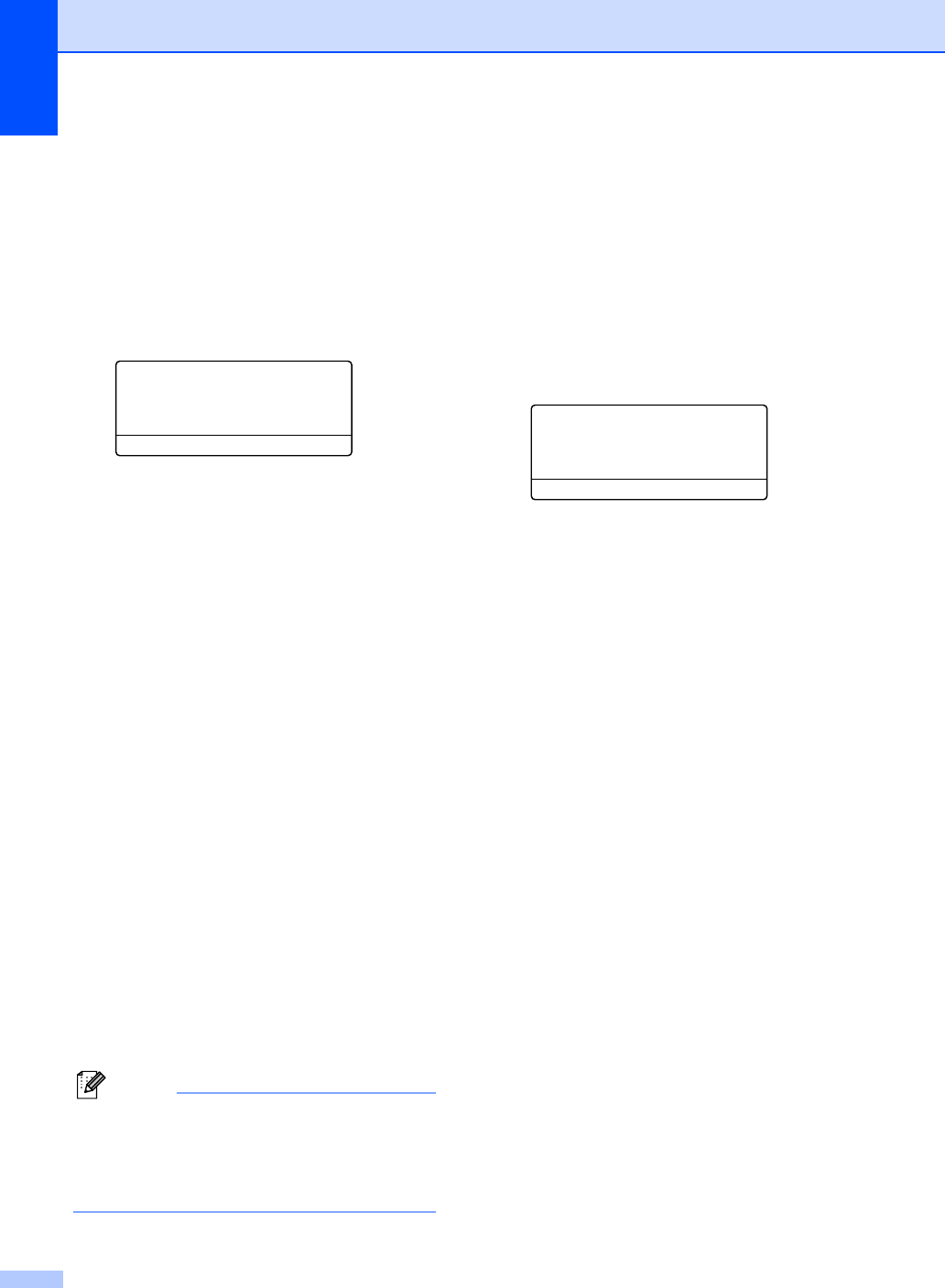
a Press Menu, 2, 5, 1.
25.Remote Fax Opt
1.Fwd/Page/Store
a Off
b Fax Forward
Select ab or OK
b Press a or b to choose Paging.
Press OK.
c Enter your cell phone or pager number
followed by # # (up to 20 digits).
Press OK.
Do not include the area code if it is the
same as that of your machine.
For example, press
1 8 0 0 5 5 5 1 2 3 4 # #
d Do one of the following:
If your pager needs a PIN, enter the
PIN, press #, press Redial/Pause,
enter your fax number followed by #
#.
Press OK
(For example, press:1 2 3 4 5 #
Redial/Pause 1 8 0 0 5 5 5 6 7 8 9 #
#)
If you do not need a PIN, press OK.
If you are programming a cell phone
number, press OK.
e Press Stop/Exit.
Note
• If you have set Paging, a backup copy will
automatically be printed at the machine.
• You cannot change a Paging or PIN
number remotely.
Fax Storage 9
The Fax Storage feature lets you store your
received faxes in the machine’s memory. You
can retrieve stored fax messages from a fax
machine at another location using the remote
retrieval commands. (See Retrieving fax
messages on page 76.) Your machine will
automatically print a copy of the stored fax.
a Press Menu, 2, 5, 1.
25.Remote Fax Opt
1.Fwd/Page/Store
a Off
b Fax Forward
Select ab or OK
b Press a or b to choose Fax Storage.
Press OK.
c Press Stop/Exit.