
User Guide



Table Of Contents
- USER’S GUIDE MFC-8480DN/MFC-8680DN/MFC-8690DW/MFC-8890DW
- Brother numbers
- Ordering accessories and supplies
- Notice - Disclaimer of Warranties (USA and Canada)
- Compilation and Publication Notice
- Brother™ One-Year Limited Warranty and Replacement Service (USA Only)
- BROTHER MULTIFUNCTION CENTER / FAX MACHINELIMITED WARRANTY (Canada only)
- Table of Contents
- Section I: General
- 1 General information
- Using the documentation
- Accessing the Software User’s Guide and Network User’s Guide
- Viewing documentation
- Viewing documentation (Windows®)
- How to find scanning instructions
- Software User’s Guide:
- ScanSoft™ PaperPort™ 11SE with OCR How-to-Guides:
- How to find Network setup instructions (MFC-8690DW and MFC-8890DW)
- Viewing documentation (Macintosh)
- How to find scanning instructions
- Software User’s Guide:
- Presto! PageManager User’s Guide:
- How to find Network setup instructions (MFC-8690DW and MFC-8890DW)
- Viewing documentation
- Accessing Brother support (Windows®)
- Control panel overview
- 2 Loading paper and documents
- 3 General Setup
- 4 Security features
- 1 General information
- Section II: Fax
- 5 Sending a fax
- How to fax
- Broadcasting
- Additional sending operations
- 6 Receiving a fax
- 7 Telephone services and external devices
- 8 Dialing and storing numbers
- 9 Remote Fax Options
- 10 Polling
- 11 Printing reports
- 5 Sending a fax
- Section III: Copy
- Section IV:Direct printing
- Section V:Software
- Section VI: Appendixes
- A Safety and legal
- B Options
- C Troubleshooting and routine maintenance
- D Menu and features
- E Specifications
- F Glossary
- Index
- brother USA/CAN
48
6
Choose the correct Receive Mode 6
The correct Receive mode is determined by the external devices and telephone subscriber
services (Voice Mail, Distinctive Ring, etc.) you have (or will be using) on the same line as the
Brother machine.
Receiving a fax 6
Will you be using a Distinctive Ring number for receiving faxes?
Brother uses the term "Distinctive Ring" but different telephone companies may have other names for this
service such as Custom Ringing, RingMaster, Personalized Ring, Teen Ring, Ident-A-Ring, Ident-A-Call,
Date Ident-A-Call, Smart Ring and SimpleBiz Fax & Alternate Number Ringing. (See Distinctive Ring
on page 54 for instructions on setting up your machine using this feature.)
Will you be using Voice Mail on the same telephone line as your Brother machine?
If you have Voice Mail on the same telephone line as your Brother machine, there is a strong possibility
that Voice Mail and the Brother machine will conflict with each other when receiving incoming calls. (See
Voice Mail on page 54 for instructions on setting up your machine using this service.)
Will you be using a Telephone Answering Device on the same telephone line as your Brother
machine?
Your external telephone answering device (TAD) will automatically answer every call. Voice messages are
stored on the external TAD and fax messages are printed. Choose External TAD as your receive mode.
(See Connecting an external TAD (telephone answering device) on page 57.)
Will you be using your Brother machine on a dedicated fax line?
Your machine automatically answers every call as a fax. Choose Fax Only as your receive mode. (See
Fax Only on page 49.)
Will you be using your Brother machine on the same line as your telephone?
Do you want to receive voice calls and faxes automatically?
The Fax/Tel receive mode is used when sharing the Brother machine and your telephone on the
same line. Choose Fax/Tel as your receive mode. (See Fax/Tel on page 49.)
Important Note: You can not receive voice messages on either Voice Mail or an answering
machine when choosing the Fax/Tel mode.
Do you expect to receive very few faxes?
Choose Manual as your receive mode. You control the telephone line and must answer every call
yourself. (See Manual on page 49.)
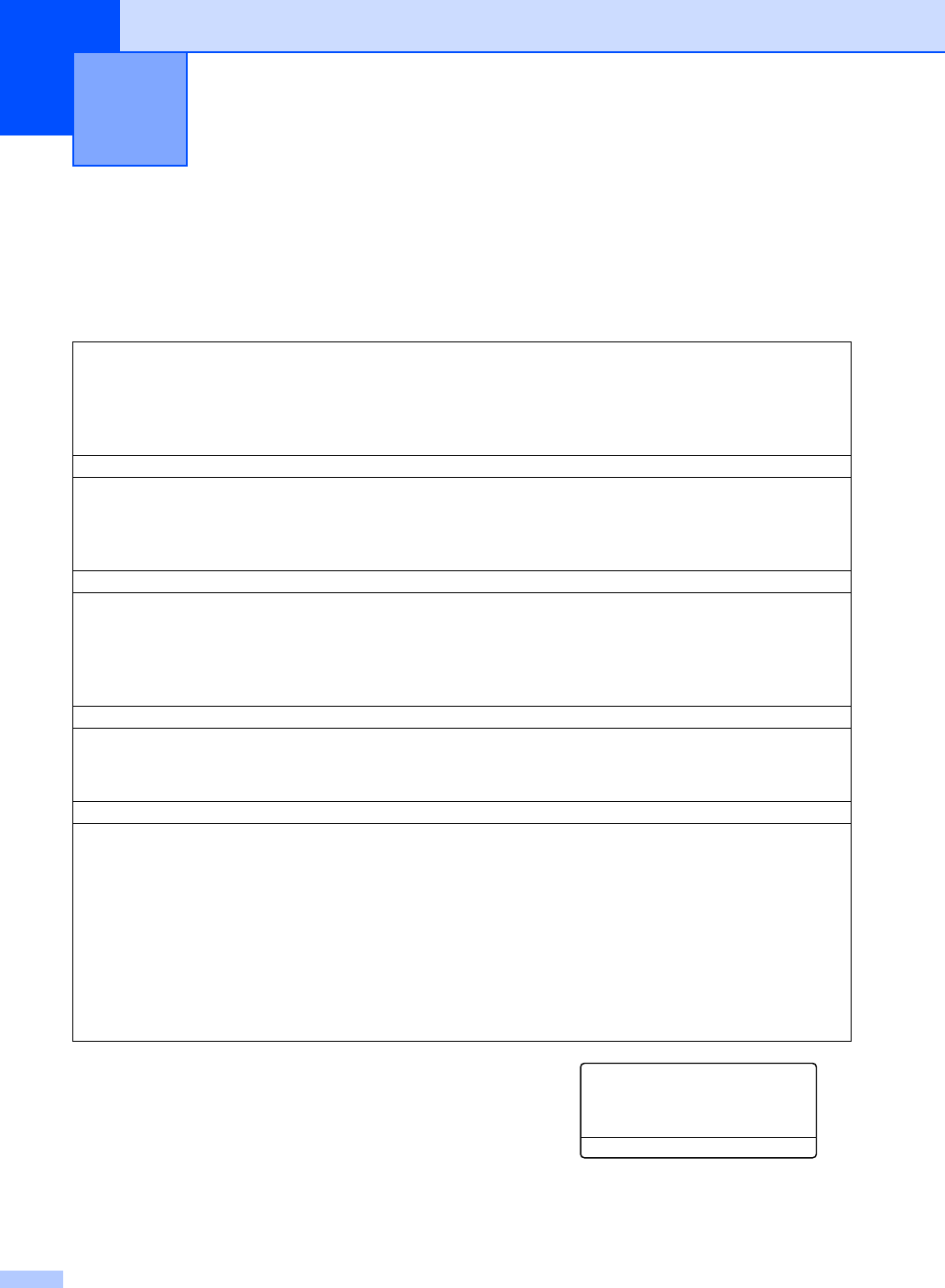
To set the receive mode follow the instructions below:
a Press Menu, 0, 1.
b Press a or b to choose the receive mode.
Press OK.
c Press Stop/Exit.
01.Receive Mode
a Fax Only
Fax/Tel
b External TAD
Select ab or OK
The LCD will display the current receive mode.