
User Guide




Table Of Contents
- USER’S GUIDE MFC-8480DN/MFC-8680DN/MFC-8690DW/MFC-8890DW
- Brother numbers
- Ordering accessories and supplies
- Notice - Disclaimer of Warranties (USA and Canada)
- Compilation and Publication Notice
- Brother™ One-Year Limited Warranty and Replacement Service (USA Only)
- BROTHER MULTIFUNCTION CENTER / FAX MACHINELIMITED WARRANTY (Canada only)
- Table of Contents
- Section I: General
- 1 General information
- Using the documentation
- Accessing the Software User’s Guide and Network User’s Guide
- Viewing documentation
- Viewing documentation (Windows®)
- How to find scanning instructions
- Software User’s Guide:
- ScanSoft™ PaperPort™ 11SE with OCR How-to-Guides:
- How to find Network setup instructions (MFC-8690DW and MFC-8890DW)
- Viewing documentation (Macintosh)
- How to find scanning instructions
- Software User’s Guide:
- Presto! PageManager User’s Guide:
- How to find Network setup instructions (MFC-8690DW and MFC-8890DW)
- Viewing documentation
- Accessing Brother support (Windows®)
- Control panel overview
- 2 Loading paper and documents
- 3 General Setup
- 4 Security features
- 1 General information
- Section II: Fax
- 5 Sending a fax
- How to fax
- Broadcasting
- Additional sending operations
- 6 Receiving a fax
- 7 Telephone services and external devices
- 8 Dialing and storing numbers
- 9 Remote Fax Options
- 10 Polling
- 11 Printing reports
- 5 Sending a fax
- Section III: Copy
- Section IV:Direct printing
- Section V:Software
- Section VI: Appendixes
- A Safety and legal
- B Options
- C Troubleshooting and routine maintenance
- D Menu and features
- E Specifications
- F Glossary
- Index
- brother USA/CAN
Sending a fax
39
5
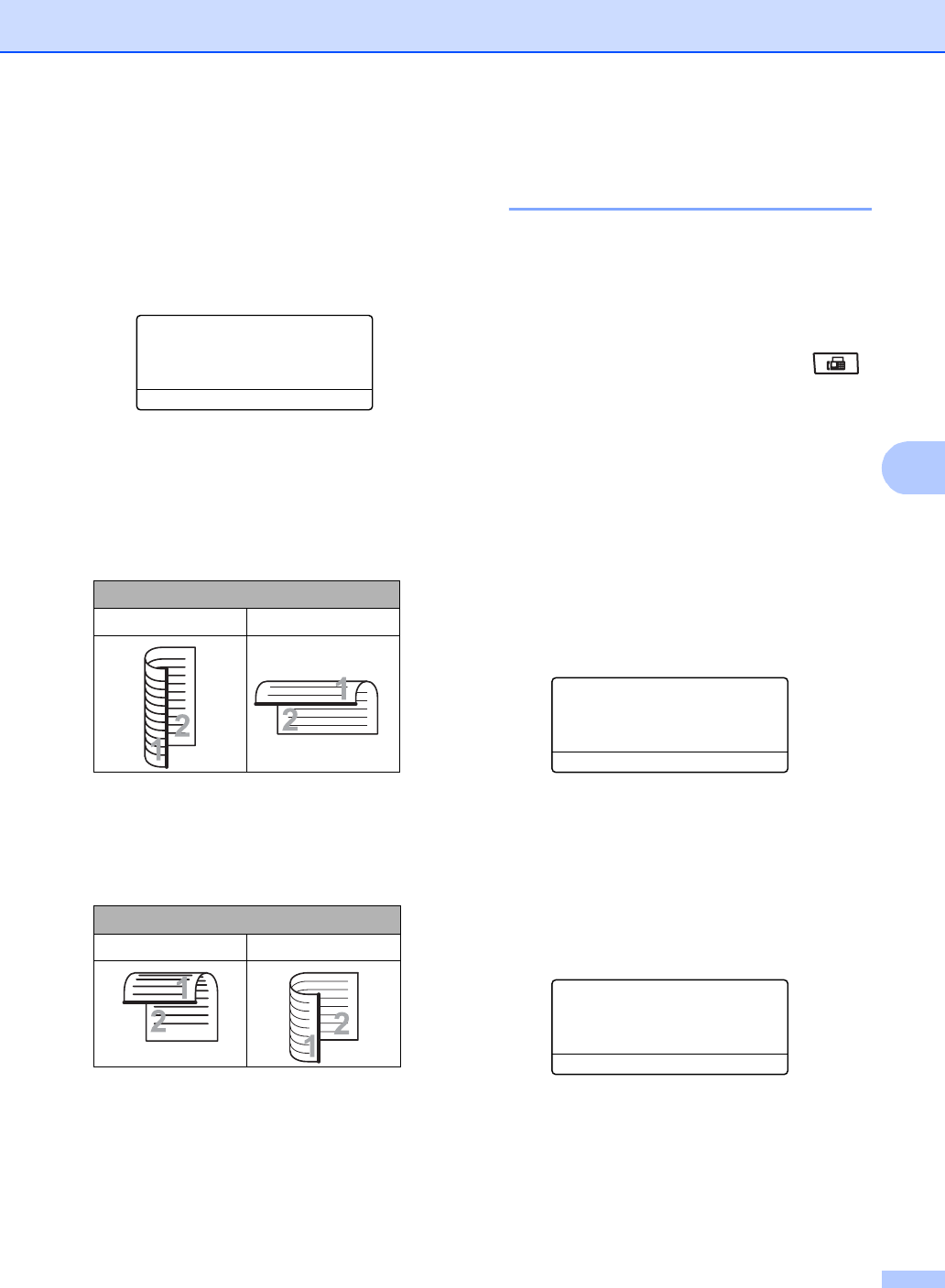
Changing a 2-sided fax layout
You need to choose the duplex scanning
format before you send a fax. The format you
choose will depend on the layout of your
2-sided document.
a Press Menu, 1, 9, 3.
19.Document Scan
3.Duplex Scan
a Long edge
b Short edge
Select ab or OK
b Do one of the following:
If your document is flipped on the
Long edge, press a or b to choose
Long edge.
Press OK.
If your document is flipped on the
Short edge, press a or b to choose
Short edge.
Press OK.
c Press Stop/Exit.
Sending a fax from the
scanner glass 5
You can use the scanner glass to fax the
pages of a book, or a single page at a time.
The documents can be up to Letter, A4, Legal
or Folio size. Press Stop/Exit to cancel a fax
in progress.
a Make sure you are in Fax mode .
b Place your document face down on the
scanner glass.
c Dial the fax number. (See How to dial
on page 63.)
d Press Start.
The machine starts scanning the first
page.
e After the machine scans the page, the
LCD will prompt you to choose one of
the options below:
Flatbed Fax:
Next Page?
a 1.Yes
b 2.No (Send)
Select ab or OK
Press 1 to send another page. Go to
step f.
Press 2 or Start to send the
document. Go to step g .
f Place the next page on the scanner
glass, press OK. Repeat steps e and f
for each additional page.
Flatbed Fax:
Set Next Page
Then Press OK
g Your machine will automatically send
the fax.
Long edge
Portrait Landscape
Short edge
Portrait Landscape