
User Guide






Table Of Contents
- USER’S GUIDE MFC-8480DN/MFC-8680DN/MFC-8690DW/MFC-8890DW
- Brother numbers
- Ordering accessories and supplies
- Notice - Disclaimer of Warranties (USA and Canada)
- Compilation and Publication Notice
- Brother™ One-Year Limited Warranty and Replacement Service (USA Only)
- BROTHER MULTIFUNCTION CENTER / FAX MACHINELIMITED WARRANTY (Canada only)
- Table of Contents
- Section I: General
- 1 General information
- Using the documentation
- Accessing the Software User’s Guide and Network User’s Guide
- Viewing documentation
- Viewing documentation (Windows®)
- How to find scanning instructions
- Software User’s Guide:
- ScanSoft™ PaperPort™ 11SE with OCR How-to-Guides:
- How to find Network setup instructions (MFC-8690DW and MFC-8890DW)
- Viewing documentation (Macintosh)
- How to find scanning instructions
- Software User’s Guide:
- Presto! PageManager User’s Guide:
- How to find Network setup instructions (MFC-8690DW and MFC-8890DW)
- Viewing documentation
- Accessing Brother support (Windows®)
- Control panel overview
- 2 Loading paper and documents
- 3 General Setup
- 4 Security features
- 1 General information
- Section II: Fax
- 5 Sending a fax
- How to fax
- Broadcasting
- Additional sending operations
- 6 Receiving a fax
- 7 Telephone services and external devices
- 8 Dialing and storing numbers
- 9 Remote Fax Options
- 10 Polling
- 11 Printing reports
- 5 Sending a fax
- Section III: Copy
- Section IV:Direct printing
- Section V:Software
- Section VI: Appendixes
- A Safety and legal
- B Options
- C Troubleshooting and routine maintenance
- D Menu and features
- E Specifications
- F Glossary
- Index
- brother USA/CAN
Troubleshooting and routine maintenance
135
C
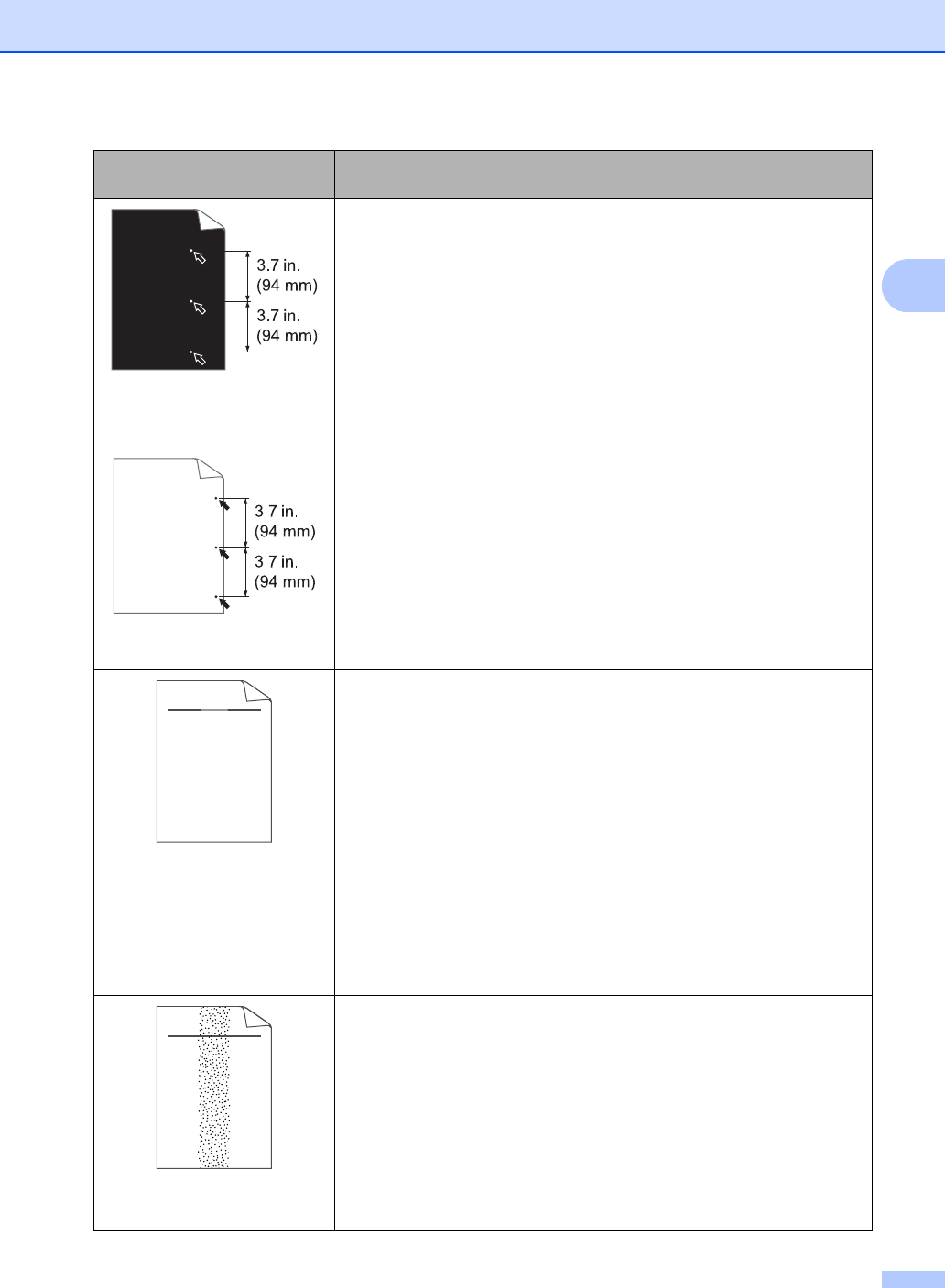
White Spots on black text
and graphics at 3.7 in.
(94 mm) intervals
Black Spots at 3.7 in.
(94 mm) intervals
Make ten copies of a blank, white sheet of paper. (See Making
multiple copies on page 84.) If the problem is not solved, the drum
unit may have glue from a label stuck on the OPC drum surface.
Clean the drum unit. (See Cleaning the drum unit on page 158.)
The drum unit may be damaged. Put in a new drum. (See Replacing
the drum unit on page 164.)
Faint
Check the machine’s environment. Conditions such as humidity, high
temperatures, and so on, may cause this print fault. (See Choosing a
location on page 104.)
If the whole page is too light, Toner Save mode may be on. Turn off
Toner Save mode in the machine menu settings or Toner Save mode
in the printer Properties of the driver. (See Toner Save on page 27
or Advanced tab in the Software User’s Guide on the CD-ROM.)
Clean the scanner window and the corona wire of the drum unit. (See
Cleaning the laser scanner window on page 155 and Cleaning the
corona wire on page 157.)
The toner cartridge may be damaged. Put in a new toner cartridge.
(See Replacing a toner cartridge on page 161.)
The drum unit may be damaged. Put in a new drum unit. (See
Replacing the drum unit on page 164.)
Toner specks
Make sure that you use paper that meets our specifications. Rough-
surfaced paper may cause the problem. (See Acceptable paper and
other print media on page 14.)
Clean the corona wire and the drum unit. (See Cleaning the corona
wire on page 157 and Cleaning the drum unit on page 158.)
The drum unit may be damaged. Put in a new drum unit. (See
Replacing the drum unit on page 164.)
The fuser unit may be contaminated. Call Brother Customer Service
at 1-877-BROTHER (1-877-276-8437) (in USA)
or 1-877-BROTHER (in Canada).
Examples of poor print
quality
Recommendation
ABCDEFGH
abcdefghijk
ABCD
abcde
01234
C
DE
F
d
ef
g
BC
b
c
d
2
3
ABCDEFGH
abcdefghijk
ABCD
abcde
01234