
User Guide




Table Of Contents
- USER’S GUIDE MFC-8480DN/MFC-8680DN/MFC-8690DW/MFC-8890DW
- Brother numbers
- Ordering accessories and supplies
- Notice - Disclaimer of Warranties (USA and Canada)
- Compilation and Publication Notice
- Brother™ One-Year Limited Warranty and Replacement Service (USA Only)
- BROTHER MULTIFUNCTION CENTER / FAX MACHINELIMITED WARRANTY (Canada only)
- Table of Contents
- Section I: General
- 1 General information
- Using the documentation
- Accessing the Software User’s Guide and Network User’s Guide
- Viewing documentation
- Viewing documentation (Windows®)
- How to find scanning instructions
- Software User’s Guide:
- ScanSoft™ PaperPort™ 11SE with OCR How-to-Guides:
- How to find Network setup instructions (MFC-8690DW and MFC-8890DW)
- Viewing documentation (Macintosh)
- How to find scanning instructions
- Software User’s Guide:
- Presto! PageManager User’s Guide:
- How to find Network setup instructions (MFC-8690DW and MFC-8890DW)
- Viewing documentation
- Accessing Brother support (Windows®)
- Control panel overview
- 2 Loading paper and documents
- 3 General Setup
- 4 Security features
- 1 General information
- Section II: Fax
- 5 Sending a fax
- How to fax
- Broadcasting
- Additional sending operations
- 6 Receiving a fax
- 7 Telephone services and external devices
- 8 Dialing and storing numbers
- 9 Remote Fax Options
- 10 Polling
- 11 Printing reports
- 5 Sending a fax
- Section III: Copy
- Section IV:Direct printing
- Section V:Software
- Section VI: Appendixes
- A Safety and legal
- B Options
- C Troubleshooting and routine maintenance
- D Menu and features
- E Specifications
- F Glossary
- Index
- brother USA/CAN
126
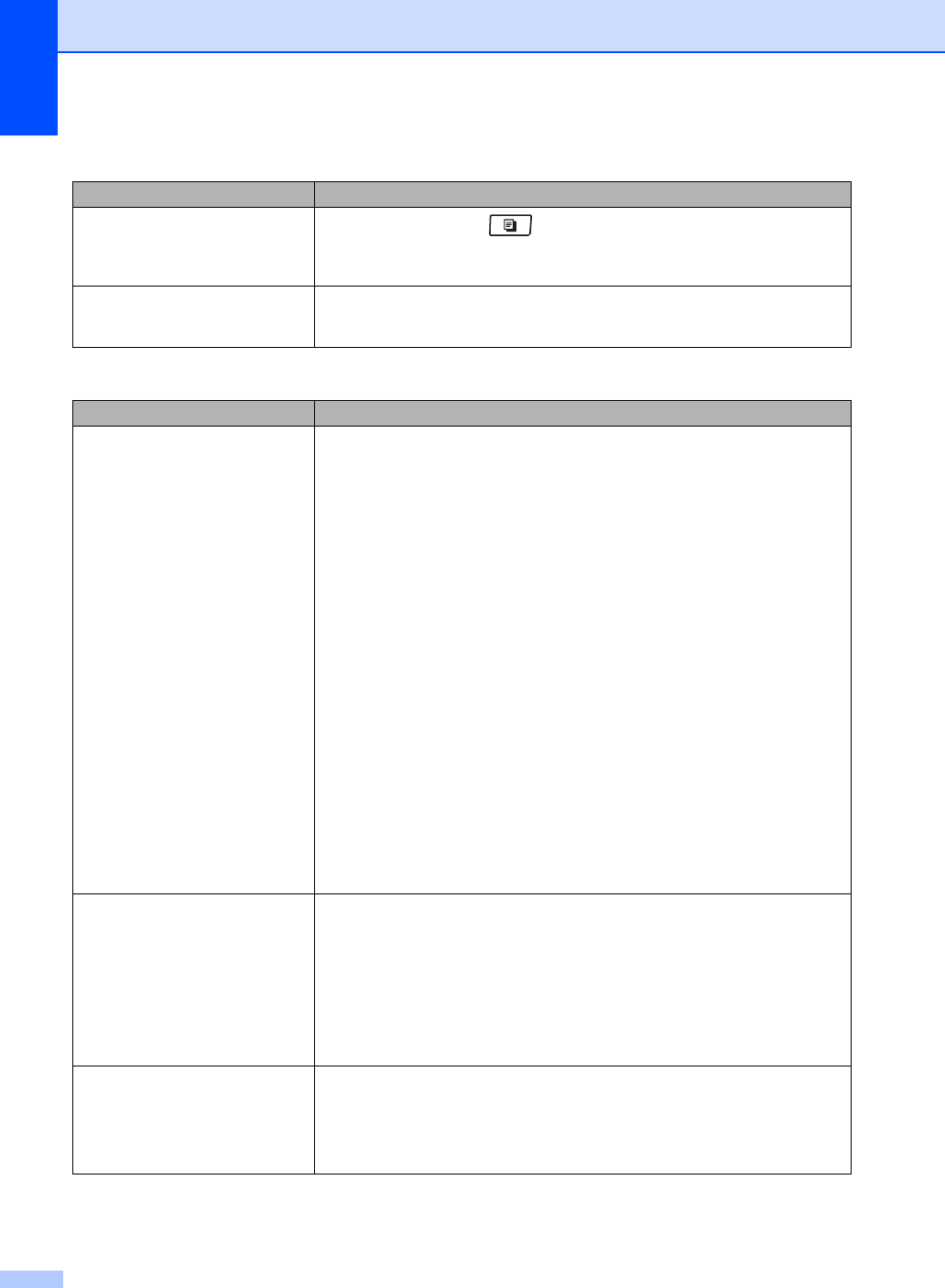
Copy difficulties
Difficulties Suggestions
Cannot make a copy.
Make sure that Copy is illuminated. (See Entering copy mode
on page 84.)
Contact your administrator to check your Secure Function Lock settings.
Vertical black line appears in
copies.
Black vertical lines on copies are typically caused by dirt or correction fluid on the
glass strip, or the corona wire for printing is dirty. (See Cleaning the scanner
on page 155 and Cleaning the corona wire on page 157.)
Printing difficulties
Difficulties Suggestions
No printout. Check that the machine is plugged in and the power switch is turned on.
Check that the toner cartridge and drum unit are installed properly. (See
Replacing the drum unit on page 164.)
Check the interface cable connection on both the machine and your computer.
(See the Quick Setup Guide.)
Check that the correct printer driver has been installed and chosen.
Check to see if the LCD is showing an error message. (See Error and
maintenance messages on page 139.)
Check that the machine is online:
(Windows Vista
®
) Click the Start button, Control Panel,
Hardware and Sound, and then Printers. Right-click
Brother MFC-XXXX Printer. Make sure that Use Printer Offline is
unchecked.
(Windows
®
XP and Windows Server
®
2003) Click the Start button and
choose Printers and Faxes. Right-click Brother MFC-XXXX Printer. Make
sure that Use Printer Offline is unchecked.
(Windows
®
2000) Click the Start button and choose Settings and then
Printers. Right-click Brother MFC-XXXX Printer. Make sure that
Use Printer Offline is unchecked.
Contact your administrator to check your Secure Function Lock settings.
The machine prints unexpectedly
or it prints garbage.
Pull out the paper tray and wait until the machine stops printing. Then turn off
the machine’s power switch and disconnect from the power for several
minutes. (The machine can be turned off for approximately 60 hours without
losing faxes stored in the memory.)
Check the settings in your application to make sure it is set up to work with
your machine.
If you are using the parallel port connection, check that the port is BRMFC and
not LPT1.
The machine prints the first couple
of pages correctly, then some
pages have text missing.
Check the settings in your application to make sure that it is set up to work with
your machine.
Your computer is not recognizing the machine’s input buffer’s full signal. Make
sure that you connected the interface cable correctly. (See the Quick Setup
Guide.)