
User Guide


Table Of Contents
- USER’S GUIDE MFC-8480DN/MFC-8680DN/MFC-8690DW/MFC-8890DW
- Brother numbers
- Ordering accessories and supplies
- Notice - Disclaimer of Warranties (USA and Canada)
- Compilation and Publication Notice
- Brother™ One-Year Limited Warranty and Replacement Service (USA Only)
- BROTHER MULTIFUNCTION CENTER / FAX MACHINELIMITED WARRANTY (Canada only)
- Table of Contents
- Section I: General
- 1 General information
- Using the documentation
- Accessing the Software User’s Guide and Network User’s Guide
- Viewing documentation
- Viewing documentation (Windows®)
- How to find scanning instructions
- Software User’s Guide:
- ScanSoft™ PaperPort™ 11SE with OCR How-to-Guides:
- How to find Network setup instructions (MFC-8690DW and MFC-8890DW)
- Viewing documentation (Macintosh)
- How to find scanning instructions
- Software User’s Guide:
- Presto! PageManager User’s Guide:
- How to find Network setup instructions (MFC-8690DW and MFC-8890DW)
- Viewing documentation
- Accessing Brother support (Windows®)
- Control panel overview
- 2 Loading paper and documents
- 3 General Setup
- 4 Security features
- 1 General information
- Section II: Fax
- 5 Sending a fax
- How to fax
- Broadcasting
- Additional sending operations
- 6 Receiving a fax
- 7 Telephone services and external devices
- 8 Dialing and storing numbers
- 9 Remote Fax Options
- 10 Polling
- 11 Printing reports
- 5 Sending a fax
- Section III: Copy
- Section IV:Direct printing
- Section V:Software
- Section VI: Appendixes
- A Safety and legal
- B Options
- C Troubleshooting and routine maintenance
- D Menu and features
- E Specifications
- F Glossary
- Index
- brother USA/CAN
94
13
With the Direct Print feature, you do not need
a computer to print data. You can print by just
plugging your USB Flash memory drive into
the machine’s USB direct interface. You can
also connect and print directly from a camera
set to USB mass storage mode.
Note
• Some USB Flash memory drives may not
work with the machine.
• If your camera is in PictBridge mode, you
cannot print data. Please refer to the
documentation supplied with your camera
to switch from PictBridge mode to mass
storage mode.
Supported file formats 13
Direct Print supports the following file
formats:
PDF version 1.7
1
JPEG
Exif + JPEG
PRN (created by Brother driver)
TIFF (scanned by all MFC or DCP Brother
models)
PostScript
®
3™ (created by the Brother
BRScript3 printer driver)
XPS version 1.0
1
PDF data that includes a JBIG2 image file a
JPEG2000 image file or transparency files is not
supported.
Creating a PRN or
PostScript
®
3™ file for
direct printing 13
Note
The screens in this section may vary
depending on your application and
operating system.
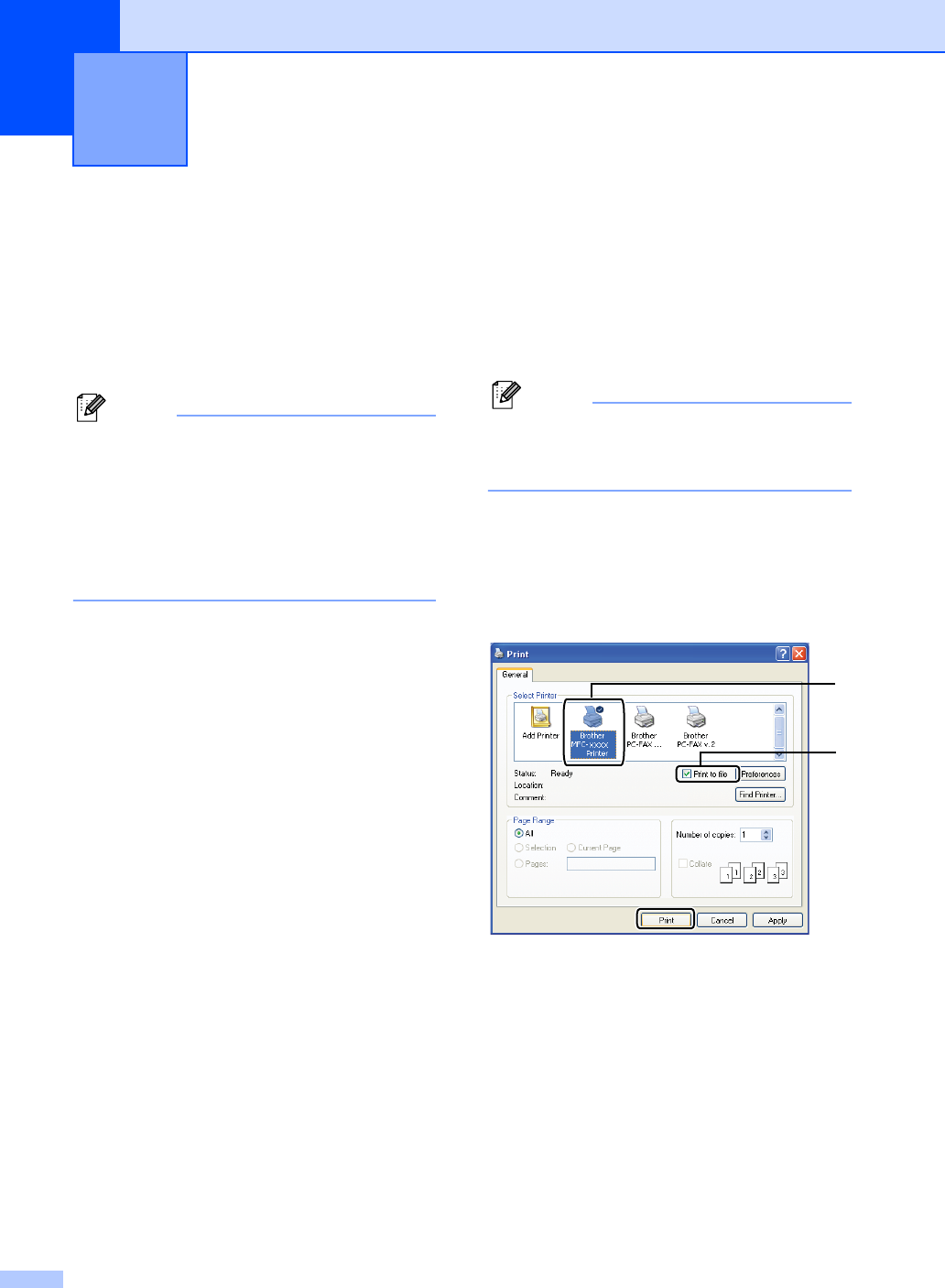
a From the menu bar of an application,
click File, then Print.
b Choose Brother MFCXXXX Printer (1)
and check the Print to file box (2).
Click Print.
c Choose the folder you want to save the
file to and enter the file name if you are
prompted to.
If you are prompted for a file name only,
you can also specify the folder you want
to save the file in by entering the
directory name. For example:
C:\Temp\FileName.prn
If you have a USB Flash memory drive
or digital camera connected to your
computer, you can save the file directly
to the USB Flash memory drive.
Printing data from a USB Flash
memory drive or a digital camera
supporting mass storage
13
2
1