
All in One Printer User Manual

Chapter 8
68
e To add One Touch or Speed Dial
numbers follow the instructions below:
For One Touch numbers, press the
One Touch keys one after the other.
For Speed Dial numbers, hold down
Shift as you press
Search/Speed Dial, and then enter
the three-digit Speed Dial location.
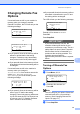
The LCD will display your chosen One
Touch numbers with a l and Speed Dial
numbers with a # (for example l006,
#009).
f Press OK when you have finished
adding numbers.
g Do one of the following:
Enter the name using the dial pad
(up to 15 characters). Use the chart
on Entering text on page 188 to help
you enter letters.
Press OK.
Press OK to store the group without
a name.
Go to step i.
h (MFC-8480DN)
If you want to save a fax resolution along
with the number, choose one of the
options below:
To store the fax resolution, press a or
b to select Std, Fine, S.Fine or
Photo.
Press OK.
Press OK if you don’t want to change
the default resolution.
i (MFC-8890DW)
You can save a fax/scan resolution
along with the number. Do one of the
following:
If you selected Fax/IFAX in step d,
press a or b to select Std, Fine,
S.Fine or Photo.
Press OK.
If you selected E-mail in step d,
press a or b to select Color100dpi,
Color200dpi, Color300dpi,
Color600dpi, Gray100dpi,
Gray200dpi, Gray300dpi,
B&W200dpi or B&W200x100.
Press OK.
Press OK if you don’t want to change
the default resolution.
Note
If you have selected Fax/IFAX in step d
and added One-Touch or Speed-Dial
numbers that are stored as ‘I-Fax’, you
cannot select S.Fine.
j (MFC-8890DW)
If you selected Black & White in step e,
select the file format (TIFF, PDF or
Secure PDF) that will be used to send to
your PC. If you selected Gray or Color in
step e, select the file format (PDF,
Secure PDF, JPEG or XPS) that will be
used to send your PC.
Press OK.
Dialing access codes and
credit card numbers 8
You can combine more than one Quick Dial
number when you dial. This feature may be
useful if you need to dial an access code for
a cheaper rate from another long distance
carrier.
For example, you might have stored ‘555’ on
Speed Dial #003 and ‘7000’ on Speed Dial
#002. You can use them both to dial
‘555-7000’ if you press the following keys:
Hold down Shift as you press
Search/Speed Dial, 003.
Hold down Shift as you press
Search/Speed Dial, 002 and Start.
Numbers can be added manually by entering
them on the dial pad: