
All in One Printer User Manual

Dialing and storing numbers
67
8
• You can also store the number by
pressing Menu, 2, 3, 2.
Changing One Touch and
Speed Dial numbers 8
If you try to store a One Touch or Speed Dial
number over an existing number, the LCD will
show the name or number already stored
there. If your machine has a scheduled job or
you have set a fax forwarding number, the
LCD will ask you if you want to change the
number.
a Do one of the following:
To change the stored number, press
1.
To exit without making a change,
press 2.
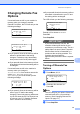
23.Address Bo ok
#005:MIKE
a 1.Change
b 2.Exit
Select ab or OK
MFC-8480DN, go to c
MFC-8890DW, go to b
b (MFC-8890DW)
Press a or b to select Fax/Tel, E-Mail
or IFAX.
Press OK.
c Enter a new number or character.
Press OK.
d Press d or c to position the cursor under
the character you want to change, and
then press Clear/Back to delete it.
Repeat for each character you want to
delete.
e Follow the directions beginning in
step d in Storing One-Touch dial
numbers and Storing Speed-Dial
numbers. (See Storing One Touch Dial
numbers on page 64 and Storing Speed
Dial numbers on page 65.)
Setting up Groups for
Broadcasting 8
If you often want to send the same fax
message to many fax numbers you can set
up a group.
Groups are stored on a One Touch key or a
Speed Dial number. Each group uses up a
One Touch key or a Speed Dial location. You
can then send the fax message to all the
numbers stored in a group just by pressing a
One Touch key or entering a Speed Dial
number, and then pressing Start.
Before you can add numbers to a group, you
need to store them as One Touch or Speed
Dial numbers. You can have up to 20 small
groups, or you can assign up to 339 numbers
to one large group.
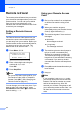
a Press Menu, 2, 3, 3.
23.Address Book
3.Setup Groups
Group Dial:
Press Speed Dial
b Choose an empty location where you
want to store the group in one of the
following ways:
Press a One Touch key.
Hold down Shift as you press
Search/Speed Dial and then enter
the three-digit Speed Dial location.
Press OK.
c Use the dial pad to enter a group
number (01 to 20).
Press OK.
(MFC-8480DN) Go to step e.
(MFC-8890DW) Go to step d.
d (MFC-8890DW)
Press a or b to select Fax/IFAX or
E-Mail.
Press OK.