
All in One Printer User Manual

Chapter 13
94
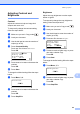
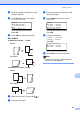
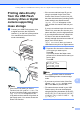
c Do one of the following:
Press a or b to choose a setting you
need to change and press OK, and
then press a or b to choose an option
for the setting and press OK.
If you do not need to change the
current default settings, go to
step d.
Print File Set
aPaper Size
Media Type
bMultiple Page
Select ab or OK
Note
• You can choose the following settings:
Paper Size
Media Type
Multiple Page
Orientation
Duplex
Collate
Tray Use
Print Quality
PDF Option
• Depending on the file type, some of
these settings may not appear.
d Press Start if you have finished.
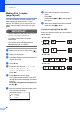
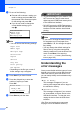
e Press the dial pad key to enter the
number of copies you want.
Press OK.
Direct Print
FILE0_1.PDF
No. of Copies:
Press Start
1
f Press Start to print the data.
IMPORTANT
• To prevent damage to your machine, DO
NOT connect any device other than a
digital camera or USB Flash memory drive
to the USB direct interface.
• DO NOT remove the USB Flash memory
drive or digital camera from the USB direct
interface until the machine has finished
printing.
Note
• If you want to change the default setting
for the paper tray to feed paper from,
press Menu, 1, 6, 3 to change the paper
tray setting.
• You can change the default settings for
Direct Print by using the control panel
when the machine is not in the Direct Print
mode. Press Menu, 5 to enter the
USB Direct I/F menu. (See Entering
text on page 188.)
Understanding the
error messages 13
Once you are familiar with the types of errors
that can occur while you print data from the
USB Flash memory drive with Direct Print,
you can easily identify and troubleshoot any
problems.
Out of Memory
This message will appear if you are
working with images that are too large for
the machine’s memory.
Unusable Device
This message will appear if you connect
an incompatible or broken device to the
USB direct interface. To clear the error,
unplug the device from the USB direct
interface.
(See Error and maintenance messages
on page 134 for the detailed solution.)