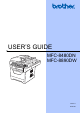
USER’S GUIDE MFC-8480DN MFC-8890DW Version 0 USA/CAN
If you need to call Customer Service Please complete the following information for future reference: Model Number: MFC-8480DN and MFC-8890DW (Circle your model number) Serial Number: 1 Date of Purchase: Place of Purchase: 1 The serial number is on the back of the unit. Retain this User’s Guide with your sales receipt as a permanent record of your purchase, in the event of theft, fire or warranty service. Register your product on-line at http://www.brother.
Brother numbers IMPORTANT For technical help, you must call the country where you bought the machine. Calls must be made from within that country. Register your product By registering your product with Brother International Corporation, you will be recorded as the original owner of the product.
Ordering accessories and supplies For best quality results use only genuine Brother accessories, which are available at most Brother retailers. If you cannot find the accessory you need and you have a Visa, MasterCard, Discover, or American Express credit card, you can order accessories directly from Brother. (You can visit us online for a complete selection of the Brother accessories and supplies that are available for purchase.) Note In Canada, only Visa and MasterCard are accepted.
Notice - Disclaimer of Warranties (USA and Canada) BROTHER’S LICENSOR(S), AND THEIR DIRECTORS, OFFICERS, EMPLOYEES OR AGENTS (COLLECTIVELY BROTHER’S LICENSOR) MAKE NO WARRANTIES, EXPRESS OR IMPLIED, INCLUDING WITHOUT LIMITATION THE IMPLIED WARRANTIES OF MERCHANTABILITY AND FITNESS FOR A PARTICULAR PURPOSE, REGARDING THE SOFTWARE.
Brother® One-Year Limited Warranty and Replacement Service (USA Only) Who is covered: This limited warranty (“warranty”) is given only to the original end-user/retail purchaser (referred to in this warranty as “Original Purchaser”) of the accompanying product, consumables and accessories (collectively referred to in this warranty as “this Product”).
Brother® One-Year Limited Warranty and Replacement Service (USA Only) a refurbished or remanufactured replacement Machine and/or accompanying Consumable and Accessory Items and use refurbished parts provided such replacement products conform to the manufacturer’s specifications for new product/parts.
BROTHER MULTIFUNCTION CENTER / FAX MACHINE LIMITED WARRANTY (Canada only) Pursuant to the limited warranty of 1 year from the date of purchase for labour and parts, Brother International Corporation (Canada) Ltd. (“Brother”), or its Authorized Service Centres, will repair or replace (at Brother’s sole discretion) this MFC/Fax machine free of charge if defective in material or workmanship. This warranty applies only to products purchased and used in Canada.
Table of Contents Section I 1 General General information 2 Using the documentation ....................................................................................... 2 Symbols and conventions used in the documentation .................................... 2 Accessing the Software User’s Guide and Network User’s Guide ........................ 3 Viewing documentation ................................................................................... 3 Accessing Brother support (Windows®) ............
4 Security features 30 Secure Function Lock 2.0 ....................................................................................30 Setting the password for the administrator ...................................................30 Changing the password for the administrator ................................................31 Setting up the public user mode ....................................................................31 Setting up restricted users ...................................................
6 Receiving a fax 48 Choose the correct Receive Mode ...................................................................... 48 Using receive modes ........................................................................................... 49 Fax Only ........................................................................................................ 49 Fax/Tel........................................................................................................... 49 Manual..........................
8 Dialing and storing numbers 62 How to dial ...........................................................................................................62 Manual dialing ...............................................................................................62 One touch dialing...........................................................................................62 Speed dialing .................................................................................................62 Search .........
Section III Copy 12 Making copies 82 How to copy ......................................................................................................... 82 Entering copy mode....................................................................................... 82 Making a single copy ..................................................................................... 82 Making multiple copies .................................................................................. 82 Stop copying...........
Section VI Appendixes A Safety and legal 100 Choosing a location ...........................................................................................100 To use the machine safely.................................................................................101 Important safety instructions........................................................................105 Standard telephone and FCC notices .........................................................
Machine Information .......................................................................................... 161 Checking the Serial Number........................................................................ 161 Checking the Page Counters....................................................................... 161 Checking the remaining life of parts ............................................................ 161 Reset ....................................................................................
xiv
Section I General General information Loading paper and documents General Setup Security features I 2 10 23 30
1 General information Using the documentation 1 Warnings tell you what to do to prevent possible personal injury. Thank you for buying a Brother machine! Reading the documentation will help you make the most of your machine. Symbols and conventions used in the documentation The following symbols and conventions are used throughout the documentation. Bold Bold style identifies keys on the machine control panel or computer screen.
General information Accessing the Software User’s Guide and Network User’s Guide c 1 This User’s Guide does not contain all the information about the machine such as how to use the advanced features of Fax, Printer, Scanner, PC Fax and Network. When you are ready to learn detailed information about these operations, read the Software User’s Guide and Network User’s Guide.
Chapter 1 How to find scanning instructions 1 There are several ways you can scan documents. You can find the instructions as follows: Software User’s Guide: 1 Viewing documentation (Macintosh®) a Turn on your Macintosh®. Insert the Brother CD-ROM labeled Macintosh® into your CD-ROM drive. b The following window will appear. c d Double-click the Documentation icon. e Double-click the top page file to view the Software User’s Guide and Network User’s Guide in HTML format.
General information How to find scanning instructions 1 There are several ways you can scan documents.
Chapter 1 Control panel overview 1 MFC-8480DN and MFC-8890DW have the same keys. 1 One Touch keys These 20 keys give you instant access to 40 previously stored numbers. Shift Lets you access One Touch numbers 21 to 40 when held down. 2 Status LED The LED will flash and change color depending on the machine status. 3 LCD Displays messages to help you set up and use your machine. A four level indicator shows the current wireless signal strength if you are using a wireless connection.
General information 1 6 Stop/Exit Stops an operation or exits from a menu. 7 Start Lets you start sending faxes, making copies or scanning. 8 Copy keys: Duplex You can choose Duplex to copy on both sides of the paper. Contrast/Quality Lets you change the quality or contrast for the next copy. Enlarge/Reduce Reduces or enlarges copies. Tray Select Lets you change which tray will be used for the next copy. Sort Sorts multiple copies using the ADF.
Chapter 1 10 Fax and telephone keys: Hook Press before dialing if you want to make sure a fax machine will answer, and then press Start. Also, press this key after you pick up the handset of an external telephone during the F/T ring (fast double-rings). Resolution Sets the resolution when sending a fax. Search/Speed Dial Lets you look up numbers stored in memory.
General information Status LED indications 1 The Status LED (light emitting diode) will flash and change color depending on the machine’s status. LED Machine Status Description Sleep Mode The power switch is off or the machine is in Sleep mode. Warming Up The machine is warming up for printing. Ready The machine is ready to print. Receiving Data The machine is either receiving data from the computer, processing data in memory, or printing data.
2 Loading paper and documents Loading paper and print media The machine can feed paper from the standard paper tray, optional lower tray or multi-purpose tray. When you put paper into the paper tray, note the following: Loading paper in the standard paper tray 2 2 Printing on plain paper, thin paper, recycled paper or transparencies from the paper tray a Pull the paper tray completely out of the machine.
Loading paper and documents IMPORTANT Note For Legal and Folio size paper, press the release button (1) in the bottom of the paper tray and then pull out the back of the paper tray. (Legal or Folio size paper are not available in some regions.) Make sure the paper guides touch the sides of the paper so it will feed properly. e Put the paper tray firmly back in the machine. Make sure that it is completely inserted into the machine.
Chapter 2 Loading paper in the multi-purpose tray (MP tray) b Open the MP tray and lower it gently. c Pull out the MP tray support (1) and unfold the flap (2). 2 You can load up to 3 envelopes or special print media in the MP tray or up to 50 sheets of plain paper. Use this tray to print or copy on thick paper, bond paper, envelopes, labels or transparencies.
Loading paper and documents e Put the envelopes (up to 3), thick paper, labels or transparencies in the MP tray with the top edge first and the print side face up. Make sure that the paper stays under the maximum paper mark (b).
Chapter 2 Unprintable area 2 Unprintable area for faxes and copies 2 The figures below show unprintable areas. 2 2 Usage 1 Fax Copy 1 Document Size Top (1) Left (2) Bottom (1) Right(2) Letter 0.12 in.(3 mm) 0.16 in.(4 mm) A4 0.12 in.(3 mm) 0.16 in.(4 mm) Letter 0.12 in.(3 mm) 0.16 in.(4 mm) A4 0.12 in.(3 mm) 0.08 in.(2mm) Note This unprintable area shown above is for a single copy or a 1 in 1 copy using Letter size paper. The unprintable area changes with the paper size.
Loading paper and documents Acceptable paper and other print media Recommended paper and print media Print quality may vary according to the type of paper you are using. You can use the following types of print media: thin paper, plain paper, thick paper, bond paper, recycled paper, transparencies, labels or envelopes. For best results, follow the instructions below: Use paper made for plain paper copying. Use paper that is 16 to 28 lb (60 to 105 g/m2).
Chapter 2 Type and size of paper 2 2 The optional lower tray can hold up to 250 sheets of Letter/A4, Legal and Folio size paper (20 lb or 80 g/m2). Paper can be loaded up to the top line of the maximum paper mark on the sliding paper width guide. The machine loads paper from the installed standard paper tray, optional lower tray or multi-purpose tray.
Loading paper and documents Recommended paper specifications 2 The following paper specifications are suitable for this machine. Basis weight 20-24 lb (75-90 g/m2) Thickness 80-110 µm Roughness Higher than 20 sec.
Chapter 2 Types of paper to avoid IMPORTANT Some types of paper may not perform well or may cause damage to your machine. DO NOT use paper: • that is highly textured • that is extremely smooth or shiny • that is curled or warped 1 2 Envelopes 2 Most envelopes will be suitable for your machine. However, some envelopes may have feed and print-quality problems because of the way they have been made.
Loading paper and documents Types of envelopes to avoid IMPORTANT DO NOT use envelopes: 2 • with sealing flaps that have not been folded at purchase • with sealing flaps as shown in figure below • that are damaged, curled, wrinkled or an unusual shape 2 • that are extremely shiny or textured • with clasps, staples, snaps or tie strings • with self-adhesive closures • that are of a baggy construction • with each side folded as shown in figure below • that are not sharply creased • that are embossed
Chapter 2 Labels 2 The machine will print on most types of labels designed for use with a laser machine. Labels should have an adhesive that is acrylic-based since this material is more stable at the high temperatures in the fuser unit. Adhesives should not come in contact with any part of the machine, because the label stock may stick to the drum unit or rollers and cause jams and print quality problems. No adhesive should be exposed between the labels.
Loading paper and documents Loading documents Using the automatic document feeder (ADF) a 2 Unfold the ADF document output support flap (1) and the ADF support flap (2). 2 2 2 The ADF can hold up to 50 pages and feeds each sheet individually. Use standard 20 lb (80 g/m2) paper and always fan the pages before putting them in the ADF.
Chapter 2 Using the scanner glass You can use the scanner glass to fax, copy or scan pages of a book or one page at a time. Documents can be up to 8.5 in. wide and 14 in. long (215.9 mm wide and 355.6 mm long). Note To use the scanner glass, the ADF must be empty. a b Lift the document cover. c Close the document cover. Using the document guidelines on the left, center the document face down on the scanner glass. IMPORTANT If the document is a book or is thick do not slam the cover or press on it.
3 General Setup Mode Timer 3 3 Paper settings 3 The machine has three mode keys on the control panel: Fax, Scan, and Copy. Paper Type You can set how much time the machine takes after the last Copy or Scan operation to return to Fax mode. If you choose Off, the machine will stay in the mode you used last. Set up the machine for the type of paper you are using. This will give you the best print quality.
Chapter 3 Paper Size You can use ten sizes of paper for printing copies: Letter, Legal, Executive, A5, A5 L, A6, B5, B6, Folio and A4 and four sizes for printing faxes: A4, Letter, Legal or Folio (8.5"×13"). When you change the size of paper in the tray, you will also need to change the setting for paper size at the same time so your machine can fit the document or an incoming fax on the page. a Do one of the following: To set the paper size for the MP Tray press Menu, 1, 2, 2, 1.
General Setup Tray Use in fax mode 3 Tray Use in print mode 3 You can change the default tray that the machine will use for printing received faxes. You can change the default tray the machine will use for printing from your computer. When you choose Tray#1 Only, MP Only or Tray#2 Only 1, the machine pulls the paper only from that tray. If the selected tray is out of paper, No Paper will appear on the LCD. Insert the paper in the empty tray.
Chapter 3 Volume settings Ring volume 3 3 You can also change the ring volume through the menu: 13.Volume 1.Ring a Med b High Select ab or OK c Press Stop/Exit. Beeper volume When the beeper is on, the machine will beep when you press a key, make a mistake, or after you send or receive a fax. You can choose a range of volume levels, from High to Off. a Press Menu, 1, 3, 2. 13.Volume 2.Beeper a Med b High Select ab or OK b Press a or b to choose Off, Low, Med or High. Press OK.
General Setup Automatic daylight savings time Ecology features 3 3 Toner Save 3 You can set the machine to change automatically for Daylight Savings Time. It will set itself forward one hour in the Spring, and back one hour in the Fall. You can save toner using this feature. When you set Toner Save to On, print appears lighter. The default setting is Off. a a Press Menu 1, 4. 3 Press Menu, 1, 5, 1. 15.Ecology 1.Toner Save a On b Off Select ab or OK 14.
Chapter 3 Sleep Time The Sleep Time setting can reduce power consumption by turning off the fuser while the machine is idle. You can choose how long the machine must be idle (from 000 to 240 minutes) before it goes into sleep mode. When the machine receives a fax, computer data, or makes a copy, the timer will be reset. The default setting is 05 minutes. While the machine is in sleep mode the LCD will display Sleep.
General Setup Dial Prefix 3 The Dial Prefix setting will automatically dial a predefined number before every fax number you dial. For example: If your telephone system requires a 9 to dial an outside number use this setting to automatically dial 9 for every fax you send. Setting up the prefix number a (USA) Press Menu, 0, 5. (Canada) Press Menu, 0, 6. b Enter the prefix number (up to 5 digits) on the dial pad. Press OK. Changing the prefix number a (USA) Press Menu, 0, 5.
4 Security features Secure Function Lock 2.0 Secure Function Lock lets you restrict Public access to the following machine functions: PC Print USB Direct Print Copy Fax Tx Fax Rx Scan This feature also prevents users from changing the Default settings of the machine by limiting access to the Menu settings. 4 • Polling Receive is enabled only when both Fax Tx and Fax Rx are enabled. Setting the password for the administrator The password you set in these steps is for the administrator.
Security features Changing the password for the administrator a 4 Press Menu, 1, 8, 1. 18.Security 1.Function Lock a Lock OffiOn b Set Password Select ab or OK b Press a or b to choose Set Password. Press OK. c Enter the registered four-digit password. Press OK. d Enter a four-digit number for the new password. Press OK. e f If the LCD shows Verify: re-enter the new password. Press OK. Press Stop/Exit.
Chapter 4 Setting up restricted users 4 You can set up users with restrictions and a password for functions that are available to them. You can set up more advanced restrictions, such as by page count or PC user login name, through Web Based Management. (For more information, see the Network User’s Guide on the CD-ROM.) You can set up to 25 restricted users with restrictions and a password. a Press Menu, 1, 8, 1. 18.Security 1.
Security features Turning Secure Function Lock on/off If you enter the wrong password, the LCD will show Wrong Password. Re-enter the correct password. Turning Secure Function Lock on a Switching Users 4 This setting allows you to switch between registered restricted users or Public mode when Secure Function Lock is turned on. Changing to the restricted user Mode a Press Menu, 1, 8, 1. Press a or b to choose Lock OffiOn. Press OK. c Enter your four-digit administrator password. Press OK.
Chapter 4 Setting Lock Setting Lock lets you set a password to stop other people from accidentally changing your machine settings. Make a careful note of your password. If you forget it, you will have to reset the passwords stored in the machine. Please call your administrator or Brother Customer Service. 4 Setting up the password a 18.Security 2.Setting Lock New Passwd:XXXX Enter & OK Key b Enter a four-digit number for the password using numbers 0-9. Press OK.
Security features Changing your Setting Lock password a Turning Setting Lock on/off 4 Press Menu, 1, 8, 2. 18.Security 2.Setting Lock a On b Set Password Select ab or OK b Press a or b to choose Set Password. Press OK. c Enter your four-digit password. Press OK. d Enter a four-digit number for the new password. Press OK. e f 4 If you enter the wrong password when following the instructions below, the LCD will show Wrong Password. Re-enter the correct password.
Chapter 4 Restricting dialing c Speed Dial restriction This feature is to prevent users from sending a fax or call to a wrong number by mistake. You can set the machine to restrict dialing by using the dial pad, One Touch, Speed Dial or LDAP search 1. a If you choose Enter # twice, the machine will prompt you to re-enter the number, and then if you re-enter the same number correctly, the machine will start dialing. If you re-enter the wrong number, the LCD will show an error message.
Section II Fax Sending a fax Receiving a fax Telephone services and external devices Dialing and storing numbers Remote Fax Options Polling Printing reports II 38 48 54 62 70 77 79
5 Sending a fax How to fax 5 Entering fax mode To enter fax mode press key will glow blue. 5 (Fax), and the Sending a single-sided fax from the ADF 5 Using the ADF to send your faxes is the easiest way. To cancel a fax in progress press Stop/Exit. a Make sure you are in Fax mode b Place your document face up in the ADF. c Dial the fax number. (See How to dial on page 62.) d Press Start. The machine scans the pages into memory and then sends the document. .
Sending a fax Changing a 2-sided fax layout You need to choose the duplex scanning format before you send a fax. The format you choose will depend on the layout of your 2-sided document. a Press Menu, 1, 9, 3. 19.Document Scan 3.Duplex Scan a Long edge b Short edge Select ab or OK b Sending a fax from the scanner glass You can use the scanner glass to fax the pages of a book, or a single page at a time. The documents can be up to Letter, A4, Legal or Folio size.
Chapter 5 Note When faxing multiple pages from the scanner glass, real time transmission should be set to Off. (See Real Time Transmission on page 45.) Faxing A4/Legal/Folio size documents from the scanner glass 5 When faxing A4/Legal/Folio size documents, you need to set the scan glass size to A4or Legal/Folio otherwise a portion of your faxes will be missing. a Make sure you are in Fax mode b Press Menu, 1, 9, 1. . 19.Document Scan 1.
Sending a fax Broadcasting 5 Broadcasting lets you send the same fax message to more than one fax number. You can include Groups, One Touch, Speed Dial numbers and up to 50 manually dialed numbers in the same broadcast. You can broadcast up to 390 different numbers. This will depend on how many groups, access codes or credit card numbers you have stored, and on how many delayed or stored faxes in memory. Note Make sure you are in Fax mode b c Load your document.
Chapter 5 Additional sending operations Sending faxes using multiple settings Before you send a fax, you can change any combination of these settings: contrast, resolution, overseas mode, delayed fax timer, polling transmission, real time transmission or cover page settings. a Make sure you are in Fax mode . After each setting is accepted, the LCD asks if you want to enter more settings: 22.Setup Send Other Settings? a 1.Yes b 2.
Sending a fax Composing your own comments For example, enter 0, 2 for 2 pages or 0, 0 to leave the number of pages blank. If you make a mistake, press d or Clear/Back to back up and re-enter the number of pages. 5 You can set up two comments of your own. a Make sure you are in Fax mode b Press Menu, 2, 2, 8. . Send a cover page for all faxes 22.Setup Send 8.Coverpage Msg a 5. b 6. Select ab or OK c d 5 You can set the machine to send a cover page whenever you send a fax.
Chapter 5 Contrast 5 Changing Fax Resolution 5 For most documents the default setting of Auto will give the best results. It automatically chooses the suitable contrast for your document. The quality of a fax can be improved by changing the Fax Resolution. Resolution can be changed for the next fax or for all faxes. If your document is very light or dark, changing the contrast may improve the quality of the fax.
Sending a fax Dual access 5 You can dial a number, and start scanning the fax into memory—even when the machine is sending from memory, receiving faxes or printing PC data. The LCD will show the new job number. Make sure you are in Fax mode b Press Menu, 2, 2, 5. c Note If you get an Out of Memory message while scanning the first page of a fax, press Stop/Exit to cancel scanning.
Chapter 5 Overseas Mode 5 If you are having difficulty sending a fax overseas due to a bad connection, then turning on Overseas Mode may help. Make sure you are in Fax mode b c Load your document. All delayed faxes that are scheduled to be sent at the same time to the same fax number will be sent as one fax to save transmission time. . Press Menu, 2, 2, 9. 22.Setup Send 9.
Sending a fax Sending a fax manually 5 Manual transmission 5 Manual transmission lets you hear the dialing, ringing and fax-receiving tones while sending a fax. a Make sure you are in Fax mode b c Load your document. d e Out of memory message 5 If you get an Out of Memory message while scanning the first page of a fax, press Stop/Exit to cancel the fax.
6 Receiving a fax 6 Choose the correct Receive Mode The correct Receive mode is determined by the external devices and telephone subscriber services (Voice Mail, Distinctive Ring, etc.) you have (or will be using) on the same line as the Brother machine.
Receiving a fax Using receive modes 6 6 Fax Only mode will automatically answer every call as a fax. Fax/Tel Fax/Tel mode helps you automatically manage incoming calls, by recognizing whether they are fax or voice calls and handling them in one of the following ways: Faxes will be automatically received. Voice calls will start the F/T ring to tell you to pick up the line. The F/T ring is a fast double ring made by your machine.
Chapter 6 Receive Mode settings Ring Delay 6 The Ring Delay setting sets the number of times the machine rings before it answers in Fax Only and Fax/Tel modes. If you have external or extension telephones on the same line as the machine, keep the Ring Delay setting of 4. (See Using external and extension telephones on page 60 and Easy Receive on page 51.) a Make sure you are in Fax mode b Press Menu, 2, 1, 1. . 21.Setup Receive 1.
Receiving a fax Easy Receive 6 If Easy Receive is On: 6 The machine can receive a fax automatically, even if you answer the call. When you see Receiving on the LCD or hear a click on the phone line through the handset you are using, just replace the handset. Your machine will do the rest. If Easy Receive is Off: Setting the Print Density 6 You can adjust the Print Density setting to make your printed pages darker or lighter. a Make sure you are in Fax mode b Press Menu, 2, 1, 6. . 21.
Chapter 6 Additional receiving operations Duplex (2-sided) printing for Fax mode Your machine can automatically print received faxes onto both sides of the paper when Duplex is set to On. Printing a reduced incoming fax 6 If you choose On, the machine automatically reduces each page of an incoming fax to fit on one page of A4, Letter, Legal or Folio size paper. The machine calculates the reduction ratio by using the page size of the fax and your Paper Size setting (Menu, 1, 2, 2).
Receiving a fax Setting the Fax Receive Stamp 6 You can set the machine to print the received date and time in the top center of each received fax page. a Make sure you are in Fax mode b Press Menu, 2, 1, 8. Press a or b to choose On or Off. Press OK. d Press Stop/Exit. . a Press Start b c Ask the other party to place the document in their machine and to press the Start or Send key. b When you hear the CNG tones (slowly repeating beeps), press Start. c d Press 2 to receive a fax.
7 Telephone services and external devices Telephone line services Voice Mail If you have Voice Mail on the same telephone line as your Brother machine, Voice Mail and the Brother machine will conflict with each other when receiving incoming calls. For example, if your Voice Mail is set to answer after 4 rings and your Brother machine is set to answer after 2 rings, then your Brother machine will answer first. This will prevent callers from being able to leave a message in your Voice Mail.
Telephone services and external devices What does Brother’s ‘distinctive ring’ do? 7 The Brother machine has a Distinctive Ring feature that allows you to use your machine to take full advantage of the telephone company’s Distinctive Ring service. The new telephone number on your line can just receive faxes.
Chapter 7 Registering the distinctive ring pattern Very important! Note 7 After you have set the Distinctive Ring feature to On, your Distinctive Ring number will receive faxes automatically. The receive mode is automatically set to Manual and you cannot change it to another receive mode while Distinctive Ring is set to On. This ensures the Brother machine will only answer the Distinctive Ring number and not interfere when your main telephone number is called. a Press Menu, 2, 0, 2. 20.Miscellaneous 2.
Telephone services and external devices Connecting an external TAD (telephone answering device) You can connect an external Telephone Answering Device (TAD) to the same line as your machine. When the TAD answers a call, your machine will “listen” for the CNG (fax calling) tones sent by a sending fax machine. If it hears them it will take over the call and receive the fax. If it does not hear them, it will let your TAD take a voice message and the display will show Telephone.
Chapter 7 Recording an outgoing message (OGM) Two-line telephone system End your 20-second message by giving your Fax Receive Code for people sending manual faxes. For example: “After the beep, leave a message or send a fax by pressing l51 and Start.” A two-line telephone system is nothing more than two separate telephone numbers on the same wall outlet. The two telephone numbers can be on separate jacks (RJ11) or combined into one jack (RJ14). Your machine must be plugged into an RJ11 jack.
Telephone services and external devices Installing machine, external two-line TAD and two-line telephone 7 When you are installing an external two-line telephone answering device (TAD) and a two-line telephone, your machine must be isolated on one line at both the wall jack and at the TAD. The most common connection is to put the machine on Line 2, which is explained in the following steps. The back of the two-line TAD must have two telephone jacks: one labeled L1 or L1/L2, and the other labeled L2.
Chapter 7 External and extension telephones Using external and extension telephones Using extension telephones For Fax/Tel mode only 7 7 7 If you answer a fax call at an extension telephone, you can make your machine receive the fax by pressing the Fax Receive Code l51. 7 When the machine is in Fax/Tel mode, it will use the F/T Ring Time (pseudo/doubleringing) to alert you to pick up a voice call. Lift the external telephone’s handset, and then press Hook to answer.
Telephone services and external devices Using a non-Brother cordless external handset 7 a Make sure you are in Fax mode b Press Menu 2, 1, 4. If your non-Brother cordless telephone is connected to the EXT. jack of the machine (see page 60) and you typically carry the cordless handset elsewhere, it is easier to answer calls during the Ring Delay. 21.Setup Receive 4.
8 Dialing and storing numbers How to dial 8 You can dial in any of the following ways. Manual dialing 8 Speed dialing Press Search/Speed Dial and Shift simultaneously and then the three digit Speed Dial number. (See Storing Speed Dial numbers on page 65.) Use the dial pad to enter all the digits of the telephone or fax number. One touch dialing 8 Press the One Touch key that stores the number you want to call. (See Storing One Touch Dial numbers on page 64.
Dialing and storing numbers Search You can search alphabetically for names you have stored in the One Touch and Speed Dial memories. (See Storing One Touch Dial numbers on page 64 and Storing Speed Dial numbers on page 65.) a b c Press Search/Speed Dial. Press the dial pad keys for the first few letters of the name. (Use the chart on Entering text on page 188 to help you enter letters.) Press OK.
Chapter 8 Storing numbers MFC-8480DN: You can set up your machine to do the following types of easy dialing: One Touch, Speed Dial and Groups for Broadcasting faxes. You can also specify the default resolution for each One Touch and Speed Dial number. When you dial a quick dial number, the LCD shows the name, if you stored it, or the number. A scan profile can also be stored along with the fax number. If you lose electrical power, the quick dial numbers stored in the memory will not be lost.
Dialing and storing numbers Enter the E-mail address (up to 60 characters) if you selected E-Mail or IFAX. Use the chart on Entering text on page 188 to help you enter letters. f Press OK. Note If you selected E-Mail and save the E-mail address, you can only use the E-mail address when you are in Scan mode. If you selected IFAX and save the E-mail address, you can only use the E-mail address when you are in Fax mode.
Chapter 8 c d Choose one of the options below: Enter the name using the dial pad (up to 15 characters). Use the chart on Entering text on page 188 to help you enter letters. Enter the name using the dial pad (up to 15 characters). Press OK. Press OK to store the number or E-mail address without a name. Press OK. Press OK to store the number without a name. MFC-8890DW a b c e If you selected Fax/Tel in step b, press a or b to select Std, Fine, S.Fine or Photo. Press OK.
Dialing and storing numbers Setting up Groups for Broadcasting • You can also store the number by pressing Menu, 2, 3, 2. Changing One Touch and Speed Dial numbers 8 8 If you often want to send the same fax message to many fax numbers you can set up a group. If you try to store a One Touch or Speed Dial number over an existing number, the LCD will show the name or number already stored there.
Chapter 8 e If you selected E-mail in step d, press a or b to select Color100dpi, Color200dpi, Color300dpi, Color600dpi, Gray100dpi, Gray200dpi, Gray300dpi, B&W200dpi or B&W200x100. To add One Touch or Speed Dial numbers follow the instructions below: For One Touch numbers, press the One Touch keys one after the other. For Speed Dial numbers, hold down Shift as you press Search/Speed Dial, and then enter the three-digit Speed Dial location.
Dialing and storing numbers Hold down Shift as you press Search/Speed Dial, 003, 7001 (on the dial pad), and Start. This would dial ‘555-7001’. You can also add a pause by pressing Redial/Pause. Pause 8 Press Redial/Pause to insert a 3.5-second pause between numbers. You can press Redial/Pause as many times as needed to increase the length of the pause.
9 Remote Fax Options d Remote Fax Options let you receive faxes while you are away from the machine. You can use only one Remote Fax Option at a time. Fax Forwarding The Fax Forwarding feature lets you automatically forward your received faxes to another machine. a Press Menu, 2, 5, 1. 25.Remote Fax Opt 1.Fwd/Page/Store a Off b Fax Forward Select ab or OK b Press a or b to choose Fax Forward. Press OK. The LCD will ask you to enter the fax number you want your faxes to be forwarded to.
Remote Fax Options Paging When Paging is chosen, the machine dials the cell phone or pager number you programmed. This activates your cell phone or pager so you will know that you have a fax message in the machine’s memory. a Press Menu, 2, 5, 1. 25.Remote Fax Opt 1.Fwd/Page/Store a Off b Fax Forward Select ab or OK b Press a or b to choose Paging. Press OK. c Enter your cell phone or pager number followed by # # (up to 20 digits). Press OK.
Chapter 9 PC Fax Receive d 25.Remote Fax Opt Backup Print a Off b On Select ab or OK If you turn on the PC Fax Receive feature your machine will store received faxes in memory and send them to your PC automatically. You can then use your PC to view and store these faxes. Even if you have turned off your PC (at night or on the weekend, for example), your machine will receive and store your faxes in its memory.
Remote Fax Options Changing Remote Fax Options If received faxes are left in your machine’s memory when you change to another Remote Fax Option, the LCD will ask you the following message: 25.Remote Fax Opt Erase All Fax? a 1. Yes b 2. No Select ab or OK 9 If you press 2, faxes in the memory will not be erased or transferred to your PC and the setting will be unchanged. The LCD will ask you the following message: 25.
Chapter 9 Remote retrieval 9 The remote retrieval feature lets you retrieve your stored fax messages when you are not at the machine. You can call your machine from any touch tone telephone or fax machine, then use the Remote Access Code to retrieve your messages. Setting a Remote Access Code 9 Using your Remote Access Code a Dial your fax number from a telephone or another fax machine using touch tone.
Remote Fax Options Retrieving fax messages a Dial your fax number from a telephone or another fax machine using touch tone. b When your machine answers, immediately enter your Remote Access Code (3 digits followed by l). If you hear one long beep, you have messages. c When you hear two short beeps, use the dial pad to press 9 6 2. d Wait for a long beep, and then use the dial pad to enter the number of the remote fax machine where you want your fax messages sent, followed by ## (up to 20 digits).
Chapter 9 Remote fax commands Follow the commands below to access features when you are away from the machine. When you call the machine and enter your Remote Access Code (3 digits followed by l), the system will give two short beeps and you must enter a remote command. Remote commands 95 Change the fax forwarding, paging or fax storage settings 1 OFF You can choose Off after you have retrieved or erased all your messages. 2 Fax Forwarding One long beep means the change is accepted.
10 Polling 10 Polling lets you set up your machine so other people can receive faxes from you, but they pay for the call. It also lets you call somebody else’s fax machine and receive a fax from it, so you pay for the call. The polling feature needs to be set up on both machines for this to work. Not all fax machines support polling. Polling receive 10 Sequential polling 10 Sequential polling lets you request documents from several fax machines in one operation.
Chapter 10 h Polled transmit 10 Polled transmit lets you set up your machine to wait with a document so another fax machine can call and retrieve it. Note Setup for polled transmit a Make sure you are in Fax mode b c Load your document. 10 . Press Menu, 2, 2, 6. 22.Setup Send 6.Polled TX a On b Off Select ab or OK d Press a or b to choose On (or Off). Press OK. e Press 2 to choose 2.No if you do not want to enter more settings when the LCD asks you the following message: 22.
11 Printing reports Fax reports 11 This report lists the sender's name or fax number, the time and date of transmission, duration of transmission, number of pages sent, and whether or not the transmission was successful. Note • If you choose On+Image or Off+Image, the image will only appear on the Transmission Verification Report if Real Time Transmission is set to Off. (See Real Time Transmission on page 45.
Chapter 11 Fax Journal 11 Reports You can set the machine to print a fax journal (activity report) at specific intervals (every 50 faxes, 6, 12 or 24 hours, 2 or 7 days). The default setting is Every 50 Faxes, this means that your machine will print the journal when the machine has stored 50 jobs. The following reports are available: If you set the interval to Off, you can still print the report by following the steps on the next page. 2 Help List a 3 Tel Index List Press Menu, 2, 4, 2. 24.
Section III Copy Making copies III 82
12 Making copies How to copy Entering copy mode Press 1 2 3 4 6 (Copy) to enter Copy mode. Contrast:+ Quality :Auto Enlg/Red:100% Tray :MP>T1 Press ab or Start a a Quality :Auto Enlg/Red:100% Tray :MP>T1 Bright :+ Select & OK 1 Contrast 2 Quality 3 Copy ratio 4 Tray selection 5 Number of copies 6 Brightness 12 12 Making a single copy 12 a Make sure you are in Copy mode b c Load your document. 01 5 a Make sure you are in Copy mode b c Load your document. d Press Start.
Making copies Copy options (temporary settings) Custom(25-400%) allows you to enter a ratio from 25% to 400%. 12 When you want to quickly change the copy settings temporarily for the next copy, use the temporary Copy keys. You can use different combinations. The machine returns to its default settings one minute after copying, unless you have set the Mode Timer to 30 seconds or less. (See Mode Timer on page 23.
Chapter 12 Improving copy quality 12 You can choose from a range of quality settings. The default setting is Auto. Auto is the recommended mode for ordinary printouts. Suitable for documents that contain both text and photographs. Text Suitable for documents containing only text. Photo Suitable for copying photographs. To temporarily change the quality setting, follow the steps below: a Make sure you are in Copy mode b c Load your document. d Press Contrast/Quality.
Making copies Adjusting Contrast and Brightness Brightness 12 Contrast 12 Adjust the contrast to help an image look sharper and more vivid. To temporarily change the contrast setting, follow the steps below: a Make sure you are in Copy mode b c Load your document. d Press Contrast/Quality. Press a or b to choose Contrast. Press OK. f Adjust the copy brightness to make copies darker or lighter.
Chapter 12 Making N in 1 copies (page layout) • Please make sure the paper size is set to Letter, A4, Legal or Folio. • (P) means Portrait and (L) means Landscape. • You cannot use the Enlarge/Reduce setting with the N in 1 feature. b c Load your document. d e Press N in 1. After all the pages have been scanned, press 2 in step g to finish. Insert your document face up in the direction shown below: 2 in 1 (P) 2 in 1 (L) . 4 in 1 (P) Use the dial pad to enter the number of copies (up to 99).
Making copies If you are copying from the scanner glass: Insert your document face down in the direction shown below: 2 in 1 (P) 2 in 1 (L) 4 in 1 (P) 12 Duplex (2-sided) copying 12 If you want to use the duplex copy feature, load your document in the ADF. If you get an Out of Memory message while you are making duplex copies, try installing extra memory. (See Out of memory message on page 90.
Chapter 12 MFC-8890DW 1 sided i 2 sided Portrait a Make sure you are in Copy mode b c Load your document. d Press Duplex and a or b to select 1sided i 2sided, 2sided i 2sided or 2sided i 1sided. 1 1 2 2 Landscape 1 2 2 2 sided i 2 sided 2sided 2sided 1sided or OK Press OK. Portrait e 1 Enter the number of copies (up to 99) using the dial pad. Duplex a1sided i 2sided i b2sided i Select ab 11 . Press Start to copy the document.
Making copies c Enter the number of copies (up to 99) using the dial pad. c Enter the number of copies (up to 99) using the dial pad. d Press Duplex and a or b to select 1sidedi2sided S. d Press Duplex and a or b to select Advanced. Duplex a1sidedi2sided L 1sidedi2sided S bOff Select ab or OK Duplex a1sided i 2sided i b2sided i Select ab Press OK. e 2sided 2sided 1sided or OK Press OK. e Press Start to copy the document.
Chapter 12 Tray selection 12 You can change the Tray Use only for the next copy. a Make sure you are in Copy mode b c Load your document. d e Press Tray Select. f . Use the dial pad to enter the number of copies (up to 99). Press d or c to choose the MP>T1, T1>MP, #1(XXX) 1 or MP(XXX) 1. Press OK. Press Start. Press MP>T1 or M>T1>T2 T1>MP or T1>T2>M #1(XXX) 1 #2(XXX) 1 MP(XXX) 1 1 XXX is the paper size you set in Menu, 1, 2, 2.
Section IV Direct printing Printing data from a USB Flash memory drive or a digital camera supporting mass storage 92 IV
13 Printing data from a USB Flash memory drive or a digital camera supporting mass storage With the Direct Print feature, you do not need a computer to print data. You can print by just plugging your USB Flash memory drive into the machine’s USB direct interface. You can also connect and print directly from a camera set to USB mass storage mode. The screens in this section may vary depending on your application and operating system. • Some USB Flash memory drives may not work with the machine.
Printing data from a USB Flash memory drive or a digital camera supporting mass storage Printing data directly from the USB Flash memory drive or digital camera supporting mass storage a 13 Connect your USB Flash memory drive or digital camera to the USB direct interface (1) on the front of the machine. Your machine will enter Direct Print mode automatically. • If the current restricted user ID you are using is restricted for the Direct Print function from Secure Function Lock 2.
Chapter 13 c Do one of the following: Press a or b to choose a setting you need to change and press OK, and then press a or b to choose an option for the setting and press OK. If you do not need to change the current default settings, go to step d. Print File Set aPaper Size Media Type bMultiple Page Select ab or OK IMPORTANT • To prevent damage to your machine, DO NOT connect any device other than a digital camera or USB Flash memory drive to the USB direct interface.
Section V Software Software and Network features V 96
14 Software and Network features The User’s Guide on the CD-ROM includes the Software User’s Guide and Network User’s Guide. The User’s Guide on the CD-ROM includes the Software User’s Guide and Network User’s Guide for features available when connected to a computer (for example, printing and scanning). These guides have easy to use links that, when clicked, will take you directly to a particular section.
Software and Network features Macintosh® 14 a Make sure your Macintosh® is turned on. Insert the Brother CD-ROM into your CD-ROM drive. b c Double-click the Documentation icon. d Click on the manual you want (SOFTWARE USER’S GUIDE or NETWORK USER’S GUIDE) in the top menu, and then click the heading you would like to read from the list at the left of the window. Double-click your language folder, and then double-click the top.html file.
Chapter 14 98
Section VI Appendixes Safety and legal Options Troubleshooting and routine maintenance Menu and features Specifications Glossary VI 100 114 117 165 190 210
A Safety and legal Choosing a location Put your machine on a flat, stable surface that is free of vibration and shocks, such as a desk. Put the machine near a telephone wall jack and a standard grounded AC power outlet. Choose a location where the temperature remains between 50°F and 90.5°F (10°C and 32.5°C) and the humidity is between 20% to 80% (without condensation.) WARNING DO NOT expose the machine to direct sunlight, excessive heat, open flames, salty or corrosive gasses, moisture or dust.
Safety and legal To use the machine safely A Please keep these instructions for later reference and read them before attempting any maintenance. If you do not follow these safety instructions, there is a possibility of a fire, electrical shock, burn or suffocation. WARNING There are high voltage electrodes inside the machine. Before you clean the inside of the machine, make sure you have unplugged the telephone line cord first and then the power cord from the AC power outlet.
DO NOT use flammable substances, any type of spray, or an organic solvent/liquid that contains alcohol or ammonia to clean the inside or outside of the machine. See Routine maintenance on page 148 for how to clean the machine. DO NOT use a vacuum cleaner to clean up scattered toner. Doing this might cause the toner dust to ignite inside the vacuum cleaner, potentially starting a fire. Please carefully clean the toner dust with a dry, lint-free cloth and dispose of it according to local regulations.
Safety and legal CAUTION After you have just used the machine, some internal parts of the machine will be extremely hot. To prevent injury, when you open the front or back cover (back output tray) of the machine, DO NOT touch the shaded parts shown in the illustration. To prevent injuries, be careful not to put your hands on the edge of the machine under the document cover as shown in the illustration. To prevent injuries, be careful not to put your fingers in the areas shown in the illustrations.
When you move the machine, grasp the side hand holds that are under the scanner. IMPORTANT The fuser unit is marked with a Caution label. Please DO NOT remove or damage the label.
Safety and legal Important safety instructions A 1 Read all of these instructions. 2 Save them for later reference. 3 Follow all warnings and instructions marked on the product. 4 Unplug this product from the wall outlet before cleaning inside of the machine. DO NOT use liquid or aerosol cleaners. Use a dry, lint-free cloth for cleaning. 5 DO NOT place this product on an unstable cart, stand, or table. The product may fall, causing serious damage to the product.
15 Never push objects of any kind into this product through cabinet slots, since they may touch dangerous voltage points or short out parts resulting in the risk of fire or electric shock. Never spill liquid of any kind on the product. DO NOT attempt to service this product yourself because opening or removing covers may expose you to dangerous voltage points and other risks and may void your warranty. Refer all servicing to a Brother Authorized Service Center.
Safety and legal Standard telephone and FCC notices A These notices are in effect on models sold and used in the United States only. When programming emergency numbers or making test calls to emergency numbers: Remain on the line and briefly explain to the dispatcher the reason for the call before hanging up. Perform these activities in the off-peak hours, such as early morning or late evening. This equipment complies with Part 68 of the FCC rules and the requirements adopted by the ACTA.
If you are not able to solve a problem with your machine, call Brother Customer Service. (See Brother numbers on page i.) WARNING For protection against the risk of electrical shock, always disconnect all cables from the wall outlet before servicing, modifying or installing the equipment.
Safety and legal IMPORTANT • Changes or modifications not expressly approved by Brother Industries, Ltd. could void the user’s authority to operate the equipment. • A shielded interface cable should be used to ensure compliance with the limits for a Class B digital device. • This equipment may not be used on coin service lines provided by the telephone company or connected to party lines.
FDA regulations A U.S. Food and Drug Administration (FDA) has implemented regulations for laser products manufactured on and after August 2, 1976. Compliance is mandatory for products marketed in the United States. One of the following labels on the back of the machine indicates compliance with the FDA regulations and must be attached to laser products marketed in the United States. Manufactured: BROTHER Industries (Vietnam) LTD.
Safety and legal LAN connection A CAUTION DO NOT connect this product to a LAN connection that is subject to over-voltages. International ENERGY STAR® Compliance Statement A The purpose of the International ENERGY STAR® Program is to promote the development and popularization of energy-efficient office equipment. As an ENERGY STAR® Partner, Brother Industries, Ltd. has determined that this product meets the ENERGY STAR® guidelines for energy efficiency.
Libtiff Copyright and License A Use and Copyright Copyright© 1988-1997 Sam Leffler Copyright© 1991-1997 Silicon Graphics, Inc.
Safety and legal Trademarks A The Brother logo is a registered trademark of Brother Industries, Ltd. Brother is a registered trademark of Brother Industries, Ltd. Multi-Function Link is a registered trademark of Brother International Corporation. Microsoft, Windows, Windows Server and Internet Explorer are registered trademarks of Microsoft Corporation in the United States and/or other countries.
B Options B Options B This machine has the following optional accessories. You can increase the capabilities of the machine with these items.
Options Optional paper tray (LT-5300) An optional lower tray can be installed, and it can hold up to 250 sheets of 20 lb (80 g/m2) paper. When an optional tray is installed, the machine can hold up to 550 sheets of plain paper. Memory board B B This machine has 64 MB of standard memory and one slot for optional memory expansion. You can expand the memory up to 576 MB by installing dual in-line memory modules (SODIMMs).
Installing extra memory a Turn off the machine’s power switch. Unplug the telephone line cord. b Disconnect the interface cable from the machine, and then unplug the power cord from the AC power outlet. B e Hold the SO-DIMM by the edges and align the notches in the SO-DIMM with the protrusions in the slot. Insert the SO-DIMM diagonally (1), then tilt it toward the interface board until it clicks into place (2).
C Troubleshooting and routine maintenance C Troubleshooting C C IMPORTANT For technical help, you must call the country where you bought the machine. Calls must be made from within that country. If you are having difficulty with your machine C If you think there is a problem, check the chart below and follow the troubleshooting tips. You can solve most problems by yourself. If you need additional help, the Brother Solutions Center offers the latest FAQs and troubleshooting tips.
Telephone line or connections Difficulties Suggestions Dialing does not work. Check for a dial tone. Change Tone/Pulse setting. (See the Quick Setup Guide.) (Canada only) Check all line cord connections. Check that the machine is plugged in and switched on. Send a manual fax by pressing Hook or by lifting the handset of an external telephone and dialing the number. Wait to hear fax receiving tones before pressing Start. The machine does not answer when called.
Troubleshooting and routine maintenance Receiving Fax (continued) Difficulties Suggestions Cannot receive a fax. Another device or service at your location may be answering the call before your Brother machine answers. To test this, lower the ring delay setting: (continued) If the answer mode is set to Fax Only or Fax/Tel, reduce the ring delay to 1 ring. (See Ring Delay on page 50.) If the answer mode is set to External TAD, reduce the number of rings programmed on your answering machine to 2.
Sending faxes C Difficulties Suggestions Poor sending quality. Try changing your resolution to Fine or S.Fine. Make a copy to check your machine’s scanner operation. If the copy quality is not good, clean the scanner. (See Cleaning the scanner on page 149.) Transmission Verification Report says ‘RESULT:NG’. There is probably temporary noise or static on the line. Try sending the fax again.
Troubleshooting and routine maintenance Copy difficulties Difficulties Cannot make a copy. C Suggestions Make sure that Copy on page 82.) is illuminated. (See Entering copy mode Contact your administrator to check your Secure Function Lock settings. Vertical black line appears in copies. Black vertical lines on copies are typically caused by dirt or correction fluid on the glass strip, or the corona wire for printing is dirty.
Printing difficulties (continued) Difficulties Suggestions The machine does not print on both sides of the paper even though the printer driver setting is Duplex. Check the paper size setting in the printer driver. You need to choose A4, Letter, Legal or Folio. The machine is not printing or has stopped printing and the machine’s status LED is yellow. Press Job Cancel. As the machine cancels the job and clears it from the memory it may produce an incomplete printout.
Troubleshooting and routine maintenance Paper handling difficulties Difficulties C Suggestions The machine does not load paper. If there is no paper, load a new stack of paper into the paper tray. The LCD shows No Paper or a Paper Jam message. If there is paper in the paper tray, make sure it is straight. If the paper is curled, you should straighten it. Sometimes it is helpful to remove the paper, turn the stack over and put it back into the paper tray.
Network difficulties (continued) Difficulties Suggestions The network scanning feature does not work. (Windows®) The firewall setting on your PC may be rejecting the necessary network connection. Follow the instructions below to configure your firewall. If you are using a personal firewall software, see the User’s Guide for your software or contact the software manufacturer. The network PC Fax Receive feature does not work. The network printing feature does not work.
Troubleshooting and routine maintenance Network difficulties (continued) Difficulties Suggestions The network scanning feature does not work. (Windows Vista®): The network PC Fax Receive feature does not work. The network printing feature does not work. a Click the Start button, Control Panel, Network and Internet, C Windows Firewall and click Change settings. b When the User Account Control screen appears, do the following. Users who have administrator rights: Click Continue.
Improving the print quality Examples of poor print quality ABCDEFGH abcdefghijk ABCD abcde 01234 White lines across the page Recommendation Make sure that you use paper that meets our specifications. A rough surfaced paper or thick print media can cause the problem. (See Acceptable paper and other print media on page 15.) Make sure that you choose the appropriate media type in the printer driver or in the machine’s Paper Type menu setting.
Troubleshooting and routine maintenance Examples of poor print quality FGH ABCDE ijk h fg e abcd ABCD abcde 01234 Page skewed Recommendation Make sure that the paper or other print media is loaded properly in the paper tray and that the guides are not too tight or too loose against the paper stack. Set the paper guides correctly. (See Loading paper in the standard paper tray on page 10.) If you are using the MP tray, see Loading paper in the multi-purpose tray (MP tray) on page 12.
EFGHIJKLMN ABCDEFG Examples of poor print quality Envelope Creases Recommendation a b c Open the back cover. Pull the blue lever until the mark (c) reaches beside the mark ( as shown below. ) Resend the print job. Note When you have finished printing, open the back cover and reset the two blue levers back to their original position. Check the paper type and quality. High temperatures and high humidity will cause paper to curl.
Troubleshooting and routine maintenance Examples of poor print quality Recommendation Turn the paper over in the paper tray, and print again. (Excluding Letterhead paper) If the problem remains, switch the Anti-Curl Lever as follows: C 1 Open the back cover. 2 Lift the lever (1) and slide the lever (2) in the direction of the arrow. Curled 1 2 Lift up the Output Tray Support Flap (1). 1 Choose Reduce Paper Curl mode in the printer driver.
Examples of poor print quality Recommendation Make ten copies of a blank, white sheet of paper. (See Making multiple copies on page 82.) If the problem is not solved, the drum unit may have glue from a label stuck on the OPC drum surface. Clean the drum unit. (See Cleaning the drum unit on page 152.) The drum unit may be damaged. Put in a new drum. (See Replacing the drum unit on page 158.) White Spots on black text and graphics at 3.7 in. (94 mm) intervals Black Spots at 3.7 in.
Troubleshooting and routine maintenance Examples of poor print quality Recommendation Clean the corona wire inside the drum unit by sliding the blue tab. Be sure to return the blue tab to the home position (a). (See Cleaning the corona wire on page 151.) C The drum unit may be damaged. Put in a new drum unit. (See Replacing the drum unit on page 158.) The fuser unit may be contaminated. Call Brother Customer Service at 1-877-BROTHER (1-877-276-8437) (in USA) or 1-877-BROTHER (in Canada).
Examples of poor print quality Recommendation Open the back cover and make sure that the two blue levers on the left and right hand sides are in the up position. ABCDEFGH abcdefghijk ABCD abcde 01234 Poor fixing Choose Improve Toner Fixing mode in the printer driver. (See Other Print Options (For Windows®) or Print Settings (For Macintosh®) in the Software User’s Guide on the CD-ROM.) If this selection does not provide enough improvement, choose Thicker Paper in Media Type setting.
Troubleshooting and routine maintenance Setting Dial Tone detection Setting the Dial Tone to Detection will shorten the Dial Tone detect pause. a (USA) Press Menu, 0, 4. (Canada) Press Menu, 0, 5. 04.Dial Tone a Detection b No Detection Select ab or OK b Press a or b to choose Detection or No Detection. Press OK. c Press Stop/Exit.
Error and maintenance messages As with any sophisticated office product, errors may occur and consumable items may need to be replaced. If this happens, your machine identifies the error or required routine maintenance and shows the appropriate message. The most common error and maintenance messages are shown below. You can correct most errors and perform routine maintenance by yourself. If you need more help, the Brother Solutions Center offers the latest FAQs and troubleshooting tips.
Troubleshooting and routine maintenance Error Message Cause Action Document Jam The document was not inserted or fed properly, or the document scanned from the ADF was too long. See Document jams on page 140 or Using the automatic document feeder (ADF) on page 21. DR Mode in Use The machine is set to Distinctive Ring mode. You cannot change the Receive Mode from Manual to another mode. Set Distinctive Ring to Off. (See Turning off distinctive ring on page 56.
Error Message Cause Action Out of Memory The machine’s memory is full. Fax sending or copy operation in progress Do one of the following: Press Start to send or copy the scanned pages. Press Stop/Exit and wait until the other operations in progress finish, and then try again. Clear the data from the memory. (See Out of memory message on page 47 or page 90.) Print operation in process Do one of the following: Reduce print resolution. (See Advanced tab in the Software User’s Guide on the CD-ROM.
Troubleshooting and routine maintenance Error Message Cause Replace Parts It is time to replace the laser unit. Call Brother Customer Service to replace the laser unit. Laser Unit Action 1-877-BROTHER (1-877-276-8437) (in U.S.A) 1-877-BROTHER (in Canada) Replace Parts PF Kit MP It is time to replace the paper feeding kit for the MP tray. Call Brother Customer Service to replace the PF Kit MP. 1-877-BROTHER (1-877-276-8437) (in U.S.
Error Message Cause Action Size mismatch The paper in the tray is not the correct size. Load the correct size of paper in the tray and set the “Paper Size” (Menu, 1, 2, 2 (See Paper Size on page 24). Toner Low If the LCD shows Toner Low, you can still print; however, the machine is telling you that the toner cartridge is near the end of its life. Order a new toner cartridge now. Too Many Files There are too many files stored on the USB Flash memory drive.
Troubleshooting and routine maintenance Transferring your faxes or Fax Journal report a Make sure that you have installed MFL-Pro Suite on your PC, and then turn on PC-Fax Receiving on the PC. (For details about PC Fax Receive, see PC-FAX receiving in the Software User’s Guide on the CD-ROM.) b Make sure that you have set PC Fax Receive on the machine. (See PC Fax Receive on page 72.
Document jams C If the document is jammed, follow the steps below. IMPORTANT After removing a jammed document, check that no paper scraps are left in the machine that could cause another jam. Document is jammed in the top of the ADF unit a Take out any paper from the ADF that is not jammed. b c Open the ADF cover. d e 140 Pull the jammed document out to the left. Close the ADF cover. Press Stop/Exit.
Troubleshooting and routine maintenance Document is jammed at the output tray a Take out any paper from the ADF that is not jammed. b Pull the jammed document out to the right. c Press Stop/Exit. Document is jammed in the duplex slot a Take out any paper from the ADF that is not jammed. b Pull the jammed document out to the right. c Press Stop/Exit.
Paper jams To clear paper jams, please follow the steps in this section. IMPORTANT C To prevent damage to the machine caused by static electricity, DO NOT touch the electrodes shown in the illustration. IMPORTANT Please confirm that you have installed both a toner cartridge and a drum unit in the machine. If you have not installed a drum unit or have installed the drum unit improperly, then this may cause a paper jam in your Brother machine.
Troubleshooting and routine maintenance d Fan the paper stack, and then put it back in the MP tray. For Jam Tray 2: C e When loading paper in the MP tray, make sure that the paper stays under the maximum paper height guides on both sides of the tray. Paper is jammed in Paper Tray 1 or Tray 2 b Use both hands to slowly pull out the jammed paper. c Make sure the paper is below the maximum paper mark (b) of the paper tray.
Paper is jammed inside the machine a Pull the paper tray completely out of the machine. b Use both hands to slowly pull out the jammed paper. c Press the front cover release button and open the front cover. C d Slowly take out the drum unit and toner cartridge assembly. The jammed paper may be pulled out with the drum unit and toner cartridge assembly, or this may release the paper so you can pull it out of the paper tray opening.
Troubleshooting and routine maintenance e Put the drum unit and toner cartridge assembly back in the machine. IMPORTANT We recommend that you place the drum unit and toner cartridge assembly on a clean, flat surface with a sheet of disposable paper or cloth underneath it in case you accidentally spill or scatter toner. c f g Close the front cover. Put the paper tray firmly back in the machine.
e Put the toner cartridge back into the drum unit until you hear it lock into place. If you put it in properly, the blue lock lever will lift automatically. f Put the drum unit and toner cartridge assembly back in the machine. g Slowly take out the drum unit and toner cartridge assembly. IMPORTANT We recommend that you place the drum unit and toner cartridge assembly on a clean, flat surface with a sheet of disposable paper or cloth underneath it in case you accidentally spill or scatter toner.
Troubleshooting and routine maintenance e Pull the jammed paper out of the fuser unit. Paper is jammed in the duplex tray a C Pull the duplex tray completely out of the machine. C f Close the fuser cover and back cover (back output tray). g Put the drum unit and toner cartridge assembly back in the machine. b Pull the jammed paper out of the machine or the duplex tray. h Close the front cover. c Put the duplex tray back in the machine.
Routine maintenance c Wipe the outside of the machine with a dry, lint-free soft cloth to remove dust. d Remove anything that is stuck inside the paper tray. e Wipe the inside and the outside of the paper tray with a dry, lint-free soft cloth to remove dust. f Re-load the paper and put the paper tray firmly back in the machine. g Plug the machine’s power cord back into the AC power outlet first, and reconnect all cables and telephone line cord. Turn on the machine’s power switch.
Troubleshooting and routine maintenance Cleaning the scanner a b C Turn off the machine’s power switch. Unplug the telephone line cord first, disconnect all cables and then unplug the power cord from the AC power outlet. Lift the document cover (1). Clean the white plastic surface (2) and scanner glass (3) underneath it with a soft lint-free cloth moistened with water. 1 d Plug the machine’s power cord back into the AC power outlet first, and reconnect all cables and telephone line cord.
b Open the front cover and slowly take out the drum unit and toner cartridge assembly. • We recommend that you place the drum unit on a clean, flat surface with a sheet of disposable paper or cloth underneath it in case you accidentally spill or scatter toner. c Wipe the laser scanner window (1) by wiping it with a dry, lint-free soft cloth. CAUTION HOT SURFACE 1 After you have just used the machine, some internal parts of the machine will be extremely hot.
Troubleshooting and routine maintenance Cleaning the corona wire C c If you have print quality problems, clean the corona wire as follows: a b Clean the corona wire inside the drum unit by gently sliding the blue tab from right to left and left to right several times. Turn off the machine’s power switch. Unplug the telephone line cord first, disconnect all cables, and then unplug the power cord from the AC power outlet.
f • To prevent damage to the machine caused by static electricity, DO NOT touch the electrodes shown in the illustration. Plug the machine’s power cord back into the AC power outlet first, and then reconnect all cables and telephone line cord. Turn on the machine’s power switch. IMPORTANT To avoid print quality problems, DO NOT touch the shaded parts shown in the illustrations below. c Cleaning the drum unit Push down the blue lock lever and take the toner cartridge out of the drum unit.
Troubleshooting and routine maintenance d Put the print sample in front of the drum unit, and find the exact position of the poor print. g Put the toner cartridge back into the drum unit until you hear it lock into place. If you put the cartridge in properly, the blue lock lever will lift automatically. C e Turn the drum unit gear by hand while looking at the surface of the OPC drum (1). h Put the drum unit and toner cartridge assembly back in the machine. i j Close the front cover.
Replacing the consumable items C You will need to replace the consumable items when the machine indicates that the life of the consumable is over. Toner cartridge Drum unit Order No. TN-620, TN-650 Order No. DR-620 IMPORTANT • We recommend placing used consumable items on a sheet of paper to prevent accidentally spilling or scattering the material inside. • Be sure to reseal the consumable items tightly so that the material inside does not spill. Note • Go to http://www.brother.com/original/index.
Troubleshooting and routine maintenance Replacing a toner cartridge The High Yield toner cartridges can print approximately 8,000 pages 1 and the Standard toner cartridges can print approximately 3,000 pages 1. Actual page count will vary depending on your average type of document (i.e., standard letter, detailed graphics). The machine is supplied with the TN-620 toner cartridge that will need to be replaced after approximately 3,000 pages 1. When a toner cartridge is running low, the LCD shows Toner Low.
c Push down the blue lock lever and take the used toner cartridge out of the drum unit. IMPORTANT • Handle the toner cartridge carefully. If toner scatters on your hands or clothes, wipe or wash it off with cold water at once. • To avoid print quality problems, DO NOT touch the shaded parts shown in the illustrations. WARNING DO NOT put a toner cartridge into a fire. It could explode, resulting in injuries.
Troubleshooting and routine maintenance d Unpack the new toner cartridge. Gently shake it from side to side several times to distribute the toner evenly inside the cartridge. g Clean the corona wire of the drum unit by gently sliding the blue tab from right to left and left to right several times. C 1 e Pull off the protective cover. Note Be sure to return the blue tab to the home position (a) (1). If you do not, printed pages may have a vertical stripe.
Replacing the drum unit CAUTION C The machine uses a drum unit to create print images on paper. If the LCD shows Replace Parts Drum, the drum unit is near the end of its life and it is time to buy a new one. Even if the LCD shows Replace Parts Drum, you may be able to continue printing without having to replace the drum unit for a while. However, if there is a noticeable deterioration in the output print quality (even before Replace Parts Drum appears), then the drum unit should be replaced.
Troubleshooting and routine maintenance IMPORTANT e • We recommend that you put the drum unit and toner cartridge assembly on a clean, flat surface with a sheet of disposable paper or cloth underneath it in case you accidentally spill or scatter toner. Put the toner cartridge firmly into the new drum unit until you hear it lock into place. If you put the cartridge in properly, the blue lock lever will lift automatically.
h Press Clear/Back. Replace Drum? a 1.Yes b 2.No Select ab or OK To confirm you are installing a new drum, press 1. i When the LCD shows Accepted, close the front cover. Replacing periodic maintenance parts C The periodic maintenance parts will need to be replaced regularly to maintain the print quality. The parts listed below will have to be replaced after printing approximately 50,000 pages for PF KitMP and 100,000 pages for PF Kit1, PF Kit2, Fuser and Laser.
Troubleshooting and routine maintenance Machine Information Checking the Serial Number C C You can see the machine’s Serial Number on the LCD. a Checking the remaining life of parts You can see the remaining life of the machine's drum unit and periodic maintenance parts on the LCD. a Press Menu, 8, 1. 83.Parts Life 1.Drum 2.Fuser 3.Laser Select ab or OK XXXXXXXXX b Press Stop/Exit. Checking the Page Counters C Press a or b to choose 1.Drum, 2.Fuser, 3.Laser, 4.PF Kit MP, 5.PF Kit 1 or 6.
Reset The following reset functions are available: C How to reset a 1 Network You can reset the print server back to its default factory settings such as the password and IP address infromation. 06.Reset 1.Network 2.Address & Fax 3.All Settings Select ab or OK 2 Address & Fax Address & Fax resets the following settings: b Press a or b to choose the reset you want. Press OK. c Press a or b to choose 1.Reset or 2.Exit. Press OK. d If you choose 1.
Troubleshooting and routine maintenance Packing and shipping the machine CAUTION If you pack the machine soon after turning off the power make sure the machine has cooled down completely. When you transport the machine, use the packing materials that came with your machine. If you do not pack the machine properly, you could void your warranty. The machine should be adequately insured with the carrier. a b Turn off the machine’s power switch. c Unplug all the cables and AC power cord from the machine.
j Put the two styrofoam pieces into the carton matching the front of the machine to the “FRONT” mark on one of the styrofoam pieces, and the back of the machine to the “REAR” mark on the other styrofoam pieces (6). Put the AC power cord and printed materials in the original carton as shown below (7). Note If you are returning your machine to Brother as part of the Exchange Service, pack only the machine.
D Menu and features On-screen programming D Menu keys D D Your machine has been designed to be easy to use. The LCD provides on-screen programming using the menu keys. D We have created step by step on-screen instructions to help you program your machine. Simply follow the steps as they guide you through the menu selections and programming options. Access the menu. Menu table D Go to the next menu level. You can program your machine by using the Menu table on page 167.
How to access the menu mode a b Press Menu. Choose an option. Press 1 for General Setup menu. Press 2 for Fax menu. Press 3 for Copy menu. Press 4 for Printer menu. Press 5 for USB Direct I/F menu. Press 6 for Print Reports menu. Press 7 for Network menu. Press 8 for Machine Info. menu. Press 9 for Service menu. 1 Press 0 for Initial Setup. 1 This will appear only when the LCD shows an error message.
Menu and features Menu table D The factory settings are shown in Bold with an asterisk. Choose & OK Choose & OK to accept to exit D Main Menu Submenu Menu Selections Options Descriptions 1.General Setup 1.Mode Timer — 0 Sec Sets the time to return to Fax mode and the time the machine will change from individual user to Public mode when using Secure Function Lock. 23 Sets the type of paper in the MP tray. 23 Sets the type of paper in the paper tray.
Main Menu Submenu Menu Selections Options Descriptions 1.General Setup 2.Paper 2.Paper Size A4 24 (Continued) (Continued) Sets the size of the paper in the MP tray. Sets the size of the paper in the paper tray. 24 Sets the size of the paper in the optional paper tray #2. 24 Adjusts the ring volume. 26 1.MP Tray Letter* Page Legal Executive A5 A5 L A6 B5 B6 Folio Any 2.Tray#1 A4 Letter* Legal Executive A5 A5 L A6 B5 B6 Folio 3.
Menu and features Main Menu Submenu Menu Selections Options Descriptions 1.General Setup 3.Volume 2.Beeper Off 26 (Continued) (Continued) Adjusts the volume level of the beeper. Adjusts the speaker volume. 26 Low Page Med* High 3.Speaker Off Low D Med* High 4.Auto Daylight — On Off* 5.Ecology 1.Toner Save On Off* 2.Sleep Time (000-240) Changes for Daylight Savings Time automatically. 27 Increases the page yield of the toner cartridge. 27 Conserves power.
Main Menu Submenu Menu Selections Options Descriptions 1.General Setup 6.Tray Use 3.Print Tray#1 Only 25 (Continued) (Continued) Selects the tray that will be used for PC print. Adjusts the contrast of the LCD. 28 1.Function Lock Can restrict selected machine operation for up to 25 individual users and all other non-authorized Public users. 30 2.Setting Lock Stops unauthorized users from changing the machine’s current settings.
Menu and features Main Menu Submenu Menu Selections Options Descriptions 2.Fax 1.Setup Receive 1.Ring Delay 00 Sets the number of rings before the machine answers in Fax Only or Fax/Tel mode. 50 Sets the pseudo/double-ring time in Fax/Tel mode. 50 Receives fax messages without pressing Start. 51 Allows you to answer all calls at an extension or external telephone and use codes to turn the machine on or off. You can personalize these codes. 61 Cuts the size of incoming faxes.
Main Menu Submenu Menu Selections Options Descriptions 2.Fax 2.Setup Send 3.Delayed Fax — 46 (Continued) (Continued) Sets the time of day in 24 hour format that the delayed faxes will be sent. 4.Batch TX On Combines delayed faxes going to the same fax number at the same time of day into one transmission. 46 Sends a fax without using the memory. 45 Sets up your machine with a document to be retrieved by another fax machine. 78 Automatically sends a cover page you have programmed. 42 8.
Menu and features Main Menu Submenu Menu Selections Options Descriptions 2.Fax 4.Report Setting 2.Journal Period Off (Continued) (Continued) Sets the interval for automatic printing of the Fax Journal. Every 50 Faxes* Page 80 Every 6 Hours Every 12 Hours Every 24 Hours Every 2 Days D Every 7 Days 5.Remote Fax Opt 1.Fwd/Page/Store Off* Fax Forward Paging Fax Storage PC Fax Receive 6.Dial Restrict.
Main Menu Submenu Menu Selections 2.Fax 0.Miscellaneous 1.Compatibility High* (Continued) Options Normal Basic(for VoIP) Descriptions Adjusts the equalization for transmission difficulties. Page 133 VoIP service providers offer fax support using various standards. If you regularly experience fax transmission errors, choose Basic(for VoIP). 2.Distinctive Off* Set 3.Copy 1.Quality — Text Photo Auto* 2.
Menu and features Main Menu Submenu Menu Selections Options Descriptions Page 4.Printer 1.Emulation — Auto(EPSON)* Chooses the emulation mode. See Software User’s Guide on the CD-ROM. Auto(IBM) HP LaserJet BR-Script 3 Epson FX-850 IBM Proprinter 2.Print Options 1.Internal Font 1.HP LaserJet 2.BR-Script 3 2.Configuration — 3.Duplex — Prints a test page. — Off* Enables or disables duplex printing. You can also choose long edge or short edge duplex printing. On(Short Edge) 4.
Main Menu Submenu Menu Selections 5.USB Direct I/F 1.Direct Print 3.Multiple Page 1in1* Options (Continued) (Continued) 2in1 4in1 9in1 Descriptions Page Sets the page style when printing multiple pages directly from the USB Flash memory drive. 93 Sets the page orientation when printing directly from the USB Flash memory drive. 93 Enables or disables the page collation when printing directly from the USB Flash memory drive.
Menu and features Main Menu Submenu Menu Selections Options Descriptions 6.Print Reports 1.Transmission 1.View on LCD — 80 2.Print Report — You can view the Transmission Verification Report for your last 200 outgoing faxes and print the last report. — — Prints the Help List so you can see at-aglance how to quickly program your machine. 80 Lists name and numbers stored in the One-Touch and Speed-Dial memory, in numerical or alphabetical order. 80 80 2.Help List Page D 1.Numeric — 2.
Main Menu Submenu Menu Selections Options Descriptions Page 7.Network (MFC-8480DN) 1.TCP/IP 1.Boot Method Auto* Chooses the BOOT method that best suits your needs. See Network User’s Guide on the CD-ROM. Static RARP BOOTP DHCP 2.IP Address [000-255]. [000-255]. [000-255]. [000-255] Enter the IP address. 3.Subnet Mask [000-255]. [000-255]. [000-255]. [000-255] Enter the Subnet mask. 4.Gateway [000-255]. [000-255]. [000-255]. [000-255] Enter the Gateway address. 5.
Menu and features Main Menu Submenu Menu Selections Options Descriptions Page 7.Network 1.TCP/IP 0.IPv6 On (MFC-8480DN) (Continued) Enable or Disable the IPv6 protocol. If you want to use the IPv6 protocol, visit http://solutions.brother.com/ for more information. See Network User’s Guide on the CD-ROM. Off* (Continued) 2.Ethernet — Auto* 100B-FD Chooses the Ethernet link mode. D 100B-HD 10B-FD 10B-HD 3.
Main Menu Submenu Menu Selections Options Descriptions Page 7.Network 1.Wired LAN 1.TCP/IP Auto* Chooses the BOOT method that best suits your needs. See Network User’s Guide on the CD-ROM. 1.BOOT Method (MFC-8890DW) Static RARP BOOTP DHCP 2.IP Address [000-255]. [000-255]. [000-255]. [000-255] Enter the IP address. 3.Subnet Mask [000-255]. [000-255]. [000-255]. [000-255] Enter the Subnet mask. 4.Gateway [000-255]. [000-255]. [000-255]. [000-255] Enter the Gateway address. 5.
Menu and features Main Menu Submenu Menu Selections 7.Network 1.Wired LAN 2.Ethernet (MFC-8890DW ) (Continued) — Options Descriptions Page Auto* Chooses the Ethernet link mode. See Network User’s Guide on the CD-ROM. 100B-FD (Continued) 100B-HD 10B-FD 10B-HD 3.Set to Default — 1.Reset 2.Exit 4.Wired Enable — On* Off 2.WLAN 1.TCP/IP 1.BOOT Method Auto* Static D Restore the wired network setting to factory default. Enable or Disable the Wired LAN manually.
Main Menu Submenu Menu Selections 7.Network 2.WLAN 1.TCP/IP (MFC-8890DW ) (Continued) (Continued) 9.APIPA Options Descriptions Page On* Automatically allocates the IP address from the link-local address range. See Network User’s Guide on the CD-ROM. Off (Continued) 0.IPv6 On Off* 2.Setup Wizard On — You can configure your print server. — You can easily configure your wireless network settings using the one-button push method.
Menu and features Main Menu Submenu Menu Selections 7.Network 2.WLAN 6.Set to Default (MFC-8890DW) (Continued) (Continued) — Options Descriptions Page 1.Reset Restore the wireless network setting to factory default. See Network User’s Guide on the CD-ROM. 2.Exit 7.WLAN Enable — On Off* 3.E-mail/IFAX Enable or disable the wireless LAN manually. 1.Mail Address — — Enter the mail address. (Up to 60 characters) 2.Setup Server 1.SMTP Server Name? Enter the SMTP server address.
Main Menu Submenu Menu Selections Options Descriptions Page 7.Network 3.E-mail/IFAX 3.Setup Mail RX 2.Poll Frequency 10Min* (MFC-8890DW) (Continued) (Continued) Sets the interval for checking for new messages on the POP3 server. All Selects the contents of the mail header to be printed. See Network User’s Guide on the CD-ROM. (01-60) (Continued) 3.Header Subject+From+To None* 4.Del Error Mail On* Off 5.Notification On MDN Deletes error mails automatically.
Menu and features Main Menu Submenu Menu Selections Options Descriptions Page 7.Network 5.Scan To FTP — Color 100 dpi* Chooses the file format to send the scanned data via FTP. See Network User’s Guide on the CD-ROM. — (MFC-8890DW) Color 200 dpi (Continued) Color 300 dpi Color 600 dpi Gray 100 dpi D Gray 200 dpi Gray 300 dpi B&W 200 dpi B&W 200x100 dpi 6.
Main Menu Submenu Menu Selections Options Descriptions 8.Machine Info. 1.Serial No. — — You can check the serial number of your machine. 161 2.Page Counter — Total You can check the number of total pages the machine has printed during its life. 161 You can check the percentage of a machine part’s life that remains available. 161 Fax/List Copy Print 3.Parts Life 1.Drum — 2.Fuser 3.Laser 4.PF Kit MP PF Kit 2 appears only when the optional LT5300 tray is installed. 5.PF Kit 1 6.
Menu and features Main Menu Submenu Menu Selections Options Descriptions 0.Initial Setup 6.Reset 1.Network 1. Reset 162 (Continued) (in USA) You can reset the print server back to its default factory settings, such as the password and IP address information Restores all stored phone number and fax settings. 162 Restores all the machine settings to the factory default settings. 162 2. Exit 7.Reset (in Canada) 2.Address & Fax 1. Reset 2. Exit 3.All Settings 1. Reset 2. Exit 0.
Entering text D When setting certain menu selections, such as the Station ID, you will need to type text characters. The dial pad keys have letters printed on them. The keys: 0, # and l do not have printed letters because they are used for special characters. Press the appropriate dial pad key the number of times shown in this reference table to access the character you want. Press Key one time two times three times four times five times six times seven times eight times nine times 1 @ .
Menu and features Special characters and symbols Press l, # or 0, then press d or c to move the cursor to the symbol or character you want. Press OK to choose it. The symbols and characters below will appear depending on your menu selection. Press l for (space) ! " # $ % & ’ ( ) l + , - .
E Specifications E General E Printer Type Laser Print Method Electrophotography by semiconductor laser beam scanning Memory Capacity 64 MB LCD (liquid crystal display) 22 characters × 5 lines Power Source 110-120 V AC 50/60 Hz Power Consumption Peak: 1080 W Copying: Average 680 W 1 Sleep: (MFC-8480DN) Average 18 W (MFC-8890DW) Average 19 W Standby: 1 Average 85 W When making a copy from one sheet Dimensions 18.7 in. (475 mm) 20.9 in. (531 mm) Weight With Drum/Toner Unit: 17.8 in.
Specifications Temperature Humidity ADF (automatic document feeder) Operating: 50° F to 90.5° F (10 to 32.
Print media Paper Input E Paper Tray Paper Type: Thin Paper, Plain Paper, Bond Paper, Transparencies 1 or Recycled Paper Paper Size: Letter, A4, B5(ISO), A5, A5(Long Edge), B6(ISO), A6, Executive, Legal and Folio Paper Weight: 16 to 28 lb (60 to 105 g/m2) Maximum Paper Tray Capacity: Up to 250 sheets of 20 lb (80 g/m2) Plain Paper Multi-purpose tray (MP tray) Paper Type: Thin Paper, Plain Paper, Thick Paper, Bond Paper, Transparencies, Recycled Paper, Envelopes or Labels 1 Paper Size
Specifications Paper Output Output Tray Back Output Tray Duplex Printing Up to 150 sheets (face-down print delivery to the output paper tray) One sheet (face-up print delivery to the back output tray) Paper Size Letter, Legal and Folio Manual Duplex Yes Automatic Duplex Yes E 193
Fax E Compatibility ITU-T Super Group 3 Duplex Fax (Receive) Yes Coding System MH/MR/MMR/JBIG Modem Speed Automatic Fallback: 33,600 bps Single-Sided Document Size ADF Width: 5.8 to 8.5 in. (148 to 215.9 mm) ADF Height: 5.8 to 14 in. (148 to 355.6 mm) Scanner Glass Width: Max. 8.5 in. (215.9 mm) Scanner Glass Height: Max. 14 in. (355.6 mm) 2-Sided (Duplex) Document Size (MFC-8890DW) ADF Width: 5.8 to 8.5 in. (148 to 215.9 mm) ADF Height: 5.8 to 11.7 in. (148 to 297.
Specifications Copy E Copy Speed Up to 32 pages/minute (Letter size) 1 Copy Speed for Duplex Up to 14 sides/minute (Letter size) 1 Color/Monochrome Monochrome Single-sided Document Size ADF Width: 5.8 to 8.5 in. (148 to 215.9 mm) ADF Length: 5.8 to 14 in. (148 to 355.6 mm) Scanner Glass Width: Max. 8.5 in. (215.9 mm) E Scanner Glass Height: Max. 14 in. (355.6 mm) 2-Sided (Duplex) Document Size (MFC-8890DW) ADF Width: 5.8 to 8.5 in. (148 to 215.9 mm) ADF Height: 5.8 to 11.7 in.
Scan E Color/Monochrome Yes/Yes Duplex Scanning (MFC-8890DW) Yes TWAIN Compliant Yes (Windows® 2000 Professional/XP/ XP Professional x64 Edition/Windows Vista®) Mac OS® X 10.3.9 or greater 1 WIA Compliant Yes (Windows® XP/Windows Vista®) Color Depth 24 bit color Resolution Up to 19200 × 19200 dpi (interpolated) 2 Up to 600 × 2400 dpi (optical) (From Scanner Glass) Up to 600 × 1200 dpi (optical) (From ADF) Single-Sided Document Size ADF Width: 5.8 to 8.5 in. (148.0 to 215.
Specifications Print E Emulations PCL6, BR-Script3 (PostScript®3), IBM Pro-Printer XL, Epson FX-850 Printer Driver Host-Based Driver for Windows® 2000 Professional/ XP/XP Professional x64 Edition/Windows Vista®/ Windows Server® 2003 1/Windows Server® 2003 x64 Edition 1/Windows Server® 2008 1 E BR-Script3 (PPD file) for Windows® 2000 Professional/ XP/XP Professional x64 Edition/Windows Vista®/ Windows Server® 2003 1/Windows Server® 2003 x64 Edition 1/Windows Server® 2008 1 Macintosh® Printer Driver f
Interfaces 1 E Parallel A bi-directional shielded parallel cable that is IEEE 1284 compliant and no longer than 6 feet (2.0 m). 1 USB Use a USB 2.0 interface cable that (type A/B) is no longer than 6 feet (2.0 m). 2 3 LAN cable Use an Ethernet UTP cable category 5 or greater. Wireless LAN (MFC-8890DW) Your machine supports IEEE 802.11b/g wireless communication with your wireless LAN using Infrastructure mode or a wireless Peer-toPeer connection in Ad-hoc mode.
Specifications Direct Print feature Compatibility 1 E PDF version 1.7 1, JPEG, Exif + JPEG, PRN (created by Brother printer driver), TIFF (scanned by all Brother MFC or DCP models), PostScript®3™ (created by Brother BR-Script 3 printer driver), XPS version 1.0. PDF data that includes a JBIG2 image file, a JPEG2000 image file or transparency files is not supported.
Computer requirements E Minimum System Requirements and Supported PC Software Functions Computer Platform & Operating System Version Processor Minimum Speed Windows® Windows® Intel® Pentium® Operating 2000 II or equivalent System 1 Professional 5 Minimum Recommended Hard Disk Space RAM RAM to install Supported Supported PC PC Software Interface 3 For For Functions Drivers Applications 64 MB 256 MB 150 MB 310 MB Printing, PC Fax 4, Scanning 128 MB Windows® XP Home® 2 5 10/100 Base Tx (Ethernet), W
Specifications Macintosh® Mac OS® Operating X 10.3.9 System 10.4.3 PowerPC® G4/G5, PowerPC® G3 350MHz Mac OS® PowerPC® X 10.4.4 G4/G5, Intel® or greater Core™ Processor 128 MB 256 MB 80 MB USB, 400 MB Printing, PC Fax send 4, 10/100 Scanning Base Tx (Ethernet), 512 MB 1 GB 1 Internet Explorer® 5.5 or greater. 2 For WIA, 1200x1200 resolution. Brother scanner Utility enables to enhance up to 19200 x 19200 dpi. 3 Third party USB/Parallel ports are not supported.
Consumable items Toner Cartridge Life E Standard Toner Cartridge: TN-620: Approx. 3,000 pages (Letter) 1 High-Yield Toner Cartridge: Drum Unit TN-650: Approx. 8,000 pages (Letter) 1 DR-620: Approx. 25,000 pages (Letter) 2 1 Approx. cartridge yield is declared in accordance with ISO/IEC 19752. 2 Drum yield is approximate, and may vary by type of use.
Specifications Ethernet wired network E Network board model name NC-6800h type2 LAN You can connect your machine to a network for Network Printing, Network Scanning, PC Fax and Remote Setup. 1 2 Support for Windows® 2000 Professional, Windows® XP, Windows® XP Professional x64 Edition, Windows Vista®, Windows Server® 2003 2, Windows Server® 2003 x64 Edition 2, Windows Server® 2008 2 Mac OS® X 10.3.
Management utilities 5 BRAdmin Light for Windows® 2000 Professional, Windows® XP, Windows® XP Professional x64 Edition, Windows Vista®, Windows Server® 2003, Windows Server® 2003 x64 Edition, Windows Server® 2008 and Mac OS® X 10.3.
Specifications Ethernet wireless network (MFC-8890DW only) E Network board model name NC-7600w type2 LAN You can connect your machine to a network for Network Printing, Network Scanning, PC Fax and Remote Setup 1 2. Support for Windows® 2000 Professional, Windows® XP, Windows® XP Professional x64 Edition, Windows Vista®, Windows Server® 2003 2, Windows Server® 2003 x64 Edition 2, Windows Server® 2008 2 Mac OS® X 10.3.
Management utilities 5 BRAdmin Light for Windows® 2000 Professional, Windows® XP, Windows® XP Professional x64 Edition, Windows Vista®, Windows Server® 2003, Windows Server® 2003 x64 Edition, Windows Server® 2008 and Mac OS® X 10.3.
Specifications Authentication and encryption for wireless users only E Authentication method E The Brother machine supports the following methods: Open system Wireless devices are allowed to access the network without any authentication. Shared key A secret pre-determined key is shared by all devices that will access the wireless network. The Brother machine uses the WEP keys as the pre-determined key.
TKIP TKIP (Temporal Key Integrity Protocol) provides per-packet key mixing a message integrity check and re-keying mechanism. AES AES (Advanced Encryption Standard) is Wi-Fi authorized strong encryption standard. CKIP The original Key Integrity Protocol for LEAP by Cisco Systems, Inc. Network key There are some rules for each security method: Open system/Shared key with WEP This key is a 64-bit or 128-bit value that must be entered in an ASCII or hexadecimal format.
Specifications Wireless one-push configuration E If your wireless access point supports either SecureEasySetup™, Wi-Fi Protected Setup (PBC 1) or AOSS™, you can configure the machine easily without knowing your wireless network settings. By pushing a button on the wireless LAN router / access point and using the menu on the machine, you can set up the wireless network and security settings. See the User’s Guide for your wireless LAN router / access point for instructions on how to access one-push mode.
F Glossary F This is a comprehensive list of features and terms that appear in Brother manuals. Availability of these features depends on the model you purchased. ADF (automatic document feeder) The document can be placed in the ADF and scanned one page at a time automatically. Auto Reduction Reduces the size of incoming faxes. Automatic fax transmission Sending a fax without picking up the handset of the external telephone or pressing Hook.
Glossary Easy Receive Enables your machine to respond to CNG tones if you interrupt a fax call by answering it. ECM (Error Correction Mode) Detects errors during fax transmission and resends the pages of the fax that had an error. Extension telephone A telephone on the fax number that is plugged into a separate telephone wall jack. External telephone A telephone that is plugged into the EXT jack of your machine.
One Touch Keys on the machine’s control panel where you can store numbers for easy dialing. You can store a second number on each key if you press Shift and the One Touch key together. Out of Paper Reception Receives faxes into the machine’s memory when the machine is out of paper. Overseas Mode Makes temporary changes to the fax tones to accommodate noise and static on overseas telephone lines. Paging This feature enables your machine to call your pager when a fax is received into its memory.
Glossary Temporary settings You can choose certain options for each fax transmission and copy without changing the default settings. Tone A form of dialing on the telephone line used for Touch Tone telephones. Transmission The process of sending faxes over the telephone lines from your machine to the receiving fax machine. Transmission Verification Report A report for each transmission, that shows its date, time and number.
G Index A Accessories and supplies .......................... ii ADF (automatic document feeder) faxing ....................................................38 using .....................................................21 Answering machine (TAD) connecting .............................................57 Apple® Macintosh® See Software User’s Guide on the CD-ROM. Automatic fax receive .............................................49 easy receive .......................................51 fax redial ...........
Direct print ................................................92 Direct key ..............................................93 specification ........................................199 Distinctive Ring choosing ring pattern ............................55 setting ring pattern ................................56 turning off ..............................................56 Document how to load .................................... 21, 22 jam ......................................................
G Gray scale ..................................... 194, 196 Groups for broadcasting ..........................67 H HELP ........................................................80 Help List ................................................80 LCD messages ...................................165 Menu Table ................................ 165, 167 using menu keys .................................165 Hook key ....................................... 8, 60, 61 I Ident-A-Call ......................................
P Packing and shipping the machine ........163 Page layout (N in 1) .................................86 Paging ......................................................71 programming your pager number .. 70, 71 Paper .............................................. 15, 192 how to load ...........................................10 jam ......................................................142 recommended ................................ 15, 17 size ................................................
Resolution copy ....................................................195 fax (standard, fine, superfine, photo) ........................................... 44, 194 print .....................................................197 scan ....................................................196 setting for next fax .................................44 Resolution key .................................... 8, 44 Restricted users .......................................32 Ring delay, setting ...............................
W Warranties Canada .................................................. vi Notice-Disclaimer ................................... iii USA ....................................................... iv Windows® See Software User’s Guide on the CD-ROM. Wireless Network See Quick Setup Guide and Network User’s Guide on the CD-ROM. World Wide Web .........................................
220
EQUIPMENT ATTACHMENT LIMITATIONS (Canada only) NOTICE This product meets the applicable Industry Canada technical specifications. NOTICE The Ringer Equivalence Number is an indication of the maximum number of devices allowed to be connected to a telephone interface. The termination on an interface may consist of any combination of devices subject only to the requirement that the sum of the RENs of all the devices does not exceed five.
Brother International Corporation 100 Somerset Corporate Boulevard P.O. Box 6911 Bridgewater, NJ 08807-0911 USA Brother International Corporation (Canada) Ltd. 1 rue Hôtel de Ville, Dollard-des-Ormeaux, QC, Canada H9B 3H6 Visit us on the World Wide Web http://www.brother.com/ These machines are made for use in the USA and Canada only.