
User Manual

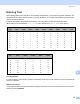


Table Of Contents
- NETWORK USER’S GUIDE
- Table of Contents
- 1 Introduction
- 2 Configuring your machine for a network
- Overview
- IP addresses, subnet masks and gateways
- Step by step chart
- Setting the IP address and subnet mask
- Changing the print server settings
- Using the BRAdmin Light utility to change the print server settings
- Using the BRAdmin Professional 3 utility to change print server settings (Windows®)
- Using the control panel to change the print server settings
- Using Web Based Management (web browser) to change the print/scan server settings
- Using Remote Setup to change the print server settings (Not available for Windows Server® 2003/2008) (Not available for DCP-8085DN)
- Using other methods to change print server settings
- 3 Control panel setup
- 4 Driver Deployment Wizard (Windows® only)
- 5 Network printing from Windows®: basic TCP/IP Peer-to-Peer printing
- 6 Internet printing for Windows®
- 7 Network printing from Macintosh using the BR-Script 3 driver
- 8 Web Based Management
- Overview
- How to configure the machine settings using Web Based Management (web browser)
- Password information
- Secure Function Lock 2.0 (Not available for MFC-8370DN)
- Changing the Scan to FTP configuration using a web browser
- Changing the Scan to Network configuration using a web browser
- Changing the LDAP configuration using a web browser (For MFC-8880DN)
- 9 LDAP operation (For MFC-8880DN)
- 10 Internet fax and Scan to E-mail (E-mail server) (For MFC-8880DN)
- Internet fax Overview
- Getting connected
- Control panel key functions
- Sending an Internet fax
- Manually entering text
- Receiving E-mail or Internet fax
- Receiving an Internet fax to your computer
- Forwarding received E-mail and fax messages
- Relay broadcasting
- TX Verification Mail
- Setup Mail TX
- Setup Mail RX
- Error mail
- Important information on Internet fax
- Scan to E-mail (E-mail server) overview
- Internet fax Overview
- 11 Security features
- 12 Troubleshooting
- Appendix A
- Using services
- Other ways to set the IP address (for advanced users and administrators)
- Using DHCP to configure the IP address
- Using BOOTP to configure the IP address
- Using RARP to configure the IP address
- Using APIPA to configure the IP address
- Using ARP to configure the IP address
- Using the TELNET console to configure the IP address
- Using the Brother Web BRAdmin server software for IIS to configure the IP address
- Installation when using web services (Windows Vista®)
- Installation when using a Network Print Queue or Share (printer driver only)
- Appendix B
- Appendix C
- Index

Appendix B
138
B
Entering Text B
When setting certain menu selections, such as the E-mail address, you will need to type text characters. The
dial pad keys have letters printed on them. The keys: 0, # and l do not have printed letters because they are
used for special characters.
Press the appropriate dial pad key the required number of times to access the characters below:
For setting an E-mail address, Scan to FTP menu options and E-mail/IFAX menu options
For setting other menu selections
Inserting spaces
B
To enter a space in a fax number, press c once between numbers. To enter a space in a name, press c twice
between characters.
Making corrections
B
If you entered a letter incorrectly and want to change it, press d to move the cursor to the incorrect character,
and then press Clear/Back.
Press
Key
one
time
two
times
three
times
four
times
five
times
six
times
seven
times
eight
times
nine
times
1 @. / 1@. / 1@
2 abcABC2ab
3 de fDEF3de
4 ghiGHI4gh
5 jklJKL5jk
6 mn oMNO6mn
7 pqr sPQRS7
8 tuvTUV8tu
9 wxyzWXYZ9
Press
Key
one
time
two
times
three
times
four
times
five
times
2 ABC2A
3 DEF3D
4 GH I 4G
5 JKL5J
6 MNO6M
7 PQRS7
8 TUV8T
9 WXYZ9