
User Manual


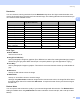




Table Of Contents
- SOFTWARE USER’S GUIDE DCP-8070D DCP-8085DN MFC-8370DN MFC-8880DN
- Table of Contents
- Windows®
- Printing
- Using the Brother printer driver
- Printing a document
- Duplex printing
- Simultaneous scanning, printing and faxing
- Printer operation keys
- Status Monitor
- Printer driver settings
- Features in the Windows® printer driver
- Basic tab
- Advanced tab
- Accessories tab
- Support
- Features in the BR-Script 3 (PostScript® 3™ language emulation) printer driver
- Scanning
- ControlCenter3
- Network Scanning (For models with built-in network)
- Before using Network Scanning
- Using the Scan key
- Scan to E-mail (PC)
- Scan to E-mail (E-mail server) (MFC-8880DN only)
- Scan to Image
- Scan to OCR
- Scan to File
- Scan to FTP (Not available for DCP-8070D)
- Scan to Network (Not available for DCP-8070D)
- How to set a new default for the file size (For Scan to E-mail (E-mail server), Scan to FTP and Scan to Network)
- How to set a new default for the Duplex Scan mode (For Scan to E-mail (E-mail server) only)
- Maximum ADF output tray capacity (DCP-8070D and MFC-8370DN)
- Remote Setup (MFC models only)
- Brother PC-FAX Software (MFC models only)
- Firewall settings (For Network users)
- Printing
- Apple Macintosh
- Printing and Faxing
- Printer operation key
- Status Monitor
- Features in the printer driver (Macintosh)
- Removing the Printer driver for Macintosh
- Using the BR-Script3 Driver (Post Script® 3™ language emulation printer driver)
- Features in the BR-Script 3 (PostScript® 3™ language emulation) printer driver
- Sending a fax (MFC models only)
- Scanning
- ControlCenter2
- Network Scanning (For models with built-in network support)
- Before using Network Scanning
- Using the Scan key
- Scan to E-mail (PC)
- Scan to E-mail (E-mail server) (MFC-8880DN only)
- Scan to Image
- Scan to OCR
- Scan to File
- Scan to FTP (Not available for DCP-8070D)
- Scan to Network (Not available for DCP-8070D)
- How to set a new default for the file size (For Scan to E-mail (E-mail server), Scan to FTP and Scan to Network)
- How to set a new default for the Duplex Scan mode (For Scan to E-mail (E-mail server) only)
- Maximum ADF output tray capacity (DCP-8070D and MFC-8370DN)
- Remote Setup
- Printing and Faxing
- Index
- brother CHN-ENG

Scanning
36
2
d Press and hold down the left mouse button and drag it over the portion you want to scan.
1 Scanning area
Note
You can enlarge the image using the icon, and then use the icon to restore the image to its
original size.
e Load your document again.
Note
Skip this step if you loaded the document on the scanner glass in step a.
f Click Start.
This time only the chosen area of the document appears in the Presto! PageManager window (or your
application window).
g In the Presto! PageManager window, use the options available to refine the image.
Settings in the Scanner Setup dialog box 2
Image Type 2
Choose the output image type from Photo, Web or Text. Resolution and Scan Type will be altered for each
default setting.
The default settings are listed in the table below:
Image Type Resolution Scan Type
Photo Use for scanning photo images. 300 × 300 dpi 24-bit colour
Web Use for attaching the scanned image to web pages. 100 × 100 dpi 24-bit colour
Text Use for scanning text documents. 200 × 200 dpi Black & White
1