
User Manual



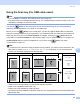



Table Of Contents
- SOFTWARE USER’S GUIDE DCP-8070D DCP-8085DN MFC-8370DN MFC-8880DN
- Table of Contents
- Windows®
- Printing
- Using the Brother printer driver
- Printing a document
- Duplex printing
- Simultaneous scanning, printing and faxing
- Printer operation keys
- Status Monitor
- Printer driver settings
- Features in the Windows® printer driver
- Basic tab
- Advanced tab
- Accessories tab
- Support
- Features in the BR-Script 3 (PostScript® 3™ language emulation) printer driver
- Scanning
- ControlCenter3
- Network Scanning (For models with built-in network)
- Before using Network Scanning
- Using the Scan key
- Scan to E-mail (PC)
- Scan to E-mail (E-mail server) (MFC-8880DN only)
- Scan to Image
- Scan to OCR
- Scan to File
- Scan to FTP (Not available for DCP-8070D)
- Scan to Network (Not available for DCP-8070D)
- How to set a new default for the file size (For Scan to E-mail (E-mail server), Scan to FTP and Scan to Network)
- How to set a new default for the Duplex Scan mode (For Scan to E-mail (E-mail server) only)
- Maximum ADF output tray capacity (DCP-8070D and MFC-8370DN)
- Remote Setup (MFC models only)
- Brother PC-FAX Software (MFC models only)
- Firewall settings (For Network users)
- Printing
- Apple Macintosh
- Printing and Faxing
- Printer operation key
- Status Monitor
- Features in the printer driver (Macintosh)
- Removing the Printer driver for Macintosh
- Using the BR-Script3 Driver (Post Script® 3™ language emulation printer driver)
- Features in the BR-Script 3 (PostScript® 3™ language emulation) printer driver
- Sending a fax (MFC models only)
- Scanning
- ControlCenter2
- Network Scanning (For models with built-in network support)
- Before using Network Scanning
- Using the Scan key
- Scan to E-mail (PC)
- Scan to E-mail (E-mail server) (MFC-8880DN only)
- Scan to Image
- Scan to OCR
- Scan to File
- Scan to FTP (Not available for DCP-8070D)
- Scan to Network (Not available for DCP-8070D)
- How to set a new default for the file size (For Scan to E-mail (E-mail server), Scan to FTP and Scan to Network)
- How to set a new default for the Duplex Scan mode (For Scan to E-mail (E-mail server) only)
- Maximum ADF output tray capacity (DCP-8070D and MFC-8370DN)
- Remote Setup
- Printing and Faxing
- Index
- brother CHN-ENG

Scanning
168
9
Using the Scan key (For USB cable users) 9
Note
• If you use Scan on a network, see Using the Scan key on page 197.
• If the LCD shows error messages during scanning, see Troubleshooting in the User’s Guide or Error and
maintenance messages in the User’s Guide.
You can use (Scan) on the control panel to scan documents directly into your word processing,
graphics or E-mail applications or to a folder on your Macintosh.
Before you can use (Scan) on the control panel, you have to install the Brother MFL-Pro Software
Suite and connect the machine to your Macintosh. If you installed the MFL-Pro Suite from the included CD-
ROM, then the correct drivers and ControlCenter2 are installed. Scanning by (Scan) follows the
configuration on the Device Button tab. (See SCAN on page 178.) For details about how to configure the
ControlCenter2 buttons to launch the application of your choice using (Scan), see Using
ControlCenter2 on page 176.
Note
• If you want to scan a document using the duplex scanning feature, you need to put the document in the
ADF and then choose 2sided (L)edge or 2sided (S)edge depending on your document layout.
• Choose your document layout from the following table:
Document Layout Table
• Duplex scan is not supported by the DCP-8070D and MFC-8370DN.
• Duplex scan is available from the ADF only.
• Duplex scan is not available for Legal size paper.
• The XPS file format is available for Windows Vista
®
or when using applications which support XML Paper
Specification files.
Portrait Landscape LCD Message
Front Back Front Back
(L)edge
(Long edge)
Front Back Front Back
(S)edge
(Short edge)