
User Manual

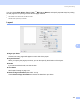
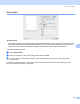

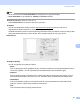


Table Of Contents
- SOFTWARE USER’S GUIDE DCP-8070D DCP-8085DN MFC-8370DN MFC-8880DN
- Table of Contents
- Windows®
- Printing
- Using the Brother printer driver
- Printing a document
- Duplex printing
- Simultaneous scanning, printing and faxing
- Printer operation keys
- Status Monitor
- Printer driver settings
- Features in the Windows® printer driver
- Basic tab
- Advanced tab
- Accessories tab
- Support
- Features in the BR-Script 3 (PostScript® 3™ language emulation) printer driver
- Scanning
- ControlCenter3
- Network Scanning (For models with built-in network)
- Before using Network Scanning
- Using the Scan key
- Scan to E-mail (PC)
- Scan to E-mail (E-mail server) (MFC-8880DN only)
- Scan to Image
- Scan to OCR
- Scan to File
- Scan to FTP (Not available for DCP-8070D)
- Scan to Network (Not available for DCP-8070D)
- How to set a new default for the file size (For Scan to E-mail (E-mail server), Scan to FTP and Scan to Network)
- How to set a new default for the Duplex Scan mode (For Scan to E-mail (E-mail server) only)
- Maximum ADF output tray capacity (DCP-8070D and MFC-8370DN)
- Remote Setup (MFC models only)
- Brother PC-FAX Software (MFC models only)
- Firewall settings (For Network users)
- Printing
- Apple Macintosh
- Printing and Faxing
- Printer operation key
- Status Monitor
- Features in the printer driver (Macintosh)
- Removing the Printer driver for Macintosh
- Using the BR-Script3 Driver (Post Script® 3™ language emulation printer driver)
- Features in the BR-Script 3 (PostScript® 3™ language emulation) printer driver
- Sending a fax (MFC models only)
- Scanning
- ControlCenter2
- Network Scanning (For models with built-in network support)
- Before using Network Scanning
- Using the Scan key
- Scan to E-mail (PC)
- Scan to E-mail (E-mail server) (MFC-8880DN only)
- Scan to Image
- Scan to OCR
- Scan to File
- Scan to FTP (Not available for DCP-8070D)
- Scan to Network (Not available for DCP-8070D)
- How to set a new default for the file size (For Scan to E-mail (E-mail server), Scan to FTP and Scan to Network)
- How to set a new default for the Duplex Scan mode (For Scan to E-mail (E-mail server) only)
- Maximum ADF output tray capacity (DCP-8070D and MFC-8370DN)
- Remote Setup
- Printing and Faxing
- Index
- brother CHN-ENG

Printing and Faxing
137
8
Note
• We do not recommend Toner Save Mode for printing photo or greyscale images.
• Toner Save Mode is not available for 1200 dpi or HQ 1200 resolution.
Reverse Print (Mac OS X 10.3.9 to 10.4.x)
Check Reverse Print to reverse the data from up to down.
Support
You can visit the Brother Solutions Center (http://solutions.brother.com
) and our web site for
original/genuine Brother supplies by clicking the Support button.
The Brother Solutions Center is a web site offering information about your Brother product including FAQs
(Frequently Asked Questions), User’s Guides, driver updates and tips for using your printer.
Advanced tab
Graphics Quality
You can change the print quality as follows:
• Photo
This is a photograph mode (gradation priority). Choose this setting for printing photographs that have
continuous gradation. You can represent soft contrasts between various shades of gray.
• Graphics
This is a graphics mode (contrast priority). Choose this setting for printing text and figures, such as
business and presentation documents. You can represent sharp contrasts between shaded areas.
• Chart/Graph
This is the best dither pattern for business documents such as presentations, that include words,
graphs or charts. It is particularly suitable for solid colours.
• Text
This is the best mode for printing text documents.