
User Manual

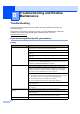
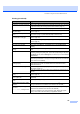
Table Of Contents
- USER'S GUIDE MFC-440CN/665CW
- Approval Information and Compilation and Publication Notice
- Table of Contents
- Section I General
- 1 General Information
- 2 Loading documents and paper
- 3 General setup
- 4 Security features
- Section II Fax
- 5 Sending a fax
- Entering Fax mode
- Broadcasting (Monochrome only)
- Additional sending operations
- Sending faxes using multiple settings
- Contrast
- Changing fax resolution
- Dual access (Monochrome only)
- Real time transmission
- Overseas Mode
- Delayed Faxing (Monochrome only)
- Delayed Batch Transmission (Monochrome only)
- Checking and cancelling waiting jobs
- Setting your changes as a new default
- Restoring all settings to the factory settings
- Sending a fax manually
- Sending a fax at the end of a conversation
- Out of Memory message
- 6 Receiving a Fax
- 7 Telephone Services and External devices
- 8 Dialling and storing numbers
- 9 Digital TAD (MFC-665CW only)
- 10 Advanced fax operations (Monochrome only)
- 11 Printing Reports
- 12 Polling
- 5 Sending a fax
- Section III Copy
- 13 Making copies
- How to copy
- Copy settings
- ‘Out of Memory’ message
- 13 Making copies
- Section IV Direct Photo Printing
- Section V Software
- Section VI Appendixes
- A Safety and Legal
- B Troubleshooting and Routine Maintenance
- Troubleshooting
- Error messages
- Routine maintenance
- Replacing the ink cartridges
- Cleaning the outside of the machine
- Cleaning the scanner
- Cleaning the machine printer platen
- Cleaning the paper pick-up roller
- Cleaning the print head
- Checking the print quality
- Checking the printing alignment
- Checking the ink volume
- Uninstalling the handset and handset cradle (MFC-665CW only)
- Machine Information
- Packing and shipping the machine
- C Menu and Features
- D Specifications
- E Glossary
- F Index
- Brother ENG

118
B
Troubleshooting B
If you think there is a problem with your machine, check the chart below and follow the
troubleshooting tips.
Most problems can be easily resolved by yourself. If you need additional help, the Brother
Solutions Center offers the latest FAQs and troubleshooting tips. Visit us at
http://solutions.brother.com
.
If you are having difficulty with your machine B
Troubleshooting and Routine
Maintenance
B
Printing
Difficulty Suggestions
No printout Check the interface cable or wireless connection (MFC-665CW only) on both the
machine and your computer. (See the Quick Setup Guide.)
Make sure the machine is plugged in and not in Power Save mode.
One or more ink cartridges are empty. (See Replacing the ink cartridges on
page 131.)
Check to see if the LCD is showing an error message. (See Error messages on
page 124.)
Check that the correct printer driver has been installed and chosen.
Make sure that the machine is online. Click Start and then Printers and Faxes.
Right-click and choose Brother MFC-XXXX (where XXXX is your model name),
and make sure that Use Printer Offline is unchecked.
Poor print quality Check the print quality. (See Checking the print quality on page 136.)
Make sure that the Media Type setting in the printer driver or the Paper Type
setting in the machine’s menu matches the type of paper you are using. (See
Printing for Windows
®
or Printing and Faxing for Macintosh
®
in the Software
User’s Guide on the CD-ROM and Paper Type on page 23.)
Make sure that your ink cartridges are fresh. The following may cause ink to clog:
The expiration date written on the cartridge package has passed. (Cartridges
stay usable for up to two years if kept in their original packaging.)
The ink cartridge was in your machine over six months.
The ink cartridge may not have been stored properly before use.
Try using the recommended types of paper. (See Acceptable paper and other
media on page 11.)
The recommended environment for your machine is between 20° C to 33° C
(68° F to 91° F).
White horizontal lines appear in text
or graphics.
Clean the print head. (See Cleaning the print head on page 136.)
Try using the recommended types of paper. (See Acceptable paper and other
media on page 11.)
If you want to print on Photo 10×15cm or photo L 9×13cm paper, make sure you
use the photo paper tray. (See Loading photo paper on page 18.)
The machine prints blank pages. Clean the print head. (See Cleaning the print head on page 136.)