
Quick Start Manual




41
L
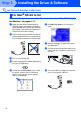
Click Next.
M Windows
®
95/NT Users
➝
Go to O
Windows
®
98/Me/2000/XP Users
Select yes and then click Next.
N
Click Next or enter the name you want
displayed on the LCD for your PC and then
click Next. The default name is the name of
your PC.
For Windows
®
98/Me/2000/XP Users
Only
Please wait for the window to open.
O
Click Finish restart your computer.
Windows
®
95/98/98SE/Me/NT/2000 Users
follow step P.
For Windows
®
XP Users Only
The Brother PC-FAX, Printer and
Scanner drivers have been installed
and the installation is now complete.
P
After the computer restarts, click Yes to
have the Control Center load each time
Windows
®
is started. The Control Center
will appear as an icon in the task tray.
If you click No the Scan keys on the MFC
will be disabled.
For Windows
®
98/Me/2000 Users
The Brother PC-FAX, Printer and
Scanner drivers have been installed
and the installation is now complete.
For Windows
®
95/NT Users
The Brother PC-FAX and Printer drivers
have been installed and the installation
is now complete.
See the For Administrator section of this guide or
the NC-9100h User's Guide located on the CD-
ROM for more network configuration information.
You can avoid receiving unwanted
documents by setting a 4-digit PIN Number.
The Network Scanning feature is not
supported in Windows
®
95 or NT.
Even if you select NO, you will be able to
launch the Brother Control Center later to
use the Scan to key by double clicking the
Smart UI icon on the desktop. This loads the
Brother Control Center to the task tray. See
AutoLoad the Brother Control Center,
Chapter 15 in the Documentation (User’s
Guide) located on the CD-ROM.
Installing the Driver & Software
Setting Up
the Machine
For
Administrators
Windows
®
Network