
Quick Start Manual




29
Make sure that you followed the instructions in
1
to
F
on pages 25 - 27.
G
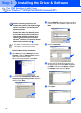
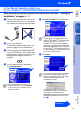
When this screen appears, connect the
parallel interface cable to your PC, and then
connect it to the MFC.
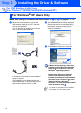
Turn on the MFC by plugging in the power
cord. Turn the power switch on.
.
H
Click the Next.
I
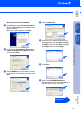
The README.WRI file will be displayed.
Please read this file for troubleshooting information
and then close the file to continue installation.
J
Click Finish to restart your computer.
K
After the computer restarts, the installation
of the Brother drivers will automatically start.
Follow the instructions on the screen.
L
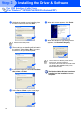
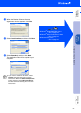
If the Digital Signature Not Found dialog
boxes appear, click Yes to install the driver.
M
Click Yes to have the Control Center loaded
each time Windows
®
is started. The Control
Center will appear as an icon in the task
tray.
If you click No the Scan keys on the MFC
will be disabled.
For Windows
®
2000 Professional Users Only
Even if you select NO, you will be able to
launch the Brother Control Center later to
use the Scan to key by double clicking the
Smart UI icon on the desktop. This loads the
Brother Control Center to the task tray. See
AutoLoad the Brother Control Center,
Chapter 15 in the Dcumentation (User’s
Guide) located on the CD-ROM.
Continued...
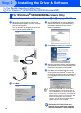
Installing the Driver & Software
Setting Up
the Machine
For
Administrators
Windows
®
Parallel