
Quick Setup Guide
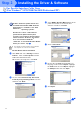
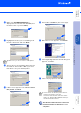
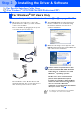
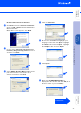
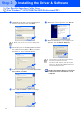
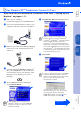
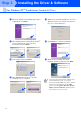
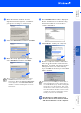
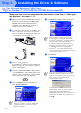
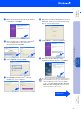
Table Of Contents
- Getting Started
- Table of Contents
- Setting Up the Machine
- Install the Automatic Document Feed (ADF) Support
- Install the Drum Unit Assembly
- Load Paper in the Paper Tray
- Release the Scanner Lock
- Install Power Cord and Phone Line
- Selecting a Receive Mode
- Setting the Date and Time
- Setting Your Station ID
- Selecting Your Language (Canada Only)
- Sending in the Product Registration and Test Sheet (USA Only)
- Installing the Driver & Software
- Supplied CD-ROM (MFL-Pro Suite)
- For USB Interface Cable Users (For Windows® 98/98SE/Me/2000 Professional/XP)
- For Parallel Interface Cable Users (For Windows® 95/98/98SE/Me/2000 Professional/XP)
- For Windows NT® Workstation Version 4.0 Users
- For Network Interface Cable Users (For Windows® 95/98/98SE/Me/NT/2000 Professional/XP)
- For USB Interface Cable Users
- For Network Interface Cable Users
- For Administrators

34
Installing the Driver & Software
Q
Highlight the model you are installing from
the list of machines and click Next.
R
The m odel you a re installin g will be l iste d in
the w indow. Se lect Yes or No if you wa nt
this driver to be your default printer.
S
If this screen appears, select D o not s hare
this printer and Next.
T
Select Yes and Next to print a test page.
U
When this screen appears, click Finish.
V
Wh en th e Wi ndows Lo go te sting scree n
appe ar s, click Continue Anyway.
The Brother Native Drivers have been
installed and the installation is now
complete.
For Parallel Interface Cable Users
(For Windows
®
95/98/98SE/Me/2000 Professional/XP)
Make sure you do not select a USB printer.
There will be tw o Brother printer drivers
listed in the Printers selection.
The driver with "Printer" after the model
name (ex. Brother MFC-8820D Printer) is
the Brother Native Driver.
Step 2