
Quick Setup Guide
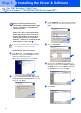
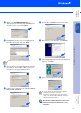
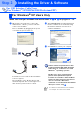
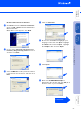

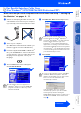
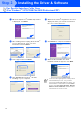
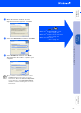
Table Of Contents
- Getting Started
- Table of Contents
- Setting Up the Machine
- Install the Automatic Document Feed (ADF) Support
- Install the Drum Unit Assembly
- Load Paper in the Paper Tray
- Release the Scanner Lock
- Install Power Cord and Phone Line
- Selecting a Receive Mode
- Setting the Date and Time
- Setting Your Station ID
- Selecting Your Language (Canada Only)
- Sending in the Product Registration and Test Sheet (USA Only)
- Installing the Driver & Software
- Supplied CD-ROM (MFL-Pro Suite)
- For USB Interface Cable Users (For Windows® 98/98SE/Me/2000 Professional/XP)
- For Parallel Interface Cable Users (For Windows® 95/98/98SE/Me/2000 Professional/XP)
- For Windows NT® Workstation Version 4.0 Users
- For Network Interface Cable Users (For Windows® 95/98/98SE/Me/NT/2000 Professional/XP)
- For USB Interface Cable Users
- For Network Interface Cable Users
- For Administrators

23
Brother Native driver Installation
J
Click St art an d sele ct Printers and Faxes.
Click on Add a printer and the Ad d Pr inte r
Wizard will start.
Wh en thi s scr ee n appe ars, click Next.
K
Un-check the Automatically detect and
install my Plug and Play printer selection
and the n click Next.
L
Select USBXXX fr om th e pu ll dow n w ind ow
for the Printer Port Selection and then click
Next.
M
Click on Have Disk.
N
Browse the CD-ROM and highlight your
language folder and click Op en. High lig ht
th e WXP fo lder an d click Open. Highlight
th e Addprt fo lde r and click Open.
O
Click Open.
P
Make sure X:\ENG\W XP\Addprt is
displayed in the window and click OK (X:\ is
the drive letter of your CD-ROM).
Continued...
Installing the Driver & Software
Setting Up
the Machine
Windows
®
US B
For
Ad min ist ra to rs
Wind ows
®
Para llel