
Printer/Fax/Scanner/Copier Quick Setup Guide

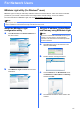
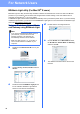
Table Of Contents
- Quick Setup Guide MFC-790CW MFC-990CW
- Start Here
- 1 Unpack the machine and check the components
- 2 Connect the handset (MFC-790CW only)
- 3 Load plain Letter/A4 paper
- 4 Connect the power cord and telephone line
- 5 Install the ink cartridges
- 6 Check the print quality
- 7 Choose your language (If needed)
- 8 Choose the correct Receive Mode
- 9 Setting up the Message Center
- 10 Set the LCD contrast (If needed)
- 11 Set the date and time
- 12 Set your station ID
- 13 Set tone or pulse dialing mode
- 14 Automatic Daylight Savings Time
- 15 Send in the Product Registration and Test Sheet (USA only)
- Set up the cordless handset (MFC-990CW only)
- For USB Interface Users (For Windows® 2000 Professional/XP/XP Professional x64 Edition/ Windows Vista®)
- For USB Interface Users (For Mac OS® X 10.2.4 or greater)
- For Wired Network Interface Users (For Windows® 2000 Professional/XP/XP Professional x64 Edition/ Windows Vista®)
- For Wired Network Interface Users (For Mac OS® X 10.2.4 or greater)
- For Wireless Network Interface Users
- 23 Before you begin
- 24 Confirm your network environment (Infrastructure Mode)
- Connecting the Brother machine to the wireless network
- Install the Drivers & Software (For Windows® 2000 Professional/XP/XP Professional x64 Edition/ Windows Vista®)
- Install the Drivers & Software (For Mac OS® X 10.2.4 or greater)
- Install Optional Applications Windows®
- For Network Users
- Consumables
- brother USA/CAN
- Start Here
48
For Network Users
BRAdmin Light utility (For Mac OS
®
X users)
BRAdmin Light is a utility for initial setup of Brother network connected devices. It also can search for Brother
products on your network, view the status and configure basic network settings, such as IP address from a
computer running Mac OS
®
X 10.2.4 or greater.
The BRAdmin Light software will be installed automatically when you install the printer driver. If you have already
installed the printer driver, you don’t have to install BRAdmin Light again. For more information on BRAdmin Light,
visit us at http://solutions.brother.com/
.
Set your IP address, Subnet Mask
and Gateway using BRAdmin Light
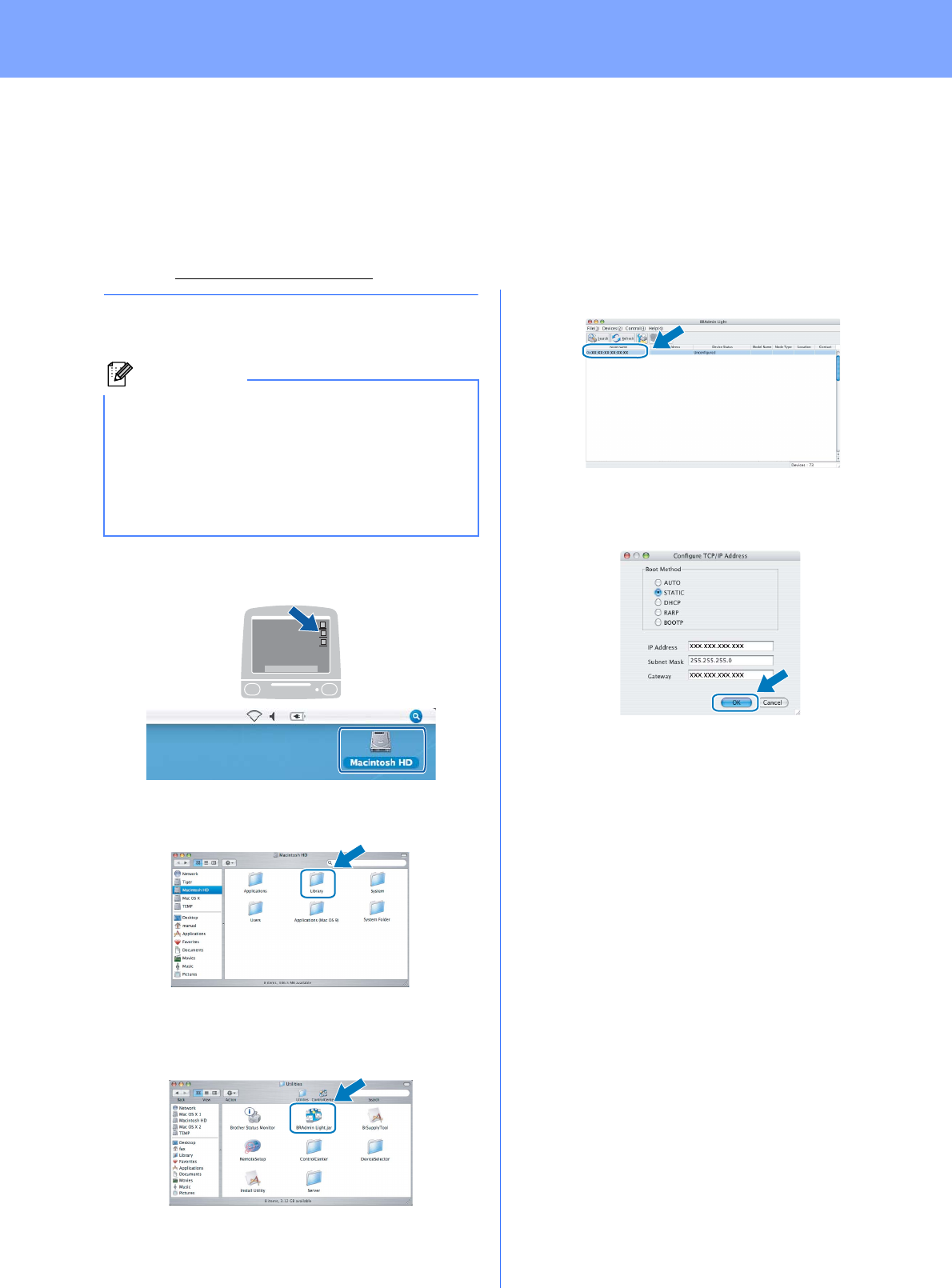
a Double-click the Macintosh HD icon on your
desktop.
b Choose Library, Printers, Brother and then
Utilities.
c Double-click the file BRAdmin Light.jar and
run the software. BRAdmin Light will then
search for new devices automatically.
d Double-click the unconfigured device.
e Choose STATIC for the Boot Method. Enter
the IP Address, Subnet Mask and Gateway,
and then click OK.
f The address information will be saved to the
machine.
Note
• If you have a DHCP/BOOTP/RARP server in
your network, you don’t have to do the
following operation. The machine will
automatically obtain its own IP address.
• Make sure that version 1.4.1_07 or later of
Java™ client software is installed on your
computer.