
Printer/Fax/Scanner/Copier Quick Setup Guide
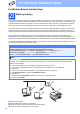




Table Of Contents
- Quick Setup Guide MFC-790CW MFC-990CW
- Start Here
- 1 Unpack the machine and check the components
- 2 Connect the handset (MFC-790CW only)
- 3 Load plain Letter/A4 paper
- 4 Connect the power cord and telephone line
- 5 Install the ink cartridges
- 6 Check the print quality
- 7 Choose your language (If needed)
- 8 Choose the correct Receive Mode
- 9 Setting up the Message Center
- 10 Set the LCD contrast (If needed)
- 11 Set the date and time
- 12 Set your station ID
- 13 Set tone or pulse dialing mode
- 14 Automatic Daylight Savings Time
- 15 Send in the Product Registration and Test Sheet (USA only)
- Set up the cordless handset (MFC-990CW only)
- For USB Interface Users (For Windows® 2000 Professional/XP/XP Professional x64 Edition/ Windows Vista®)
- For USB Interface Users (For Mac OS® X 10.2.4 or greater)
- For Wired Network Interface Users (For Windows® 2000 Professional/XP/XP Professional x64 Edition/ Windows Vista®)
- For Wired Network Interface Users (For Mac OS® X 10.2.4 or greater)
- For Wireless Network Interface Users
- 23 Before you begin
- 24 Confirm your network environment (Infrastructure Mode)
- Connecting the Brother machine to the wireless network
- Install the Drivers & Software (For Windows® 2000 Professional/XP/XP Professional x64 Edition/ Windows Vista®)
- Install the Drivers & Software (For Mac OS® X 10.2.4 or greater)
- Install Optional Applications Windows®
- For Network Users
- Consumables
- brother USA/CAN
- Start Here
32
For Wireless Network Users
For Wireless Network Interface Users
23
Before you begin
First you must configure the wireless network settings of your machine to communicate with your network access
point (router). After the machine is configured to communicate with your access point (router), computers on your
network will have access to the machine. To use the machine from these computers, you will need to install the
drivers and software. The following steps will guide you through the configuration and installation process.
To achieve optimum results with normal everyday document printing, place the Brother machine as close to the
network access point (router) as possible with minimal obstructions. Large objects and walls between the two
devices as well as interference from other electronic devices can affect the data transfer speed of your documents.
Due to these factors, wireless may not be the best method of connection for all types of documents and
applications. If you are printing large files, such as multi-page documents with mixed text and large graphics, you
may want to consider choosing wired Ethernet for a faster data transfer or USB for the fastest throughput speed.
Although the Brother MFC-790CW/MFC-990CW can be used in a both wired and wireless network, only one of
the connection methods can be used at a time.
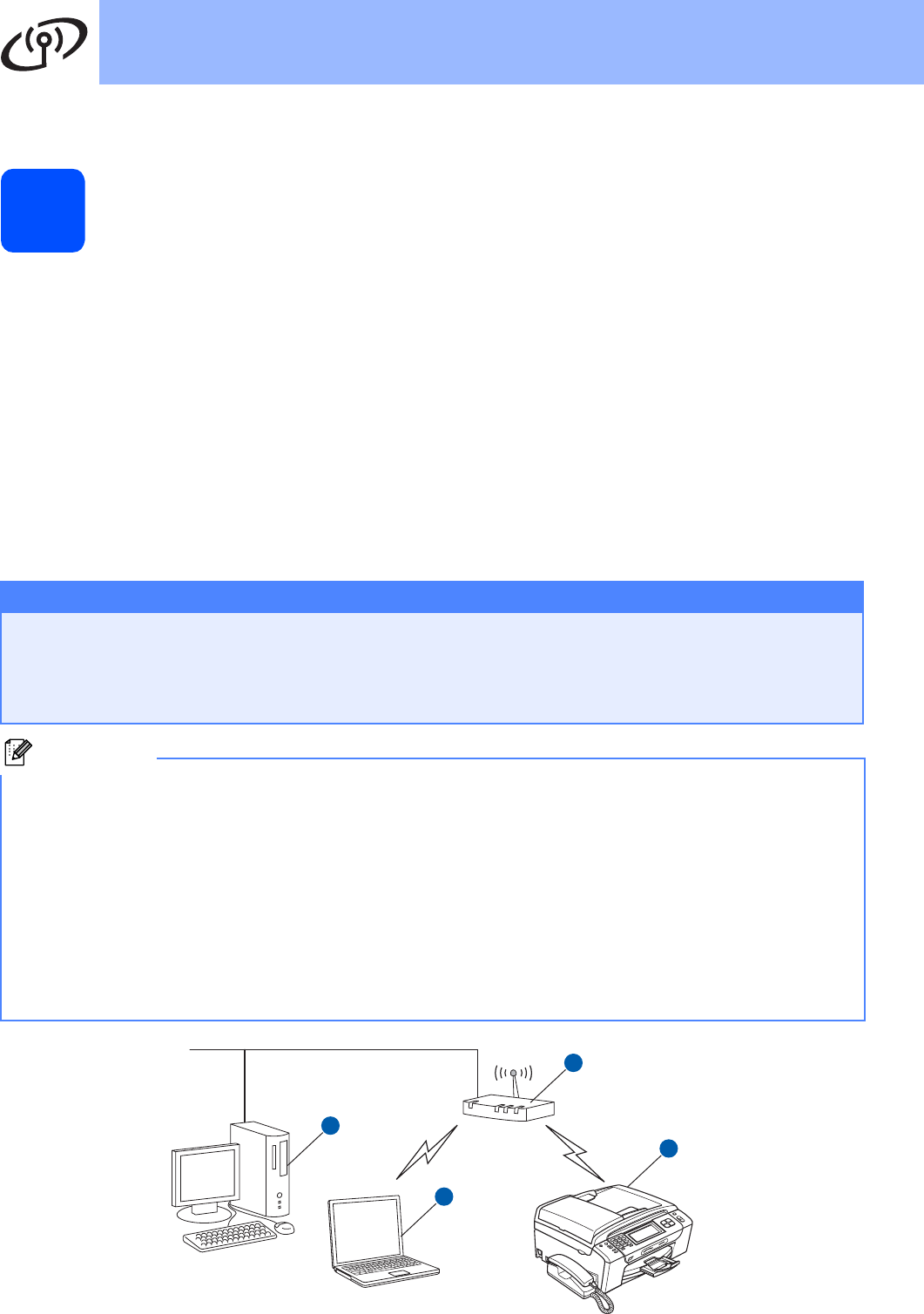
Infrastructure Mode
a Access Point (router)
b Wireless Network machine (your machine)
c Wireless capable computer connected to the access point
d Wired computer connected to the access point
Important
If you have previously configured the wireless settings of the machine you must reset the network
(LAN) settings before you can configure the wireless settings again.
On your machine, press MENU. Press a or b to display Network and press Network.
Press a or b to display Factory Reset, and then press Factory Reset.
Press Yes to accept. Hold down Yes for 2 seconds to confirm.
Note
The following instructions are for infrastructure mode.
To set up your machine in any other wireless environment you can find instructions in the Network User's
Guide on the CD-ROM.
You can view the Network User’s Guide by following the instructions below.
1 Turn on your computer/Macintosh
®
. Insert the Brother CD-ROM into your CD-ROM drive.
For Windows
®
:
2 Choose your model and the language. The CD-ROM main menu will appear.
3 Click Documentation, and then click HTML documents.
For Macintosh
®
:
2 Double-click Documentation, and then double-click your language folder.
3 Double-click top.html.
1
4
3
2