
Printer/Fax/Scanner/Copier Quick Setup Guide
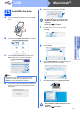
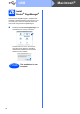
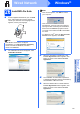
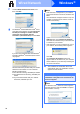

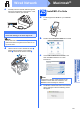

Table Of Contents
- Quick Setup Guide MFC-790CW MFC-990CW
- Start Here
- 1 Unpack the machine and check the components
- 2 Connect the handset (MFC-790CW only)
- 3 Load plain Letter/A4 paper
- 4 Connect the power cord and telephone line
- 5 Install the ink cartridges
- 6 Check the print quality
- 7 Choose your language (If needed)
- 8 Choose the correct Receive Mode
- 9 Setting up the Message Center
- 10 Set the LCD contrast (If needed)
- 11 Set the date and time
- 12 Set your station ID
- 13 Set tone or pulse dialing mode
- 14 Automatic Daylight Savings Time
- 15 Send in the Product Registration and Test Sheet (USA only)
- Set up the cordless handset (MFC-990CW only)
- For USB Interface Users (For Windows® 2000 Professional/XP/XP Professional x64 Edition/ Windows Vista®)
- For USB Interface Users (For Mac OS® X 10.2.4 or greater)
- For Wired Network Interface Users (For Windows® 2000 Professional/XP/XP Professional x64 Edition/ Windows Vista®)
- For Wired Network Interface Users (For Mac OS® X 10.2.4 or greater)
- For Wireless Network Interface Users
- 23 Before you begin
- 24 Confirm your network environment (Infrastructure Mode)
- Connecting the Brother machine to the wireless network
- Install the Drivers & Software (For Windows® 2000 Professional/XP/XP Professional x64 Edition/ Windows Vista®)
- Install the Drivers & Software (For Mac OS® X 10.2.4 or greater)
- Install Optional Applications Windows®
- For Network Users
- Consumables
- brother USA/CAN
- Start Here
21
Macintosh
®
USB
Windows
®
Macintosh
®
USB
25
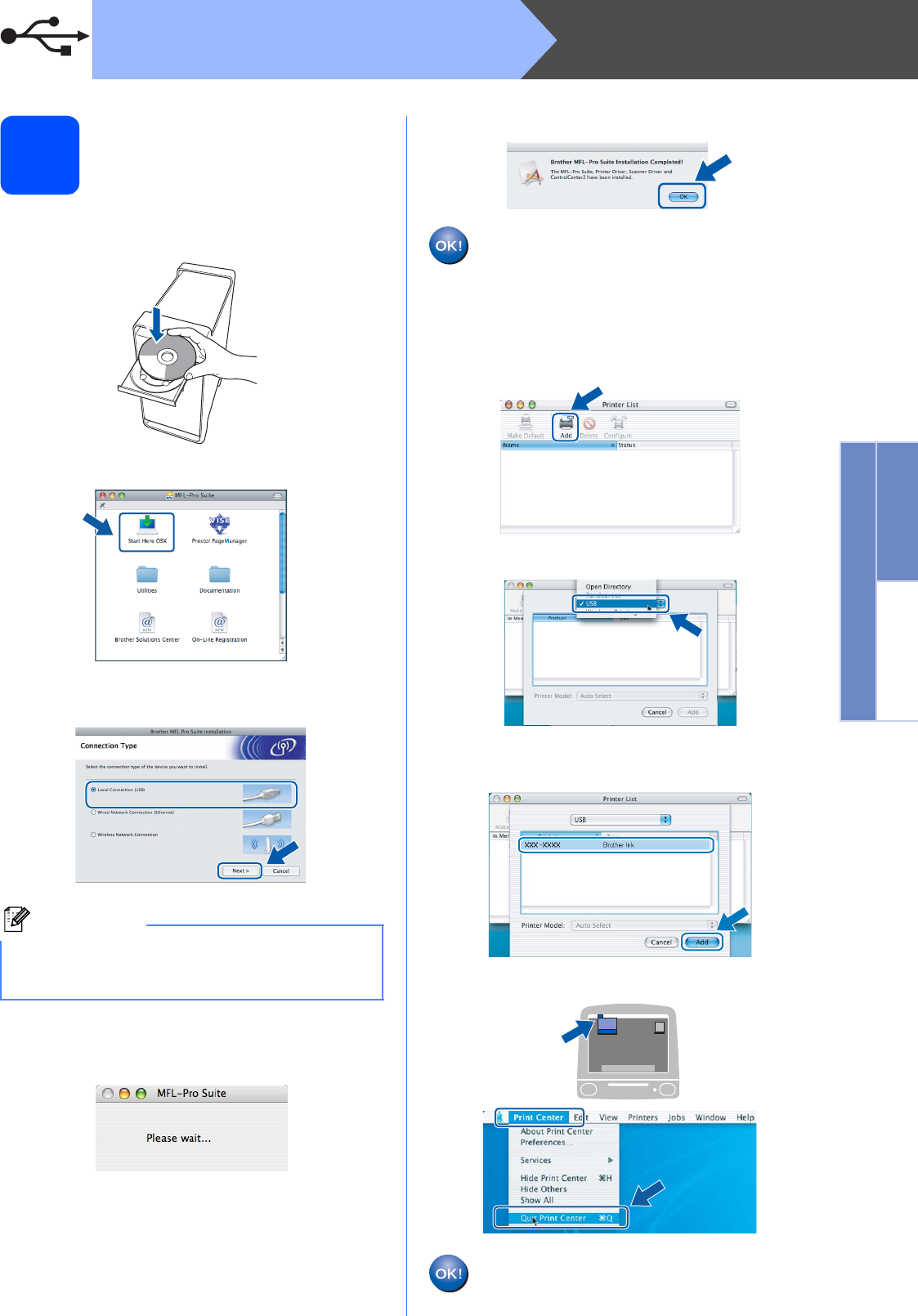
Install MFL-Pro Suite
a Put the supplied CD-ROM into your CD-ROM
drive.
b Double-click the Start Here OSX icon to install.
c Choose Local Connection, and then click
Next. Follow the on-screen instructions.
d The Brother software will search for the Brother
device. During this time the following screen
will appear.
e When this screen appears, click OK.
For Mac OS
®
X 10.3.x or greater, the
installation of MFL-Pro Suite is now
complete.
Go to step 26 on page 22.
f For Mac OS
®
X 10.2.4 to 10.2.8 users,
click Add.
g Choose USB.
h Choose XXX-XXXX (where XXX-XXXX is your
model name), and then click Add.
i Click Print Center, then Quit Print Center.
The installation of MFL-Pro Suite is now
complete.
Go to step 26 on page 22.
Note
Please wait, it will take a few seconds for the
software to install. After the installation, click
Restart to finish installing the software.