
Printer/Fax/Scanner/Copier Quick Setup Guide
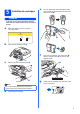
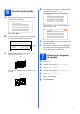
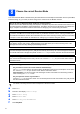
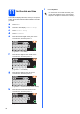
Table Of Contents
- Quick Setup Guide MFC-790CW MFC-990CW
- Start Here
- 1 Unpack the machine and check the components
- 2 Connect the handset (MFC-790CW only)
- 3 Load plain Letter/A4 paper
- 4 Connect the power cord and telephone line
- 5 Install the ink cartridges
- 6 Check the print quality
- 7 Choose your language (If needed)
- 8 Choose the correct Receive Mode
- 9 Setting up the Message Center
- 10 Set the LCD contrast (If needed)
- 11 Set the date and time
- 12 Set your station ID
- 13 Set tone or pulse dialing mode
- 14 Automatic Daylight Savings Time
- 15 Send in the Product Registration and Test Sheet (USA only)
- Set up the cordless handset (MFC-990CW only)
- For USB Interface Users (For Windows® 2000 Professional/XP/XP Professional x64 Edition/ Windows Vista®)
- For USB Interface Users (For Mac OS® X 10.2.4 or greater)
- For Wired Network Interface Users (For Windows® 2000 Professional/XP/XP Professional x64 Edition/ Windows Vista®)
- For Wired Network Interface Users (For Mac OS® X 10.2.4 or greater)
- For Wireless Network Interface Users
- 23 Before you begin
- 24 Confirm your network environment (Infrastructure Mode)
- Connecting the Brother machine to the wireless network
- Install the Drivers & Software (For Windows® 2000 Professional/XP/XP Professional x64 Edition/ Windows Vista®)
- Install the Drivers & Software (For Mac OS® X 10.2.4 or greater)
- Install Optional Applications Windows®
- For Network Users
- Consumables
- brother USA/CAN
- Start Here
10
11
Set the date and time
The machine displays the time, and if you set up the
station ID the date and time will be added to each fax
you send.
a Press MENU.
b Press a or b to display Initial Setup.
c Press Initial Setup.
d Press Date&Time.
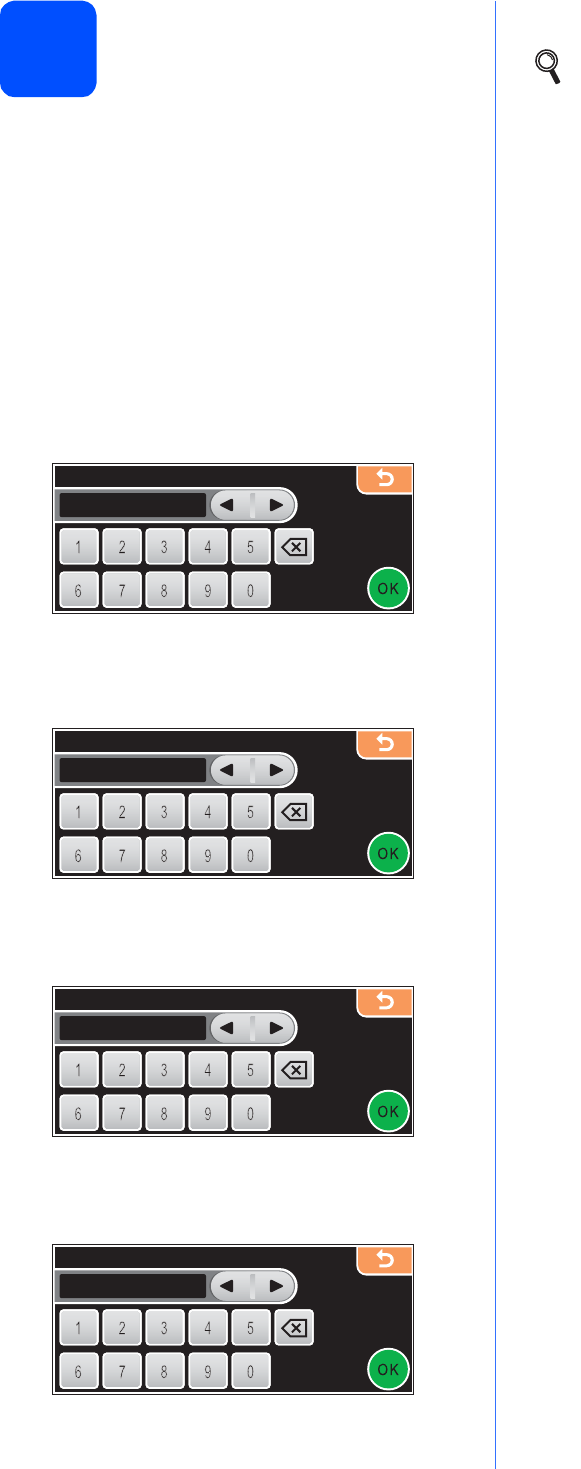
e Enter the last two digits of the year on the
Touchscreen, and then press OK.
(e.g. Enter 0 8 for 2008.)
f Enter the two digits for the month on the
Touchscreen, and then press OK.
(e.g. Enter 0 3 for March.)
g Enter the two digits for the day on the
Touchscreen, and then press OK.
(e.g. Enter 0 1 for the first day of the month.)
h Enter the time in 24-hour format on the
Touchscreen, and then press OK.
(e.g. Enter 1 5, 2 5 for 3:25 P.M.)
i Press Stop/Exit.
Year:2008
Year :20 08
Date&Time
Da te& Time
Month:03
Mo nth :03
Date&Time
Da te& Time
Day:01
Da y:0 1
Date&Time
Da te& Time
Time:15:25
Time : 15: 25
Date&Time
Da te& Time
To confirm the current date and time, print
out the User Settings report. (See Printing
Reports in Chapter 10 of the User's Guide.)