
User Manual
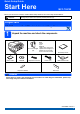
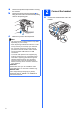
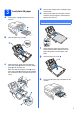
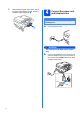
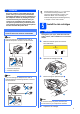
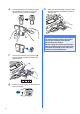
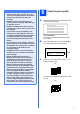
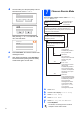
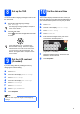
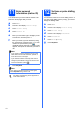
Table Of Contents
- Quick Setup Guide MFC-790CW
- Start Here
- 1 Unpack the machine and check the components
- 2 Connect the handset
- 3 Load plain A4 paper
- 4 Connect the power cord and telephone line
- 5 Install the ink cartridges
- 6 Check the print quality
- 7 Choose a Receive Mode
- 8 Set up the TAD
- 9 Set the LCD contrast (If needed)
- 10 Set the date and time
- 11 Enter personal information (station ID)
- 12 Set tone or pulse dialling mode
- 13 Choose your connection type
- For USB Interface Users (For Windows® 2000 Professional/XP/XP Professional x64 Edition/ Windows Vista®)
- For USB Interface Users (For Mac OS® X 10.2.4 or greater)
- For Wired Network Interface Users (For Windows® 2000 Professional/XP/XP Professional x64 Edition/ Windows Vista®)
- For Wired Network Interface Users (For Mac OS® X 10.2.4 or greater)
- For Wireless Network Interface Users
- 14 Before you begin
- 15 Confirm your network environment (Infrastructure Mode)
- Connecting the Brother machine to the wireless network
- Install the Drivers & Software (For Windows® 2000 Professional/XP/XP Professional x64 Edition/ Windows Vista®)
- Install the Drivers & Software (For Mac OS® X 10.2.4 or greater)
- Install Optional Applications Windows®
- For Network Users
- Consumables
- brother CHN-ENG
- Start Here

2
a Remove the protective tape and film covering
the machine.
b Remove the green protective packing a by
lifting the front of the machine and then pulling
down on the packing part.
c Make sure you have all components.
2
Connect the handset
a Connect the curled handset cord to the
handset.
Note
• The components included in the box may differ
depending on your country.
• Save all packing materials and the box in case
for any reason you must ship your machine.
•
For a network connection you will need to
purchase a network interface cable. Please
use the supplied USB cable for a USB
connection
.
• To ensure safe operation the supplied plug
must be inserted only into a standard power
outlet that is properly grounded through the
standard electrical wiring. Non grounded
equipment may cause an electrical shock
hazard, and may cause excessive electrical
noise radiation.
USB cable
Please make sure you use a USB 2.0 cable
(Type A/B) that is no more than 2 metres long.
Network cable
Use a straight-through Category5 (or greater)
twisted-pair cable for 10BASE-T or 100BASE-TX
Fast Ethernet Network.
1