
User Manual
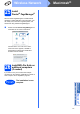
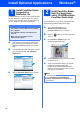
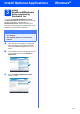
Table Of Contents
- Quick Setup Guide MFC-790CW MFC-990CW
- Start Here
- 1 Unpack the machine and check the components
- 2 Connect the handset (MFC-790CW only)
- 3 Load plain A4 paper
- 4 Connect the power cord and telephone line
- 5 Set Your Country (For Australia / New Zealand Customer Only)
- 6 Install the ink cartridges
- 7 Check the print quality
- 8 Choose a Receive Mode
- 9 Set up the TAD
- 10 Set the LCD contrast (If needed)
- 11 Set the date and time
- 12 Enter personal information (station ID)
- 13 Set tone or pulse dialling mode (Not available for New Zealand)
- Set up the cordless handset (MFC-990CW only)
- For USB Interface Users (For Windows® 2000 Professional/XP/XP Professional x64 Edition/ Windows Vista®)
- For USB Interface Users (For Mac OS® X 10.2.4 or greater)
- For Wired Network Interface Users (For Windows® 2000 Professional/XP/XP Professional x64 Edition/ Windows Vista®)
- For Wired Network Interface Users (For Mac OS® X 10.2.4 or greater)
- For Wireless Network Interface Users
- 20 Before you begin
- 21 Confirm your network environment (Infrastructure Mode)
- Connecting the Brother machine to the wireless network
- Install the Drivers & Software (For Windows® 2000 Professional/XP/XP Professional x64 Edition/ Windows Vista®)
- Install the Drivers & Software (For Mac OS® X 10.2.4 or greater)
- Install Optional Applications Windows®
- For Network Users
- Consumables
- brother ARL/ASA/NZ
- Start Here

43
Windows
®
Install Optional Applications
3
Install
BookScan&Whiteboard
Suite supported by
Reallusion, Inc
You can install BookScan&Whiteboard Suite.
The BookScan Enhancer software can correct your
scanned book images automatically. The
Whiteboard Enhancer software cleans up and
enhances text and images from photos taken of your
whiteboard. (Internet access required.)
a Open the main menu again by ejecting and
then reinserting the CD-ROM or by double-
clicking the start.exe program from the root
folder.
b The CD-ROM main menu will appear. Choose
your language and then click Additional
Applications.
c Click the BookScan&Whiteboard Suite
button to install.
Important
• The machine must be ON and connected to
the computer.
• The computer must be connected to the
Internet.