Quick Setup Guide MFC-7840W Before you can use the machine, you must set up the hardware and install the driver. Please read this ‘Quick Setup Guide’ for proper set up and installation instructions. STEP 1 Setting Up the Machine STEP 2 Installing the Driver & Software Setup is Complete! Keep this ‘Quick Setup Guide’ and the supplied CD-ROM in a convenient place for quick and easy reference at all times. To view the Quick Setup Guide in other languages, please visit http://solutions.brother.com/.
1 Symbols used in this guide Warning Warnings tell you what to do to prevent possible personal injury. Caution Improper Setup Cautions specify procedures you must Improper Setup icons alert you to follow or avoid to prevent possible devices and operations that are not damage to the machine or other objects. compatible with the machine.
Table of Contents Getting Started Carton components...................................................................................................................................... 2 Control panel................................................................................................................................................ 3 STEP 1 – Setting Up the Machine Installing the drum unit and toner cartridge assembly..............................................................................
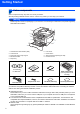
Getting Started 1 1 Carton components Carton components may vary from one country to another. Save all packing materials and the carton in case for any reason you must ship your machine. Warning Plastic bags are used in the packaging of your machine. To avoid danger of suffocation, keep these bags away from babies and children.
Getting Started 2 Control panel MFC-7840W 1 5 2 6 3 7 4 8 1 Copy keys 7 2 Print keys 8 Start key 3 One Touch keys 9 Stop/Exit key 4 Shift key 10 LCD (Liquid Crystal Display) 5 Mode keys 11 Fax and Telephone keys 6 Menu keys Dial Pad For the details of the control panel, see Control panel overview in Chapter 1 of the User’s Guide. Note When you move the machine, grasp the side handholds that are under the scanner. Do NOT carry the MFC by holding it at the bottom.
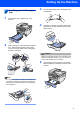
STEP 1 Setting Up the Machine 1 1 Installing the drum unit and toner cartridge assembly 4 Put the drum unit and toner cartridge assembly into the machine. Improper Setup DO NOT connect the interface cable. Connecting the interface cable is done when installing the driver. 1 Open the front cover. 5 2 3 4 Unpack the drum unit and toner cartridge assembly. Rock it from side to side several times to distribute the toner evenly inside the assembly. Close the front cover of the machine.
Setting Up the Machine 2 1 Loading paper in the paper tray 3 Fan the stack of paper well to avoid paper jams and misfeeds. Pull the paper tray completely out of the machine. 4 Put paper in the paper tray. Make sure that the paper is flat in the tray and below the maximum paper mark (1). 1 2 While pressing the green paper-guide release lever, slide the paper guides to fit the paper size you are using. Make sure that the guides are firmly in the slots.
STEP 1 3 1 Setting Up the Machine Install the power cord and phone line Make sure that the machine power switch is off. Connect the AC power cord to the machine. Warning • The machine must be grounded using a 3-prong plug. • Since the machine is grounded through the power outlet, you can protect yourself from potentially hazardous electrical conditions on the telephone network by keeping the power cord connected to your machine when you connect it to a telephone line.
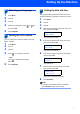
Setting Up the Machine 4 1 2 3 4 Selecting your language 6 The machine displays the date and time, and if you setup the station ID, it will add it to each fax you send. Press Menu. Press 0. Press 0. Select your language by using or and then press OK. 5 5 Setting the date and time 1 2 3 4 Press Stop/Exit. Press Menu. Press 0. Press 2. Enter the last two digits of the year on the dial pad, and then press OK. Date&Time Year:2008 Setting the LCD contrast (e.g. Enter 0, 8 for 2008.
STEP 1 Setting Up the Machine 7 7 Setting your station ID Press Stop/Exit. Note You should store your name and fax number to be printed on all fax pages that you send. 1 2 3 4 Press Menu. Press 0. Press 3. Enter your fax number (up to 20 digits) on the dial pad, and then press OK. Station ID Fax: 5 Enter your telephone number (up to 20 digits) on the dial pad, and then press OK.(If your telephone number and fax number are the same, enter the same number again.
Setting Up the Machine 8 Choosing the correct Receive Mode The correct Receive mode is determined by the external devices and telephone subscriber services (Voice Mail, Distinctive Ring, etc.) you have (or will be using) on the same line as the Brother machine.
STEP 1 9 Setting Up the Machine Tone and pulse dialing mode (Canada only) Your machine comes set for Tone dialing service. If you have Pulse dialing service (rotary), you need to change the dialing mode. 1 2 3 4 Press Menu. Press 0. Press 4. Press or to select Pulse (or Tone). 10 Dial Prefix The dial prefix setting will automatically dial a predefined number before every fax number you dial.
Setting Up the Machine 11 Sending in the product registration and test sheet (USA only) 1 2 Fill out the Product Registration and Test Sheet. Place the sheet face up in the Automatic Document Feeder. Note Make sure 3 4 (Fax) is illuminated in Green. Enter the toll-free fax number: 1-877-268-9575. Press Start. Note • You will receive a confirmation fax of your Product Registration.
Supplied CD-ROM ‘MFL-Pro Suite’ 1 1 Supplied CD-ROM ‘MFL-Pro Suite’ Windows® Install MFL-Pro Suite You can install the MFL-Pro Suite software and multifunction drivers. Install Other Drivers or Utilities You can install additional MFL-Pro Suite software utilities. Documentation View the Software User’s Guide and Network User’s Guide in HTML format. You can also view the manuals in PDF format by accessing the Brother Solutions Center.
STEP 2 Installing the Printer Driver Follow the instructions on this page for your operating system and interface. For the latest drivers, documentation, and to find the best solution for your problem, access the Brother Solution Center directly from the CD-ROM / Driver or visit http://solutions.brother.com/. Windows® For USB Interface Cable Users .................................................................................... 14 For Wired Network Interface Users ....................................
STEP 2 Installing the Driver & Software Windows® 1 Windows® USB 1 For USB Interface Cable Users (For Windows® 2000 Professional/XP/XP Professional x64 Edition/Windows Vista®) Important 4 The CD-ROM main menu will appear.Click Install MFL-Pro Suite. Make sure that you have finished the instructions from step 1 Setting Up the Machine on pages 4 through 11. Note • Please close any applications running before installing the MFL-Pro Suite. • The supplied CD-ROM includes ScanSoft™ PaperPort™ 11SE.
Installing the Driver & Software After reading and accepting the ScanSoft™ PaperPort™ 11SE License Agreement, click Yes. 8 When this screen appears, connect the USB interface cable to your PC, and then connect it to the machine. Windows® USB 6 Windows® The installation of ScanSoft™ PaperPort™ 11SE will automatically start and is followed by the installation of MFL-Pro Suite.
STEP 2 Installing the Driver & Software 10 When the On-Line Registration screen is Windows® USB displayed, make your selection and follow the on-screen instructions. Once you have completed the registration process, close your web browser to return to this window. Then click Next. 11 Click Finish to restart your computer. ( You must be logged on with Administrator rights.) Note After restarting the computer, the Installation Diagnostics will run automatically.
Installing the Driver & Software 2 Windows® For Wired Network Interface Users (For Windows® 2000 Professional/XP/XP Professional x64 Edition/Windows Vista®) Important 5 Windows® Wired Network Make sure that you have finished the instructions from step 1 Setting Up the Machine on pages 4 through 11. Put the supplied CD-ROM into your CD-ROM drive. If the model name screen appears, choose your machine. If the language screen appears, choose your language.
STEP 2 Windows® Wired Network 7 Installing the Driver & Software Choose Wired Network Connection (Ethernet), and then click Next. Windows® 10 For Windows® XP SP2/XP Professional x64 ® Edition/Windows Vista users, when this screen appears, choose Change the Firewall port settings to enable network connection and continue with the installation. (Recommended) and click Next.
Installing the Driver & Software Click OK. The Configure IP Address window will appear. Enter an IP address for your machine that is suitable for your network by following the onscreen instructions. Windows® 14 Click Finish to restart your computer. (You must be logged on with Administrator rights.) 12 The installation of the Brother drivers will Improper Setup DO NOT try to cancel any of the screens during this installation.
STEP 2 3 Installing the Driver & Software Windows® For Wireless Network Interface Users (For Windows® 2000 Professional/XP/XP Professional x64 Edition/Windows Vista®) in infrastructure mode Connecting your wireless machine and wireless network together and installing the printer driver in infrastructure mode Windows® Wireless Network First you must configure the wireless network settings of your machine to communicate with your network access point (router).
Installing the Driver & Software Windows® Confirm your network environment The setup process will be different depending on your network environment. If your wireless access point (A) does not support SecureEasySetup™, Wi-Fi Protected Setup™ or AOSS™, follow the instructions, on page 22. Windows® Wireless Network Infrastructure Mode Installation using SecureEasySetup™, Wi-Fi Protected Setup™ or AOSS™ .
STEP 2 Installing the Driver & Software Windows® Using the Setup Wizard from the control panel LAN menu for wireless network configuration (Infrastructure Mode) 1 Important Windows® Wireless Network Make sure that you have finished the instructions from step 1 Setting Up the Machine on pages 4 through 11.
Installing the Driver & Software 2 Plug the AC power cord into an AC outlet. Turn the power switch on. 6 Windows® Enter a new SSID and press OK. For information how to type text, see Entering text on page 46. SSID: 7 If you have previously configured the wireless settings of the machine you must reset the network (LAN) settings before you can configure the wireless settings again. Press Menu, 5, 2, 6 (or Menu, 5, 0, 1) and then press 1 to accept the change. 3 Press 1 to choose On.
STEP 2 9 Installing the Driver & Software 12 Your machine will now try to connect to your Choose the appropriate key number and press OK. wireless network using the information you have entered. If successful, Connected will appear briefly on the LCD. Set WEP KEY KEY1: Enter the WEP key you wrote down in step 1 using the dial pad. You can use the or to move the cursor. For example, to enter the letter a, press the 2 key on the dial pad once.
Installing the Driver & Software Windows® Using the SecureEasySetup™, Wi-Fi Protected Setup™ or AOSS™ software to configure your machine for a wireless network (one-push method) 1 1 Improper Setup If you have previously configured the wireless settings of the machine you must reset the network (LAN) settings before you can configure the wireless settings again. Press Menu, 5, 2, 6 (or Menu, 5, 0, 1) and then press 1 to accept the change.
STEP 2 5 Installing the Driver & Software The machine searches for an access point that supports SecureEasySetup™, Wi-Fi Protected Setup™ or AOSS™ for 2 minutes. 7 Windows® Wireless Network If the LCD shows Connected, the machine has successfully connected to your router or access point. You can now use your machine in a wireless network. Note LCD messages when using the SES/WPS/AOSS control panel menu Setting WLAN Searching or accessing the access point and downloading settings from the access point.
Installing the Driver & Software then click Next. Note If you want to install the PS driver (Brother’s BR-Script Driver), choose Custom Install and then follow the on-screen instructions. When the Select Features screen appears, check PS Printer Driver, and then continue following the on-screen instructions. 13 When the Brother MFL-Pro Suite Software License Agreement window appears, click Yes if you agree to the Software License Agreement.
STEP 2 Installing the Driver & Software Note Windows® Wireless Network • You can find your machine’s IP address and the node name by printing out the Network Configuration List. See Print the Network Configuration List on page 45 • If the machine is not yet configured for use on your network, the following screen appears. Click OK. The Configure IP Address window will appear. Enter an IP address for your machine that is suitable for your network by following the onscreen instructions.
Installing the Driver & Software 4 Macintosh® For USB Interface Cable Users For Mac OS® X 10.2.4 or greater Important 4 Put the supplied CD-ROM into your CD-ROM drive. Make sure that you have finished the instructions from step 1 Setting Up the Machine on pages 4 through 11. Note For Mac OS® X 10.2.0 to 10.2.3 users, upgrade to Mac OS® X 10.2.4 or greater. (For the latest information for Mac OS® X, visit http://solutions.brother.com/) Plug the AC power cord into an AC outlet.
STEP 2 7 8 Installing the Driver & Software The Brother software will search for the Brother device. During this time the following screen will appear. 12 Click Print Center, then Quit Print Center. When this screen appears, click OK. For Mac OS® X 10.3.x or greater users: The MFL-Pro Suite, Brother printer driver, scanner driver and Brother ControlCenter2 have been installed and the installation is now complete. Go to step 13. For Mac OS® X 10.2.4 to 10.2.8 users: Click Add.
Installing the Driver & Software 5 Macintosh® For Wired Network Interface Users For Mac OS® X 10.2.4 or greater Important 5 Double-click the Start Here OSX icon to install. Follow the on-screen instructions. Make sure that you have finished the instructions from step 1 Setting Up the Machine on pages 4 through 11. 1 Plug the AC power cord into an AC outlet. Turn the power switch on. Note 3 4 Connect the network interface cable to the machine, and then connect it to your network.
STEP 2 7 Installing the Driver & Software The Brother software will search for the Brother device. During this time the following screen will appear. 8 Macintosh® Wired Network When this screen appears, click OK. For Mac OS® X 10.3.x or greater users: The MFL-Pro Suite, Brother printer driver, scanner driver and Brother ControlCenter2 have been installed and the installation is now complete. Go to step 13.
Installing the Driver & Software Macintosh® 12 Click Print Center, then Quit Print Center. The MFL-Pro Suite, Brother printer driver, scanner driver and Brother ControlCenter2 have been installed and the installation is now complete. 13 To install Presto!®PageManager®, double-click Note When Presto!®PageManager® is installed OCR capability is added to the Brother ControlCenter2. You can also easily scan, share and organize photos and documents using Presto!® PageManager®.
STEP 2 6 Installing the Driver & Software Macintosh® For Wireless Network Interface Users (For Mac OS® X 10.2.4 or greater) in infrastructure mode Connecting your wireless machine and wireless network together and installing the printer driver in infrastructure mode First you must configure the wireless network settings of your machine to communicate with your network access point (router).
Installing the Driver & Software Macintosh® Confirm your network environment The setup process will be different depending on your network environment. Infrastructure Mode If your wireless access point (A) does not support SecureEasySetup™, Wi-Fi Protected Setup™ or AOSS™ , follow the instructions, on page 36. If your wireless access point (A) supports SecureEasySetup™, Wi-Fi Protected Setup™ or AOSS™ , you do not need to use a computer to configure the machine.
STEP 2 Installing the Driver & Software Macintosh® Using the Setup Wizard from the control panel LAN menu for wireless network configuration (Infrastructure Mode) Important Make sure that you have finished the instructions from step 1 Setting Up the Machine on pages 4 through 11. These instructions will install your Brother machine in a typical small office or home wireless network environment in infrastructure mode, using a wireless router or access point that uses DHCP to assign IP addresses.
Installing the Driver & Software 2 Plug the AC power cord into an AC outlet. Turn the power switch on. 6 Macintosh® Enter a new SSID and press OK. For information how to type text, see Entering text on page 46. SSID: 7 Improper Setup On your machine, press Menu, 5, 2, 2. WLAN Enable? 1.On 2.Off Press 1 to choose On. The wired network interface will become inactive with this setting. The machine will search for your network and display a list of available SSIDs.
STEP 2 9 Installing the Driver & Software 12 Your machine will now try to connect to your Choose the appropriate key number and press OK. wireless network using the information you have entered. If successful, Connected will appear briefly on the LCD. Set WEP KEY KEY1: Enter the WEP key you wrote down in step 1 using the dial pad. You can use the or to move the cursor. For example, to enter the letter a, press the 2 key on the dial pad once.
Installing the Driver & Software Macintosh® Using the SecureEasySetup™, Wi-Fi Protected Setup™ or AOSS™ software to configure your machine for a wireless network (one-push method) 1 1 Improper Setup If you have previously configured the wireless settings of the machine you must reset the network (LAN) settings before you can configure the wireless settings again. Press Menu, 5, 2, 6 (or Menu, 5, 0, 1) and then press 1 to accept the change.
STEP 2 5 Installing the Driver & Software The machine searches for an access point that supports SecureEasySetup™, Wi-Fi Protected Setup™ or AOSS™ for 2 minutes. 7 8 Macintosh® Turn on your Macintosh®. Put the supplied CD-ROM into your CD-ROM drive. Setting WLAN 6 If the LCD shows Connected, the machine has successfully connected to your router or access point. You can now use your machine in a wireless network.
Installing the Driver & Software 12 The Brother software will search for the Brother device. During this time the following screen will appear. Note • If the machine is configured for your network, choose the machine from the list, and then click OK. This window will not appear if there is only one machine connected on the network, it will be chosen automatically. Go to step 13. • If this screen appears click OK. Macintosh® 13 When this screen appears, click OK. For Mac OS® X 10.3.
STEP 2 Installing the Driver & Software 17 Click Print Center, then Quit Print Center. The MFL-Pro Suite, Brother printer driver, scanner driver and Brother ControlCenter2 have been installed and the installation is now complete. 18 To install Presto!®PageManager®, double-click the Presto! PageManager icon and follow the on-screen instructions. Macintosh® Wireless Network Note 42 When Presto!®PageManager® is installed OCR capability is added to the Brother ControlCenter2.
For Network Users 1 1 BRAdmin Light utility (For Windows® users) BRAdmin Light is a utility for initial setup of Brother network connected devices. It also can search for Brother products on your network, view the status and configure basic network settings, such as IP address. For more information on BRAdmin Light, visit us at http://solutions.brother.com/.
For Network Users 2 BRAdmin Light utility (For Mac OS® X users) BRAdmin Light is a utility for initial setup of Brother network connected devices. It also can search for Brother products on your network, view the status and configure basic network settings, such as IP address from a computer running Mac OS® X 10.2.4 or greater. The BRAdmin Light software will be installed automatically when you install the printer driver.
For Network Users 3 Web Based Management (web browser) The Brother print server is equipped with a web server that allows you to monitor its status or change some of its configuration settings, using HTTP (Hyper Text Transfer Protocol). Note • The User Name is ‘admin’ and the default password is ‘access’. You can use a web browser to change this password. • We recommend Microsoft Internet Explorer 6.0® (or higher) or Firefox® 1.0 (or higher) for Windows® and Safari™ 1.0 for Macintosh®.
For Network Users Entering text 6 When setting certain menu selections, such as the Station ID, you will need to type text characters. The dial pad keys have letters printed on them. The keys: 0, # and l do not have printed letters because they are used for special characters.
Consumables and Options 1 1 Consumables When the time comes to replace consumable items, an error message will be indicated on the LCD. For more information about the consumables for your machine, visit us at http://solutions.brother.com/ or contact your local Brother reseller.
Consumables and Options 48
Trademarks The Brother logo is a registered trademark of Brother Industries, Ltd. Brother is a registered trademark of Brother Industries, Ltd. Multi-Function Link is a registered trademark of Brother International Corporation. Windows Vista is either a registered trademark or a trademark of Microsoft Corporation in the United States and other countries. Microsoft, Windows and Windows Server are registered trademarks of Microsoft Corporation in the United States and/or other countries.