
User Manual

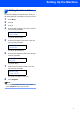
Table Of Contents
- Quick Setup Guide MFC-7840W
- Symbols used in this guide
- Table of Contents
- Getting Started
- STEP 1 Setting Up the Machine
- STEP 2 Installing the Driver & Software
- Supplied CD-ROM ‘MFL-Pro Suite’
- Windows®
- For USB Interface Cable Users (For Windows® 2000 Professional/XP/XP Professional x64 Edition/Windows Vista®)
- For Wired Network Interface Users (For Windows® 2000 Professional/XP/XP Professional x64 Edition/Windows Vista®)
- For Wireless Network Interface Users (For Windows® 2000 Professional/XP/XP Professional x64 Edition/Windows Vista®) in infrastructure mode
- Connecting your wireless machine and wireless network together and installing the printer driver in infrastructure mode
- Using the Setup Wizard from the control panel LAN menu for wireless network configuration
- Using the SecureEasySetup™, Wi-Fi Protected Setup™ or AOSS™ software to configure your machine for a wireless network (one-push method)
- Macintosh®
- For USB Interface Cable Users
- For Wired Network Interface Users
- For Wireless Network Interface Users (For Mac OS® X 10.2.4 or greater) in infrastructure mode
- Connecting your wireless machine and wireless network together and installing the printer driver in infrastructure mode
- Using the Setup Wizard from the control panel LAN menu for wireless network configuration (Infrastructure Mode)
- Using the SecureEasySetup™, Wi-Fi Protected Setup™ or AOSS™ software to configure your machine for a wireless network (one push-mode)
- For Network Users
- Consumables and Options
- brother UK/IRE/SAF

Setting Up the Machine
7
4 Setting the date and time
The machine displays the date and time, and if you
set up the station ID, it will add it to each fax you send.
1 Press Menu.
2 Press 0.
3 Press 2.
4 Enter the last two digits of the year on the dial
pad, and then press OK.
Date&Time
Year:2008
(e.g. Enter 0, 8 for 2008.)
5 Enter the two digits for the month on the dial
pad, and then press OK.
Date&Time
Month:03
(e.g. Enter 0, 3 for March.)
6 Enter the two digits for the day on the dial pad,
and then press OK.
Date&Time
Day:25
(e.g. Enter 2, 5.)
7 Enter the time in 24-hour format on the dial
pad, and then press OK.
Date&Time
Time:15:25
(e.g. Enter 1, 5, 2, 5 for 3:25 P.M.)
8 Press Stop/Exit.
Note
If you make a mistake and want to start again,
press Stop/Exit and go back to step 1.