
User Manual
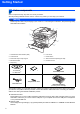

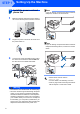
Table Of Contents
- Quick Setup Guide MFC-7840W
- Symbols used in this guide
- Table of Contents
- Getting Started
- STEP 1 Setting Up the Machine
- STEP 2 Installing the Driver & Software
- Supplied CD-ROM ‘MFL-Pro Suite’
- Windows®
- For USB Interface Cable Users (For Windows® 2000 Professional/XP/XP Professional x64 Edition/Windows Vista®)
- For Wired Network Interface Users (For Windows® 2000 Professional/XP/XP Professional x64 Edition/Windows Vista®)
- For Wireless Network Interface Users (For Windows® 2000 Professional/XP/XP Professional x64 Edition/Windows Vista®) in infrastructure mode
- Connecting your wireless machine and wireless network together and installing the printer driver in infrastructure mode
- Using the Setup Wizard from the control panel LAN menu for wireless network configuration
- Using the SecureEasySetup™, Wi-Fi Protected Setup™ or AOSS™ software to configure your machine for a wireless network (one-push method)
- Macintosh®
- For USB Interface Cable Users
- For Wired Network Interface Users
- For Wireless Network Interface Users (For Mac OS® X 10.2.4 or greater) in infrastructure mode
- Connecting your wireless machine and wireless network together and installing the printer driver in infrastructure mode
- Using the Setup Wizard from the control panel LAN menu for wireless network configuration (Infrastructure Mode)
- Using the SecureEasySetup™, Wi-Fi Protected Setup™ or AOSS™ software to configure your machine for a wireless network (one push-mode)
- For Network Users
- Consumables and Options
- brother UK/IRE/SAF

Setting Up the Machine
6
STEP 1
3 Install the power cord and
phone line
1 Make sure that the machine’s power switch is
off. Connect the AC power cord to the machine.
2 Plug the AC power cord into an AC outlet. Turn
the power switch on.
3 Connect one end of the telephone line cord to
the socket on the machine marked LINE and
the other end to a modular wall socket.
Warning
• The machine must be fitted with an earthed plug.
• Since the machine is grounded through the power
outlet, you can protect yourself from potentially
hazardous electrical conditions on the telephone
network by keeping the power cord connected to
your machine when you connect it to a telephone
line. Similarly, you can protect yourself when you
want to move your machine by disconnecting the
telephone line first and then the power cord.
Note
If you are sharing one phone line with an external
telephone, connect it as shown below.
Note
If you are sharing one phone line with an external
telephone answering device, connect it as shown
below.
Please set the receive mode to
External TAD.
For more details, see Selecting a receive
mode on page 9 and Connecting an external
TAD in Chapter 7 of the User’s Guide.