
User Manual


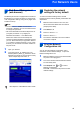
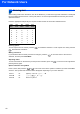
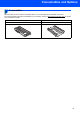

Table Of Contents
- Quick Setup Guide MFC-7840W
- Symbols used in this guide
- Table of Contents
- Getting Started
- STEP 1 Setting Up the Machine
- STEP 2 Installing the Driver & Software
- Supplied CD-ROM ‘MFL-Pro Suite’
- Windows®
- For USB Interface Cable Users (For Windows® 2000 Professional/XP/XP Professional x64 Edition/Windows Vista®)
- For Wired Network Interface Users (For Windows® 2000 Professional/XP/XP Professional x64 Edition/Windows Vista®)
- For Wireless Network Interface Users (For Windows® 2000 Professional/XP/XP Professional x64 Edition/Windows Vista®) in infrastructure mode
- Connecting your wireless machine and wireless network together and installing the printer driver in infrastructure mode
- Using the Setup Wizard from the control panel LAN menu for wireless network configuration
- Using the SecureEasySetup™, Wi-Fi Protected Setup™ or AOSS™ software to configure your machine for a wireless network (one-push method)
- Macintosh®
- For USB Interface Cable Users
- For Wired Network Interface Users
- For Wireless Network Interface Users (For Mac OS® X 10.2.4 or greater) in infrastructure mode
- Connecting your wireless machine and wireless network together and installing the printer driver in infrastructure mode
- Using the Setup Wizard from the control panel LAN menu for wireless network configuration (Infrastructure Mode)
- Using the SecureEasySetup™, Wi-Fi Protected Setup™ or AOSS™ software to configure your machine for a wireless network (one push-mode)
- For Network Users
- Consumables and Options
- brother UK/IRE/SAF

For Network Users
46
6
Entering text
When setting certain menu selections, such as the Station ID, you will need to type text characters. The dial pad
keys have letters printed on them. The keys: 0, # and l do not have printed letters because they are used for
special characters.
Press the appropriate dial pad key the required number of times to access the characters below:
Inserting spaces
To enter a space in a fax number, press the once between numbers. To enter a space in a name, press the
twice between characters.
Making corrections
If you entered a letter incorrectly and want to change it, press the to move the cursor to the incorrect
character, and then press Clear/Back.
Repeating letters
To enter a character on the same key as the previous character, press the to move the cursor right before
pressing the key again.
Special characters and symbols
Press l, # or 0, then press the or to move the cursor to the symbol or character you want. Press OK to
choose it. The symbols and characters below will appear depending on your menu selection.
Press
Key
one
time
two
times
three
times
four
times
2 ABC2
3 DEF3
4 GH I 4
5 JKL5
6 MNO6
7 PQRS
8 TUV8
9 WXY Z
Press l for (space) ! " # $ % & ' ( ) l + , - . / m
Press # for : ; < = > ? @ [ ] ^ _ ¥ ~ ‘ | { }
Press 0 for É À È Ê Î Ç Ë Ö 0