
User Manual


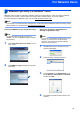
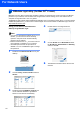
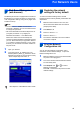
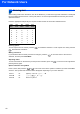

Table Of Contents
- Quick Setup Guide MFC-7840W
- Symbols used in this guide
- Table of Contents
- Getting Started
- STEP 1 Setting Up the Machine
- STEP 2 Installing the Driver & Software
- Supplied CD-ROM ‘MFL-Pro Suite’
- Windows®
- For USB Interface Cable Users (For Windows® 2000 Professional/XP/XP Professional x64 Edition/Windows Vista®)
- For Wired Network Interface Users (For Windows® 2000 Professional/XP/XP Professional x64 Edition/Windows Vista®)
- For Wireless Network Interface Users (For Windows® 2000 Professional/XP/XP Professional x64 Edition/Windows Vista®) in infrastructure mode
- Connecting your wireless machine and wireless network together and installing the printer driver in infrastructure mode
- Using the Setup Wizard from the control panel LAN menu for wireless network configuration
- Using the SecureEasySetup™, Wi-Fi Protected Setup™ or AOSS™ software to configure your machine for a wireless network (one-push method)
- Macintosh®
- For USB Interface Cable Users
- For Wired Network Interface Users
- For Wireless Network Interface Users (For Mac OS® X 10.2.4 or greater) in infrastructure mode
- Connecting your wireless machine and wireless network together and installing the printer driver in infrastructure mode
- Using the Setup Wizard from the control panel LAN menu for wireless network configuration (Infrastructure Mode)
- Using the SecureEasySetup™, Wi-Fi Protected Setup™ or AOSS™ software to configure your machine for a wireless network (one push-mode)
- For Network Users
- Consumables and Options
- brother UK/IRE/SAF

For Network Users
45
3
Web Based Management
(web browser)
The Brother print server is equipped with a web server
that allows you to monitor its status or change some
of its configuration settings, using HTTP (Hyper Text
Transfer Protocol).
Note
• The User Name is ‘admin’ and the default
password is ‘access’. You can use a web browser
to change this password.
• We recommend Microsoft Internet Explorer 6.0
®
(or higher) or Firefox
®
1.0 (or higher) for
Windows
®
and Safari™ 1.0 for Macintosh
®
.
Please also make sure that JavaScript and
Cookies are always enabled in whichever browser
you use. We recommend you upgrade to Safari™
1.2 or higher to enable JavaScript. To use a web
browser, you will need to know the IP address of
the print server.
1 Open your browser.
2 Type http:// printer_ip_address /into your
browser (Where “printer_ip_address” is the IP
address of the printer or the print server name).
For example http://192.168.1.2/
See Chapter 2 of the Network User's Guide.
4
Restoring the network
settings to factory default
To restore all network settings of the internal
Print/Scan server to factory default, please follow the
steps below.
1 Make sure the machine is not in use, then
disconnect all the cables from the machine
(except power cable).
2 Press Menu, 5, 0.
3 Press 1 to select Reset.
4 Press 1 to select Yes.
5 The machine will restart. Re-connect cables
once this is complete.
5
Print the Network
Configuration List
You can print the Network Configuration List to
confirm the current network settings. To print the
Network Configuration List:
1 Make sure that the front cover is closed and the
AC power cord is plugged in.
2 Turn on the machine and wait until the machine
is in the Ready state.
3 Press Reports and or to select
Network Configuration.
Press OK. The machine will print the current
network settings.