
User Manual


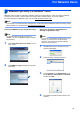
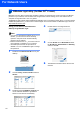
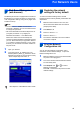

Table Of Contents
- Quick Setup Guide MFC-7840W
- Symbols used in this guide
- Table of Contents
- Getting Started
- STEP 1 Setting Up the Machine
- STEP 2 Installing the Driver & Software
- Supplied CD-ROM ‘MFL-Pro Suite’
- Windows®
- For USB Interface Cable Users (For Windows® 2000 Professional/XP/XP Professional x64 Edition/Windows Vista®)
- For Wired Network Interface Users (For Windows® 2000 Professional/XP/XP Professional x64 Edition/Windows Vista®)
- For Wireless Network Interface Users (For Windows® 2000 Professional/XP/XP Professional x64 Edition/Windows Vista®) in infrastructure mode
- Connecting your wireless machine and wireless network together and installing the printer driver in infrastructure mode
- Using the Setup Wizard from the control panel LAN menu for wireless network configuration
- Using the SecureEasySetup™, Wi-Fi Protected Setup™ or AOSS™ software to configure your machine for a wireless network (one-push method)
- Macintosh®
- For USB Interface Cable Users
- For Wired Network Interface Users
- For Wireless Network Interface Users (For Mac OS® X 10.2.4 or greater) in infrastructure mode
- Connecting your wireless machine and wireless network together and installing the printer driver in infrastructure mode
- Using the Setup Wizard from the control panel LAN menu for wireless network configuration (Infrastructure Mode)
- Using the SecureEasySetup™, Wi-Fi Protected Setup™ or AOSS™ software to configure your machine for a wireless network (one push-mode)
- For Network Users
- Consumables and Options
- brother UK/IRE/SAF

For Network Users
44
2
BRAdmin Light utility (For Mac OS
®
X users)
BRAdmin Light is a utility for initial setup of Brother network connected devices. It also can search for Brother
products on your network, view the status and configure basic network settings, such as IP address from a
computer running Mac OS
®
X 10.2.4 or greater.
The BRAdmin Light software will be installed automatically when you install the printer driver. If you have already
installed the printer driver, you don’t have to install it again. For more information on BRAdmin Light, visit us at
http://solutions.brother.com/
.
Setting your IP address, Subnet Mask and
Gateway using BRAdmin Light
Note
• If you have a DHCP/BOOTP/RARP server in your
network, you don’t have to do the following
operation. The print server will automatically
obtain its own IP address.
• Make sure that version 1.4.1_07 or later of Java™
client software is installed on your computer.
• The default password for the print server is
‘access’. You can use BRAdmin Light to change
this password.
1 Double-click the Macintosh HD icon on your
desktop.
2 Choose Library, Printers, Brother and then
Utilities.
3 Double-click the file BRAdmin Light.jar and
run the software. BRAdmin Light will then
search for new devices automatically.
4 Double-click the unconfigured device.
5 Choose STATIC for the Boot Method. Enter
the IP Address, Subnet Mask and Gateway,
and then click OK.
6 The address information will be saved to the
machine.